
How to Use the Header Cart Widget
Header Cart Widget
The Header Cart widget adds a shopping cart icon to your website header, giving visitors instant access to their cart from anywhere on the site. When clicked, the cart opens as a sidebar popout from the side of the screen, allowing users to review their items, see quantities, and continue shopping or proceed further in the purchase flow.
This widget is designed specifically for websites that use the built-in Store, where visitors can add products to a cart before checkout.
What the Header Cart Widget Is Used For
Use the Header Cart widget when you want to:
- Give users constant visibility of their shopping cart
- Allow quick access to cart contents without leaving the current page
- Reduce friction in the buying process
- Create a familiar e-commerce experience similar to modern online stores
Common use cases include:
- Online shops and product catalogs
- Membership or course platforms selling digital products
- Websites selling both physical and digital items
- Stores where users may browse multiple pages before checkout
How the Header Cart Widget Works
- The widget displays a cart icon in the header.
- When a visitor adds products to the cart, the icon updates to reflect cart activity (such as item count).
-
Clicking the cart icon opens the cart in a slide-out sidebar (cart popout) on the side of the screen.
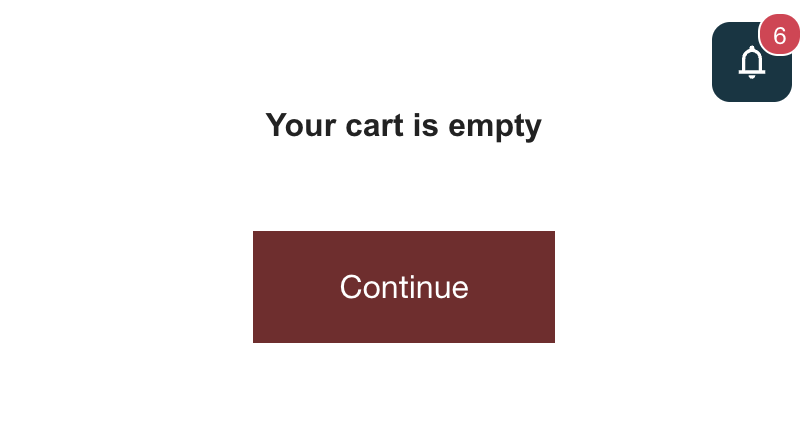
- The cart popout shows:
- Cart status (e.g. Your cart is empty)
- Added products
- Quantities
- A clear call to continue shopping or proceed
This allows users to stay on the current page while managing their cart.
Adding the Header Cart Widget
To add the cart to your header:
- Open the header editor.
- Add the Cart widget to one of the header columns.
- Position it where users expect it—commonly in the top-right corner.
📌 Important
- Only one Cart widget can be added per header.
- The widget is global and appears on all pages where the header is visible.
Cart Widget Settings
The Header Cart widget has a simple and focused setup designed to stay consistent, recognizable, and easy to use for visitors.

Display Style
You can choose how the cart link appears in the header navigation:
-
Icon Only
Displays only the cart icon.
Best for clean, minimal headers and limited space.
-
Text Only
Displays a text-based cart link (for example “Cart”).
Useful if you want maximum clarity or a more traditional navigation style.
-
Icon and Text
Displays both the cart icon and text together.
A good balance between clarity and visual recognition.
📌 Note
The icon and text themselves cannot be customized beyond size and color. This ensures a consistent and familiar cart experience for users.
Visual Controls
You can adjust the following visual settings:
-
Icon size
Controls how large the cart icon appears in the header.
-
Color
Sets the default color of the cart icon (and text, if enabled).
-
Active color
Defines the color used when the cart is active or interacted with.
These controls make it easy to visually align the cart with your header design while keeping the interaction familiar and intuitive.
Cart Sidebar (Popout) Behavior
When clicked, the cart opens as a sidebar overlay on the page:
- Appears from the side of the screen
- Keeps users on the current page
- Updates dynamically as products are added or removed
- Clearly communicates cart status (empty vs populated)
This approach:
- Feels modern and non-disruptive
- Reduces unnecessary page loads
- Encourages users to continue browsing
Design & UX Tips
- Place the cart icon where users expect it (top-right is the most common)
- Ensure strong contrast so the icon is visible on all backgrounds
- Keep the icon size balanced—easy to click, but not overpowering
- Always include the cart when selling products; hiding it increases friction
- Test the cart popout on mobile to ensure comfortable interaction
When Not to Use the Header Cart Widget
You may not need the Header Cart widget if:
- You are not using the Store at all
- The site does not sell products
- The page is a one-off landing page without purchasing options
In those cases, the cart would only add visual noise.
Summary
The Header Cart widget allows you to:
- Add a persistent shopping cart icon to your header
- Let users view their cart through a sidebar popout
- Improve usability and reduce checkout friction
- Provide a familiar, modern e-commerce experience
When used on stores and product-driven websites, the Header Cart widget becomes a key part of the purchasing journey—keeping cart access clear, fast, and intuitive for your visitors.