
How to Create & Manage Operators
This article explains how to create and manage operators in the booking system.
Operators represent the people who host meetings, such as coaches, consultants, or team members.
Operators are a required part of bookings — without at least one operator, no booking can be scheduled.
Where to Find Operators
Navigate to:
Booking → Operators

Here you can:
- View all existing operators
- See upcoming events per operator
- Create new operators
- Access operator schedules and settings
Click ➕ Create New Operator to get started.
What Is an Operator?
An operator is the person who hosts the session.
Common examples:
- Coach
- Consultant
- Support agent
- Team member
- Founder
Each operator has their own availability, calendar connection, and profile information.
Creating an Operator
When creating or editing an operator, you can configure the following fields:
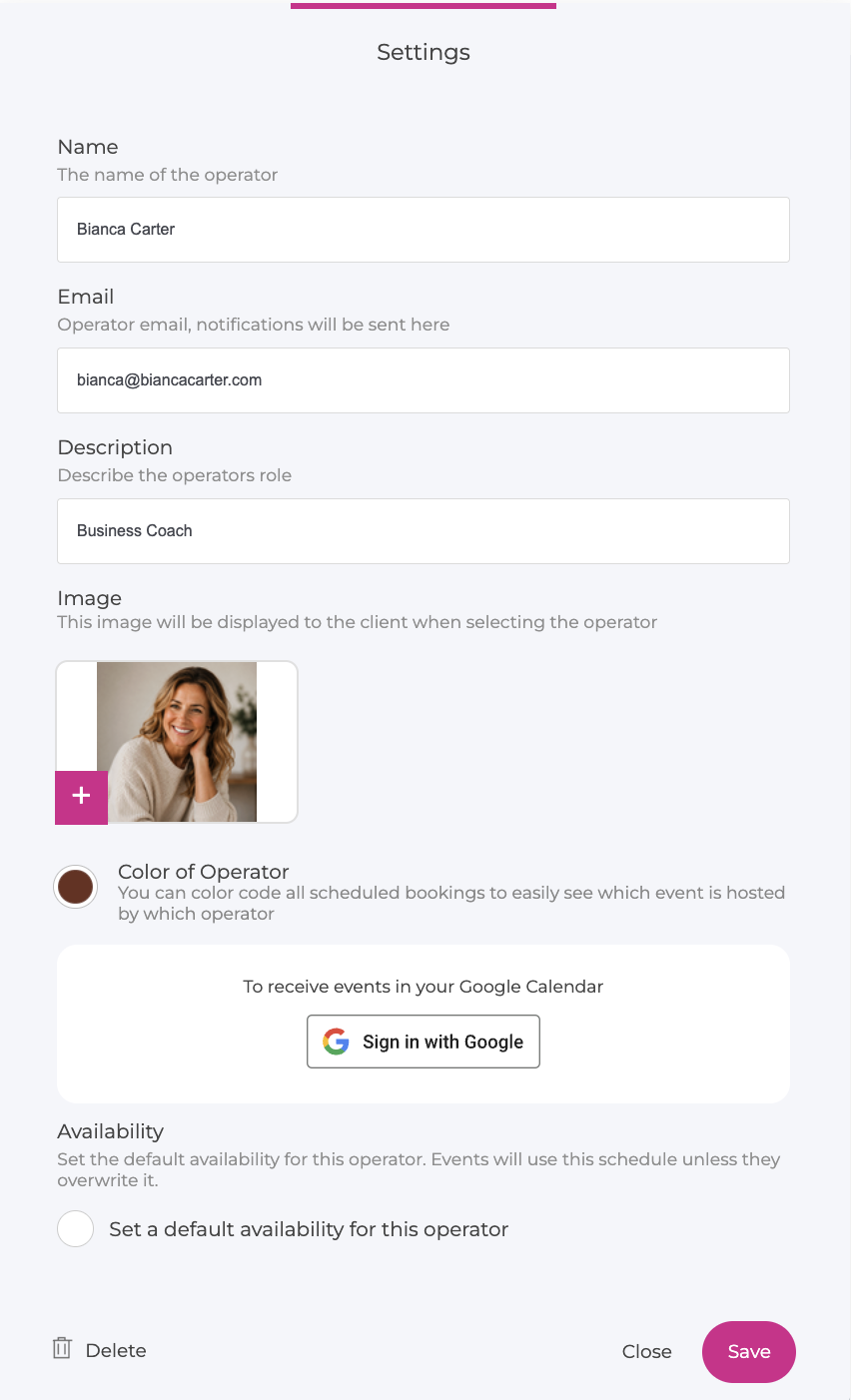
Name
The operator’s name is shown to customers during the booking flow and in confirmation messages.
💡 Best practice
Use the name your customers recognize (first name, or first name + role).
The email address is used for:
- Booking notifications
- Calendar invitations
- Reminder and update emails
- Calendar integrations
Important:
Always use an email address the operator actively uses.
Description
The description helps customers understand who they are booking with.
This is especially important when:
- You have multiple operators
- Customers can choose between operators
What to include:
- Role or expertise
- Who the session is best suited for
- A short, friendly introduction
Image
The operator image is shown during the booking flow.
Adding an image:
- Builds trust
- Creates a more human experience
- Helps customers feel confident in their choice
💡 Tip
Use a clear, professional photo with good lighting and a neutral background.
Color
The color is used internally to visually distinguish bookings in calendars and schedules.
This is useful when:
- Multiple operators share a calendar view
- You want quick visual clarity when scanning bookings
Google Calendar Connection
Connecting an operator’s Google Calendar allows the system to:
- Automatically block unavailable times
- Prevent double bookings
- Add booked sessions directly to the operator’s calendar
💡 Best practice
Always connect calendars for operators who actively host meetings.
Without a connected calendar, the system cannot detect existing events, which increases the risk of scheduling conflicts.
Default Operator Availability
Each operator can have their own default availability.
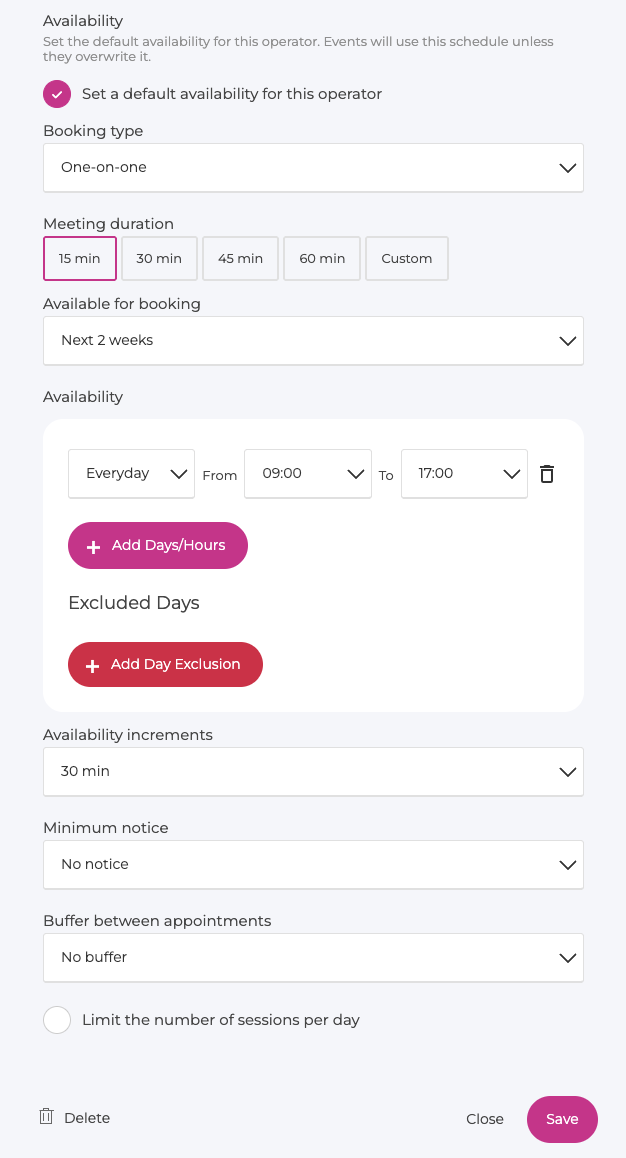
This is the operator's normal working schedule and can automatically be used across all booking events they are connected to.
Enable Set a default availability for this operator to configure it.
You can then set:
- Booking type
- Default meeting duration
- How far ahead the operator can be booked
- Available days and hours
- Excluded dates
- Availability increments
- Minimum booking notice
- Buffer between appointments
- Maximum number of sessions per day
This saves time when the same operator appears in several different booking events.
Instead of recreating their normal schedule each time, the booking can inherit the operator's availability automatically.
Override Availability for Individual Bookings
A booking event can still have its own schedule.
Inside the booking's Availability step, enable Overwrite the operator's availability for this event if that specific booking should use different hours or booking rules.
💡 Best practice
Use the operator's default availability for their normal working hours and only create booking-specific overrides when there is a clear reason.
How Operators Work with Bookings
- One operator can be linked to multiple booking events
- One booking event can include multiple operators
- Each operator can have their own reusable default availability
- A booking event can override that availability when necessary
- Different services can be linked to different operators
- Operators can be assigned automatically when several suitable operators are available
With automatic assignment enabled, the system can select an available operator for the customer instead of asking them to choose manually.
This is useful for teams where several people provide the same service.
Summary – Operators
Operators define who hosts the meeting.
A well-configured operator setup ensures:
- Accurate availability
- No double bookings
- A professional, trustworthy booking experience