
How to Manage All Your Bookings in the Schedule
The Schedule view is the central control panel for all booked sessions in your platform.
This is where you monitor, filter, review, and manage scheduled bookings across operators, services, and booking events.
⚠️ Important:
Even if you have connected an external calendar via Google Calendar, all booking management and cancellations should always be handled from the Schedule view, not directly in your external calendar.
This ensures correct syncing, notifications, and availability updates.
How to Access the Schedule
Navigate to:
Bookings → Schedule
Schedule gives you two ways to view your bookings:
- Calendar – visual calendar view
- List – chronological list of bookings
Use whichever view works best for what you're doing.
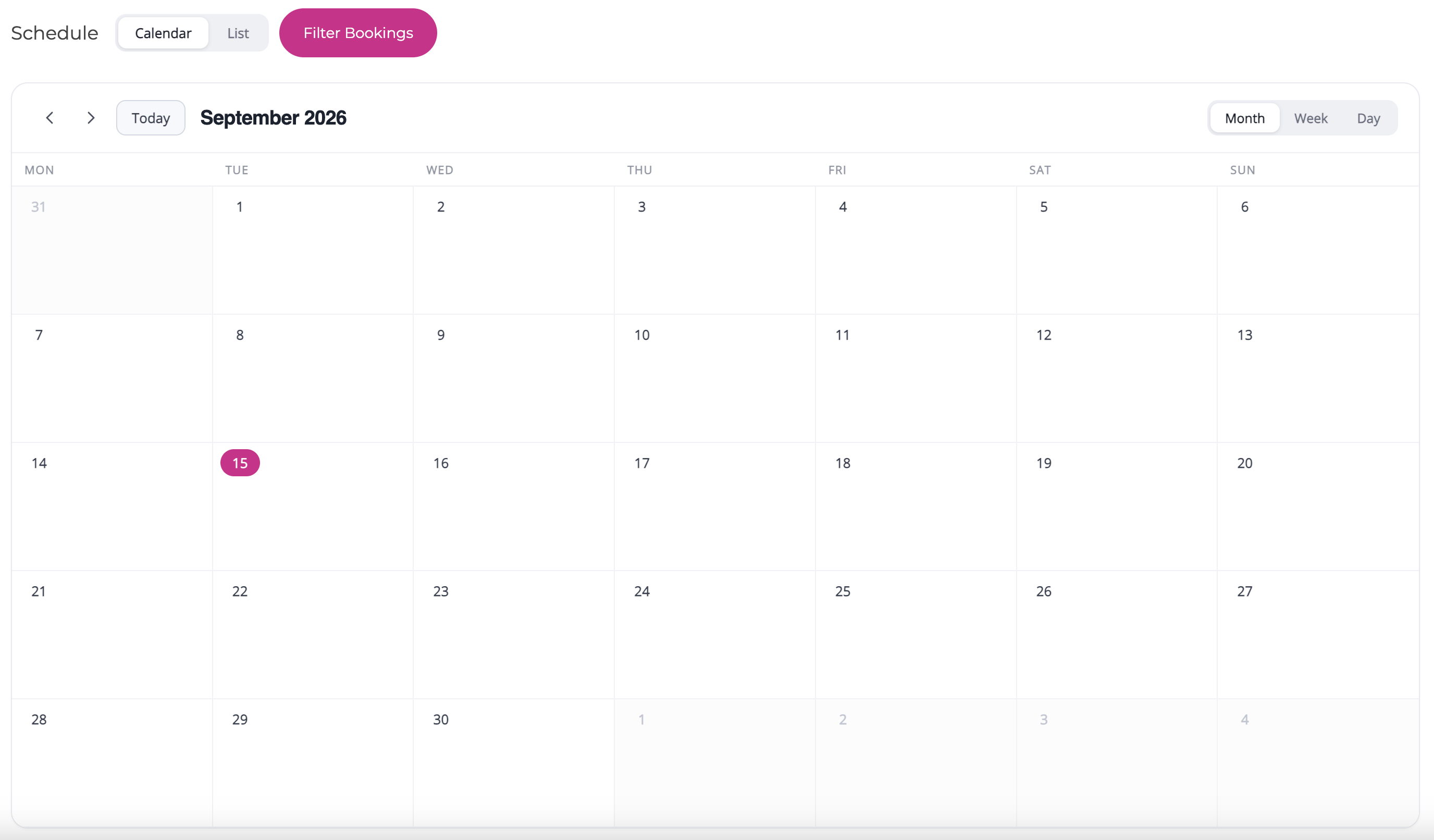
Calendar and List Views
The Schedule now includes a full calendar view, making it easier to understand your bookings visually.
In Calendar view, you can switch between:
- Month
- Week
- Day
Use Month view for overall capacity and planning, Week view for your working schedule, and Day view when you need a detailed view of a specific day.
You can also switch back to List whenever you prefer a chronological overview.
Choosing the Right View
Calendar view is especially useful for:
- Seeing busy and quiet periods
- Planning operator capacity
- Spotting scheduling gaps
- Reviewing a day or week visually
List view is useful for:
- Reviewing bookings one by one
- Working through upcoming appointments
- Quickly scanning detailed booking information
Both views use the same underlying booking data.
Viewing Booking Details
Click Show Details on a booking to expand it.
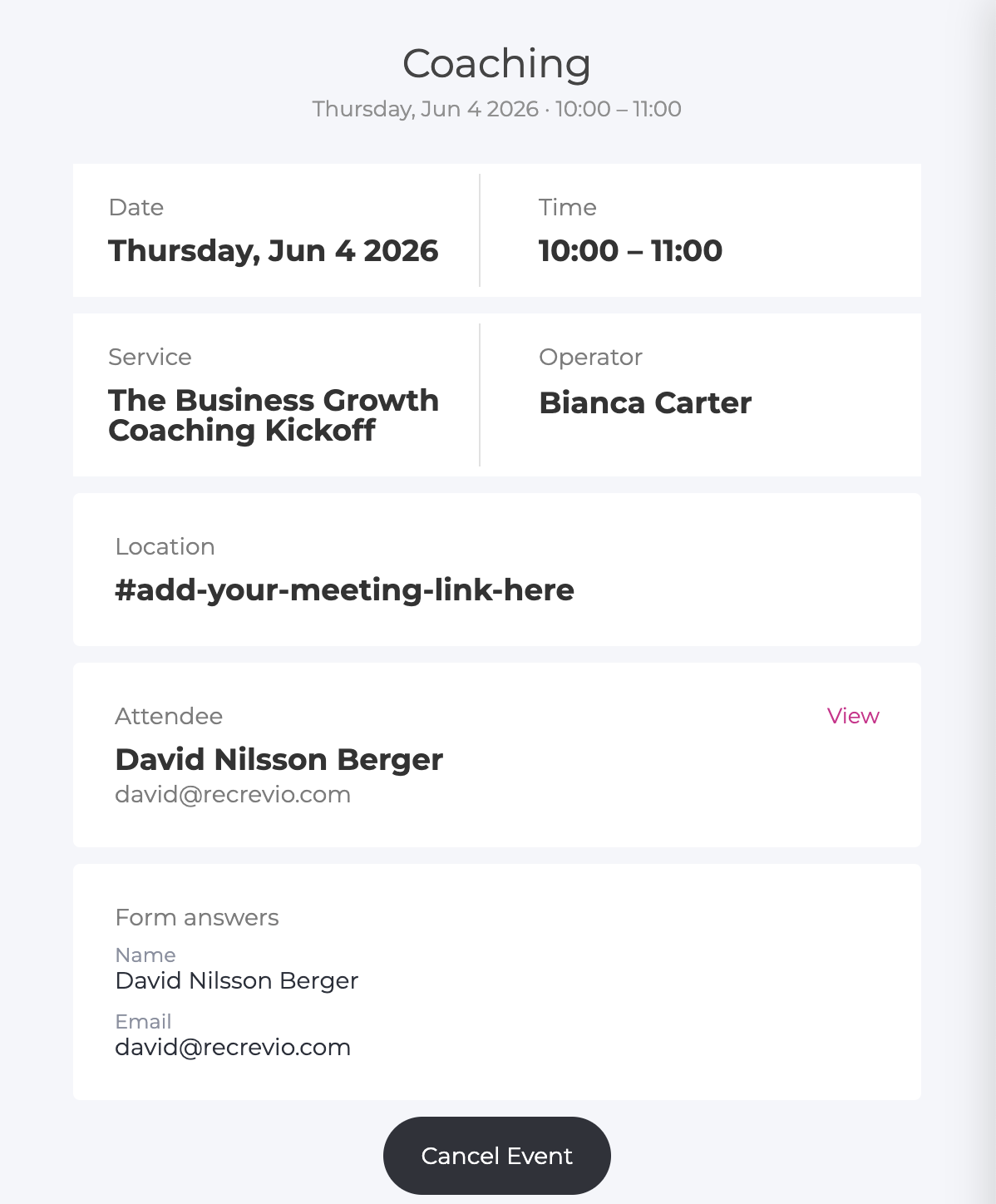
You will see:
- Location
- Meeting link (Zoom, Google Meet, etc.) or physical location
- Service / Services
- Shows the service or services included in the reservation.
- Operator
- The assigned host
- Customer details
- Name
- Actions
- Cancel event
This expanded view gives you everything you need to manage the booking without switching tools.
Filtering Bookings
Click Filter Bookings to narrow down the schedule view.
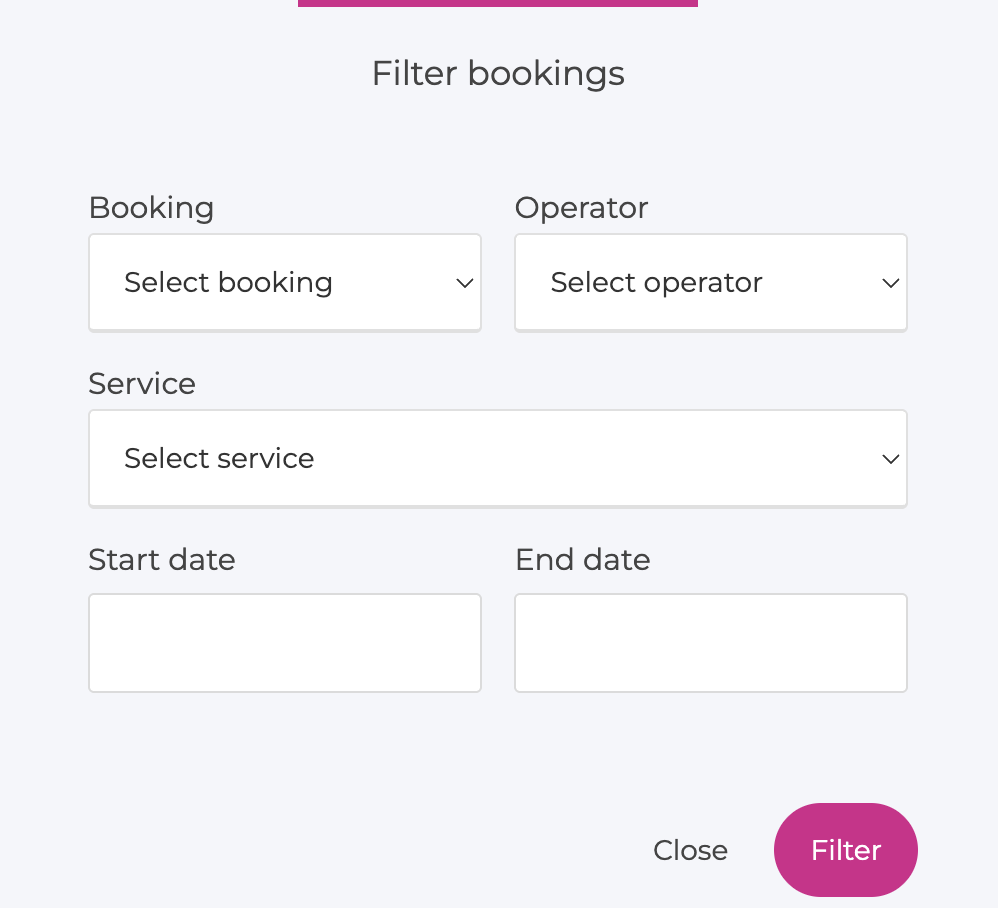
You can filter by:
- Booking
- Show bookings from a specific booking event
- Operator
- View bookings for one specific operator
- Service
- Useful when multiple services exist in the same booking
- Date range
- Start date
- End date
Common Use Cases for Filters
- Reviewing bookings for a single coach
- Preparing for upcoming sessions this week
- Checking all bookings for a specific service
- Auditing bookings over a specific time period
Filtering helps keep the schedule manageable as volume grows.
Canceling a Booking (Very Important)
To cancel a session, always use:
Schedule → Show Details → Cancel Event
Why this matters
If an operator has a connected calendar (for example Google Calendar):
- ❌ Do not delete the event directly in Google Calendar
- ✅ Always cancel the booking from the Schedule view
Canceling a booking from Schedule ensures that:
- The booking status is updated correctly in the system
- The time slot is released and becomes available again
- The operator’s synced calendar is updated correctly
- No “ghost bookings” remain in availability or scheduling logic
💡 Best practice
Think of Schedule as the single source of truth for all scheduled bookings.
Important: Customer Notifications on Cancellation
When you cancel a booking from Schedule, no automatic notification is sent to the person who booked the session.
This means:
- The system does not send a cancellation email to the customer
- You must handle customer communication manually
How to notify the customer
You can notify the customer in one of the following ways:
- Go to the customer’s profile in the CRM and send an email from there
- Use your regular email client (Gmail, Outlook, etc.) to contact the customer directly
💡 Recommendation
Always inform the customer as soon as possible when canceling a booking to avoid confusion and maintain trust.
What Happens When You Cancel a Booking
When a booking is canceled from Schedule:
- The session is removed from the operator’s availability
- The synced calendar event is updated or removed
- The booking no longer blocks future time slots
⚠️ Note
Because no automatic cancellation email is sent, any follow-up communication, rescheduling instructions, or apologies must be handled manually.
By always canceling bookings from Schedule — and handling communication intentionally – you ensure correct syncing, clean availability, and a professional customer experience.
Bookings for Logged-In Customers
Logged-in customers can also manage their bookings from their member profile under My Bookings.
There they can:
- See upcoming bookings
- Review previous bookings
- Cancel bookings when needed
Their existing customer details are also automatically available during the booking process, creating a faster experience for returning customers.
Best Practices for Using Schedule
1. Use Schedule Daily
Make it a habit to check Schedule daily to:
- Prepare for upcoming sessions
- Spot conflicts early
- Stay aligned with operators’ workload
2. Filter Before You Act
If you manage multiple operators or services:
- Filter before reviewing or canceling
- This reduces mistakes and saves time
3. Never Manage Bookings Outside the Platform
Even with synced calendars:
- Do not move, delete, or edit bookings externally
- Always return to Schedule for changes
4. Use Operator Colors for Fast Scanning
Operator color indicators make it easy to:
- See who is booked at a glance
- Identify workload distribution visually
Schedule as Your Booking Control Center
The Schedule view is designed to scale with you — whether you manage:
- Simple 1:1 coaching
- Multi-operator teams
- Multiple services
- High-volume automated scheduling
By handling all booking management from Schedule, you ensure accuracy, consistency, and a smooth experience for both customers and operators.
💡 Tip
Combine Schedule with proper availability rules, buffer times, and confirmation flows to reduce no-shows and last-minute stress — and let your booking system work for you, not against you.