
Circle Settings (Global)
The Circles Settings area lets you define global settings that apply to all Circles in your account. These settings control how Circle URLs are structured and how the main Circle System Page is displayed, ensuring a consistent and branded experience for your members.
You can think of this section as the foundation for your Circles – it defines how Circles are accessed and how the overall Circle environment looks, while each individual Circle still controls its own content, structure, and experience.

Accessing Circles Settings
To open the global Circles settings you navigate to Circles > Circles Settings (located in the left-hand main navigation).
From here, you can manage two key areas:
- Circle URL Prefix
- Circle Page Template
Circle URL Prefix
The Prefix setting controls what appears in the URL before each Circle name. The default prefix is community, but it can easily be changed to better reflect your brand.
How it works
You choose a prefix that fits your business or brand, for example:
circleportalhubcommunitystudio
Once set, all Circles will follow this structure:
yourdomain.com/prefix/circle-name
Example
If your prefix is set to portal and your Circle is called Growth Academy, the URL will look like:
yourdomain.com/portal/growth-academy
Why this matters
- Creates clean, predictable URLs for all Circles
- Keeps your community structure organized
- Makes it easy to communicate access links to members
- Helps align Circles with your overall brand language
💡 Tip
Choose a prefix you’re comfortable using long-term. Changing it later will update Circle URLs, which may require updating links in emails, funnels, or onboarding flows.
Circle Page Template
The Circle Page Template controls the system-level layout for all Circles. This is similar to other system pages in Recrevio and defines the outer structure of your Circle environment.
Click Customize to edit the template.
What you can customize here
From the Circle Page Template editor, you can:
- Show or hide the header
- Show or hide the footer
- Remove outer margins for a more app-like experience
- Add or adjust layout elements such as:
- Containers/Blocks
- Widgets
This allows you to create a focused, distraction-free environment that feels like a dedicated member portal rather than a traditional website.
💡 Tip: Create an Immersive, App-Like Circle Experience
If you want your Circles to feel more like a focused app or member portal (and less like a traditional website), we recommend the following setup in Circles Settings → Circle Page Template.
These settings help remove distractions and keep members fully immersed in the content.
Recommended settings
-
Hide the header and footer
This removes global navigation and keeps the member focused on the Circle experience.
-
Remove spacing
Fully remove spacing above and below the Circle content by dragging the spacing sliders. This allows the Circle to sit flush with the viewport.
-
Do not add extra blocks/containers
Keep the system page clean. All actual content should live inside the Circle itself – not in the global template.
-
Resize the container that holds the Circle content
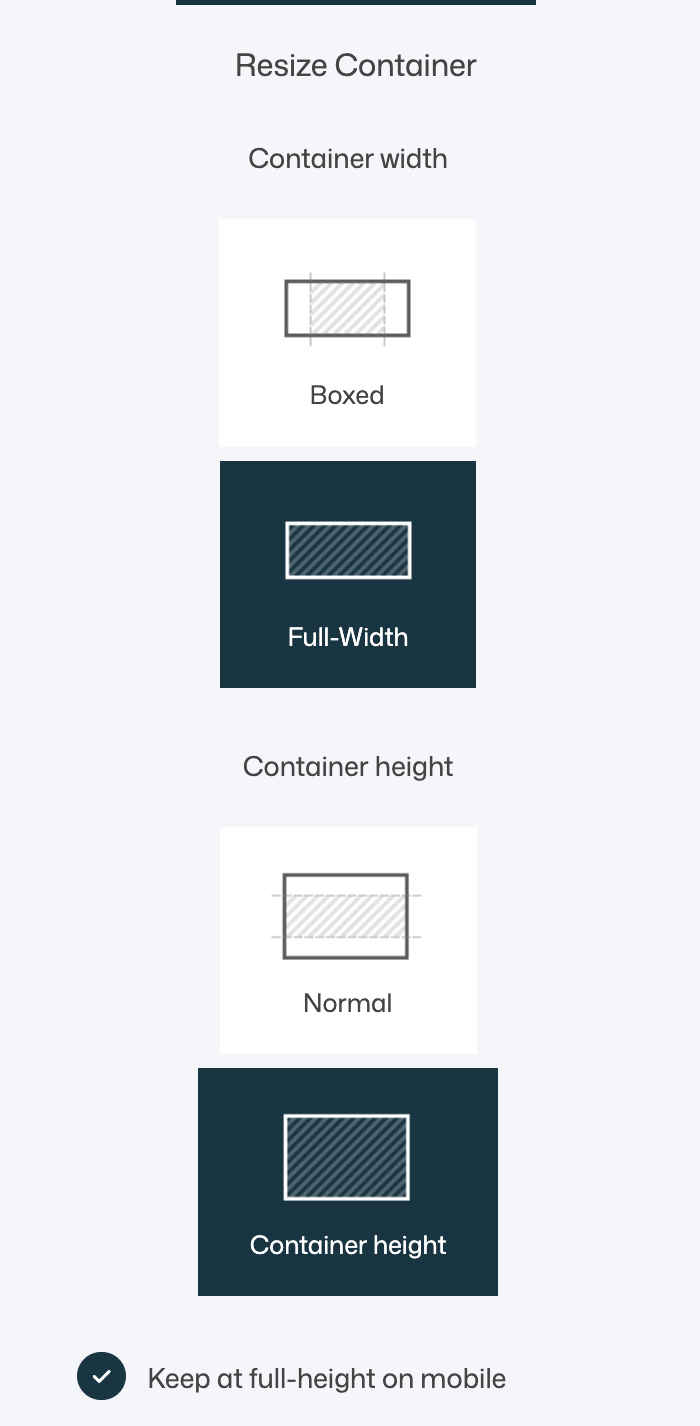
Use the container resize options as follows:
- Set the container to Full-Width
- Set the container height to Full Height
- Enable Keep at full-height on mobile
This configuration creates a seamless, immersive layout that feels like a dedicated app—especially effective for courses, memberships, and community-driven Circles.
It results in a clean, distraction-free Circle experience that maximizes focus, engagement, and usability across desktop and mobile.
Important to know
- This is not where you create Circle content
- You do not add pages, courses, modules, or lessons here
- You do not edit individual Circles in this view
All Circle-specific content – such as courses, programs, community areas, and learning paths – is created and managed inside each individual Circle.
How Global Settings and Circle Settings Work Together
-
Circles Settings (Global)
Control URL structure and the overall system layout shared by all Circles.
-
Individual Circle Settings
Control content, access levels, content availability, structure, design, and member experience for each Circle.
This separation ensures consistency at scale while still giving you full flexibility inside every Circle.
Summary
The Circles Settings area lets you:
- Define a global URL structure for all Circles
- Customize the system-level Circle page layout
- Create a clean, branded, and app-like community experience
By setting this up early, you create a strong foundation that supports growth, clarity, and a better experience for your members across all Circles.