
Assigning Circle Roles
Community Roles help you define who can do what inside your Circle community. By assigning the right role to the right person, you create a structured, safe, and scalable environment where members, moderators, and admins each have clearly defined responsibilities.
Roles affect how members can interact with content, discussions, moderation tools, and administrative features across your Circles.
This article explains:
- Which Community Roles are available
- What each role can do
- Where and how to assign roles
- How roles help you manage engagement and moderation effectively
Where You Can Assign Community Roles
Community Roles can only be assigned to active members and can be managed from two primary areas in Recrevio.
- From the Circle Member Profile
- From the Contact Profile
From the Circle Member Profile (Recommended)
This is the most common and context-aware way to assign roles.
Navigate to Circles > Circle Members
- Click a member to open their Circle Member Profile
-
Use the three-dot menu in the quick actions section of the Circle Member Profile.

- Select Assign Circle Role and assign the appropriate Circle Role

This approach is ideal when you want to:
- Assign different roles per Circle
- Manage access while reviewing engagement or behavior
- Promote trusted members to moderators or admins
From the Contact Profile
You can also assign Community Roles directly from a Contact's Profile.
Navigate to Contacts > All Contacts
- Open the contact’s profile
-
Use the three-dot menu in the quick actions section of the Contact Profile
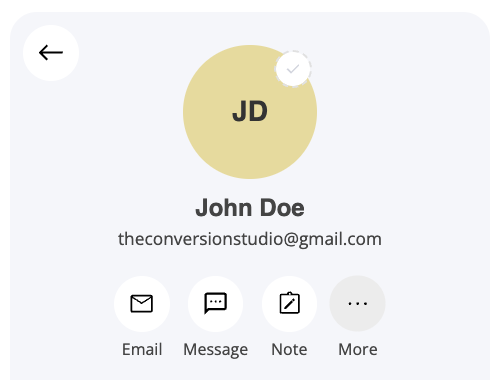
- Select Assign Circle Role and assign the appropriate Circle Role
This is useful when:
- Managing members across multiple Circles
- Handling role changes as part of onboarding or support
- Working from a CRM-first workflow
💡 Note
You can only assign Circle Roles to members who already have access to at least one Circle.
Available Circle Roles
Each role defines a different level of access, responsibility, and control within the community. These are the available Circle Roles
Member
Default community role
Members are regular participants in your Circle community.
What Members can do:
- Access Circle content they are enrolled in
- View posts, discussions, and shared resources
- Create posts and comments (unless restricted)
- Participate in community discussions
- Engage with other members
What Members cannot do:
- Moderate or manage other members
- Access admin-only or moderator-only areas
- Change settings or manage content visibility
- Use global mentions such as @everyone, @everybody, or @all
This role is ideal for:
- Students
- Community participants
- Paying members
- Program attendees
Circle Moderator
Trusted helpers for engagement & moderation
Circle Moderators support healthy discussions and help maintain order inside a Circle without having full administrative control. They are clearly identified with a Moderator badge and have hands-on moderation capabilities.
What Circle Moderators can do:
- Everything a Member can do
- Mute members within the Circle
- Delete comments and moderate discussions
- Help oversee tone, behavior, and interactions
- Participate in admin & moderator-only conversations
- Be visually identified with a Moderator badge
What Circle Moderators cannot do:
- Assign Circle roles to other members
- Use global mentions such as @everyone, @everybody, or @all
- Access or change Circle-wide system settings
- Manage Circle structure or content
This role is ideal for:
- Circle moderators
- Coaches or assistants
- Trusted long-term members
- Support or facilitation roles
Circle Admin
Full control over the Circle experience
Circle Admins have the highest level of access within the Circle layer. They combine full moderation capabilities with leadership and role management responsibilities and are identified with an Admin badge.
What Circle Admins can do:
- Everything a Member and Circle Moderator can do
- Mute members
- Delete comments and posts
- Assign Members as Circle Moderators
- Manage discussions, interactions, and overall Circle behavior
- Use global mentions such as @everyone, @everybody and @all.
- Participate in admin & moderator-only conversations
- Be visually identified with an Admin badge
This enables:
- Internal leadership discussions
- Moderation coordination
- Sensitive or operational conversations
What Circle Admins typically do not manage:
- Platform-level system settings (unless they are also platform admins)
- Billing, ownership, or account-level administration
- Manage Circle structure or content
This role is ideal for:
- Business owners
- Lead Circle managers
- Program directors
- Core team members responsible for Circle leadership
Best Practices for Using Community Roles
- Start simple: use Member by default
- Assign Moderators for engagement and support, not control
- Reserve Admin roles for a small, trusted group
- Review roles regularly as your community grows
- Combine roles with moderation tools for best results
Summary
Community Roles give you fine-grained control over access, responsibility, and interaction inside your Circles.
By assigning the right roles:
- Members know how to participate
- Moderators help maintain quality and engagement
- Admins retain strategic control