
Circle Categories
Circle Categories help you organize, group, and present multiple Circles in a clear and structured way. They make it easier for both you and your members to navigate your Circle ecosystem—especially as it grows.
Think of Circle Categories like product categories in an eCommerce store, but instead of products, you’re organizing Circles. Categories create filter tabs that allow members to quickly find the Circles that are most relevant to them.
Circle Categories are especially useful when you:
- Run multiple programs, courses, or memberships
- Want to group Circles by topic, audience, or purpose
- Need a scalable way to present Circles in widgets and listings
How to Access Circle Categories
Circle Categories are managed from the Circle Settings of an individual Circle.
To access them:
- Navigate to Circles > All Circles
- Open the Circle you want to configure
- Click the Settings (⚙️) icon in the Circle controls bar
- Locate the Circle Categories section and click Change
This opens the category management view where you can create and manage categories.
Creating a Circle Category
Creating a category is quick and simple:
-
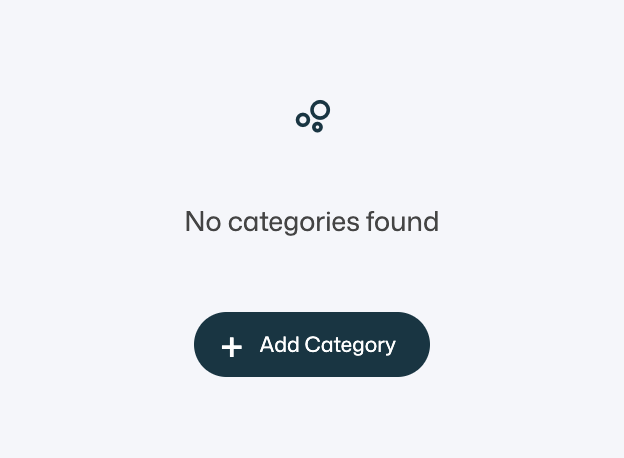
Click Add Category
-
Enter a category name
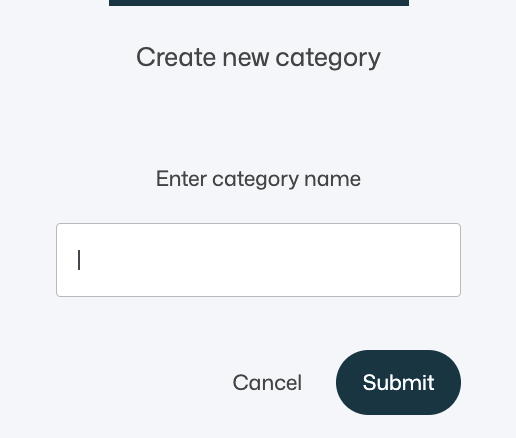
- Click Submit
That’s it – your category is now available and can be assigned to Circles.
💡 Tip
Choose clear, descriptive category names that make sense to your members, such as Programs, Free Resources, Courses, or Community Spaces.
Assigning Categories to Circles
Once categories exist, you can assign one or more categories to each Circle from the Circle Settings panel.

This allows a single Circle to:
- Appear under multiple category filters
- Be discoverable in different contexts
- Stay flexible as your offerings evolve
Categories are applied per Circle, but reused across your entire account.
Using Circle Categories with the Circle Widget
Circle Categories truly shine when combined with the Circle Widget.
The Circle Widget allows you to display Circles anywhere on your site, such as:
- Pages
- Blogs
- Funnels
- Inside other Circles
Adding a Circles Widget
- Open the Widgets section in the left-hand sidebar
- Scroll until you find the Circles widget
- Drag it onto your page
Circle Widget Category Filters
When a Circle Widget is placed on a page.

-
Users can filer by all, mine or specified categorie using the filter tabs above the Circles
Members can switch between categories to explore available Circles
You can choose to:
- Show all categories, or
- Display only selected categories using the Circle Categories → Change option
This creates a clean, library-style experience where members can easily browse and discover Circles.
Best Practices for Circle Categories
- Keep categories broad enough to scale, but specific enough to be meaningful
- Avoid creating too many categories early—start simple
- Use categories consistently across all Circles
- Combine categories with widgets for the best discovery experience
Summary
Circle Categories help you:
- Organize multiple Circles efficiently
- Create filter-based navigation for members
- Scale your Circle ecosystem without clutter
- Present Circles clearly using the Circle Widget
By using Circle Categories together with Circle Settings, Styling, and Widgets, you create a more discoverable, professional, and user-friendly experience for your members.