
How to Use Tags
Tags are a foundational tool in Recrevio for structuring your CRM, triggering automations, and controlling how contacts move through your platform.
Tags are always created intentionally by you as a user. They only exist if you decide to create and apply them – which makes them both powerful and precise when used correctly.
Navigating to Tags
To manage tags, go to Contacts > Tags
This opens the Tags overview, where all tags in your account are listed in one central place.
Tags Overview
The Tags view shows

- Tag Name – The label you’ve defined
- View users – See all contacts assigned to the tag
- Delete – Remove a tag completely from the system
This view gives you a clean overview of how tags are used across your CRM and helps you maintain a clear tagging structure over time.
💡 Note
Deleting a tag removes it from all contacts immediately and may affect segments, automations, or campaigns that depend on it.
Creating a Tag
To create a tag:
-
Click Create Tag
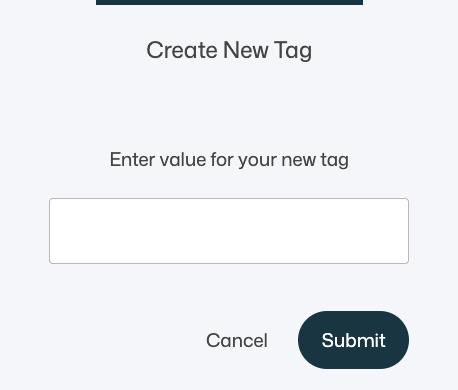
- Enter the tag value
- Click Submit
Once created, the tag becomes available everywhere in the platform – including contacts, automations, forms, checkouts, and other tools that support tagging.
Intentional Tagging – How Tags Are Meant to Be Used
Tags in Recrevio are not automatic. They are meant to represent intent, state, or meaning that you define.
A good mental model is: A tag exists because you want to take action on it – now or later.
This makes tags different from:
- System fields (email, country, created date)
- Properties (structured data fields)
- Member groups (access control)
Tags are lightweight, flexible, and action-oriented.
Tags as Automation Triggers (Primary Use Case)
The most common and strategic use of tags is as automation triggers.
Because tags are intentionally added or removed, they are ideal for signaling:
- When something important has happened
- When a contact enters or exits a specific state
- When an automation should start, stop, or change path
This gives you:
- Predictable automation logic
- Clear entry and exit points
- Easy-to-read flows that are simple to debug later
💡 Best practice
If an automation depends on intent or behavior, trigger it with a tag rather than complex filter logic.
Strategic Ways to Think About Tags
Use tags to represent state, not raw data
Tags should answer questions like:
- Is this person ready for something?
- Have they completed or reached a milestone?
- Should something happen next?
This keeps your system flexible and easy to evolve.
Use tags as connectors between tools
Tags work especially well as a shared language between:
- Forms
- Automations
- Email campaigns
- Sales or admin workflows
Instead of rebuilding logic in multiple places, you can rely on a single tag to coordinate behavior across the platform.
Keep tags human-readable and intentional
Because tags are created manually:
- Use clear, descriptive names
- Avoid abbreviations that only make sense today
- Prefer consistency over volume
Well-named tags make automations easier to understand months later.
Avoid using tags as permanent storage
Tags are best for:
- Triggers
- Transitions
- Temporary or meaningful states
For long-term structured data, properties are often a better fit.
Applying Tags to Contacts
In practice, the most common way tags are applied is automatically, as a result of actions you intentionally configure elsewhere in the platform.
Most tags are added when a contact:
- Submits a form, quiz, or survey
- Completes a purchase or checkout
- Books an appointment or session
- Enters or completes a funnel or workflow
In these cases, you define the tag in advance (for example inside a widget, product, or rule), and the platform applies it automatically when the action happens.
In addition to automatic tagging, tags can also be applied manually when needed:
- From the Contacts list using bulk actions
- From an individual contact profile
- As a step inside automations
Manual tagging is especially useful for:
- Admin-driven actions
- Cleanup or corrections
- One-off campaigns or testing
- Assigning context that didn’t come from a user action
Because tags are always intentionally created and applied, every tag represents a meaningful state, signal, or trigger — and may activate automations, segmentation, or follow-up actions as a result.
💡 Best practice
Use automatic tagging for scalable, repeatable flows, and manual tagging for exceptions, administration, and edge cases.
Managing & Maintaining Tags
From the Tags overview, you can:
- See which tags are actively used
- Review how many contacts rely on each tag
- Remove tags that are no longer part of your strategy
💡 Recommendation
Occasionically review your tag list to ensure it still reflects how your business and automations actually work.
Summary
Tags in Recrevio are:
- Manually created and intentionally applied
- Designed primarily as automation triggers
- Used to represent meaningful states or transitions
- A flexible way to connect tools and workflows
- Most powerful when kept simple and strategic
When you treat tags as signals for action rather than just labels, they become one of the most effective building blocks in a scalable, automation-driven platform.