
How to Connect Twilio to Send Sms, WhatsApp and Voice Messages
To send SMS, WhatsApp, and Voice messages from Recrevio, you need to connect a Twilio account.
Twilio provides the underlying messaging and calling infrastructure that Recrevio uses to deliver messages to your subscribers.
This guide walks you through:
- What Twilio is
- How to create and prepare a Twilio account
- How to purchase a phone number
- How to set up required Twilio services
- How everything connects together
- How to connect Twilio to Recrevio
⚠️ Disclaimer
This guide describes the Twilio setup flow as accurately as possible based on the current Twilio interface and configuration at the time of writing.
Please note that Twilio may update or change their onboarding flow, settings, or terminology over time.
If you encounter issues while creating or configuring your Twilio account, or if the setup steps differ from what’s described here, we recommend contacting Twilio Support directly for the most up-to-date assistance.
What is Twilio?
Twilio is a global communication platform that allows businesses to send messages and make calls programmatically.
In Recrevio, Twilio is used to:
- Send SMS campaigns
- Send WhatsApp campaigns
- Make automated voice calls
- Send individual messages to contacts
Twilio handles delivery, compliance, and telecom connections, while Recrevio handles audience selection, campaigns, automations, and tracking.
Step 1: Create a Twilio account
If you don’t already have a Twilio account, create one here:
Once registered, you’ll be taken to the Twilio main dashboard.
Step 2: Purchase a Twilio phone number
To send SMS, WhatsApp, or Voice messages, you must have at least one Twilio phone number.
How to purchase a number
-
In the Twilio dashboard, click Get phone number
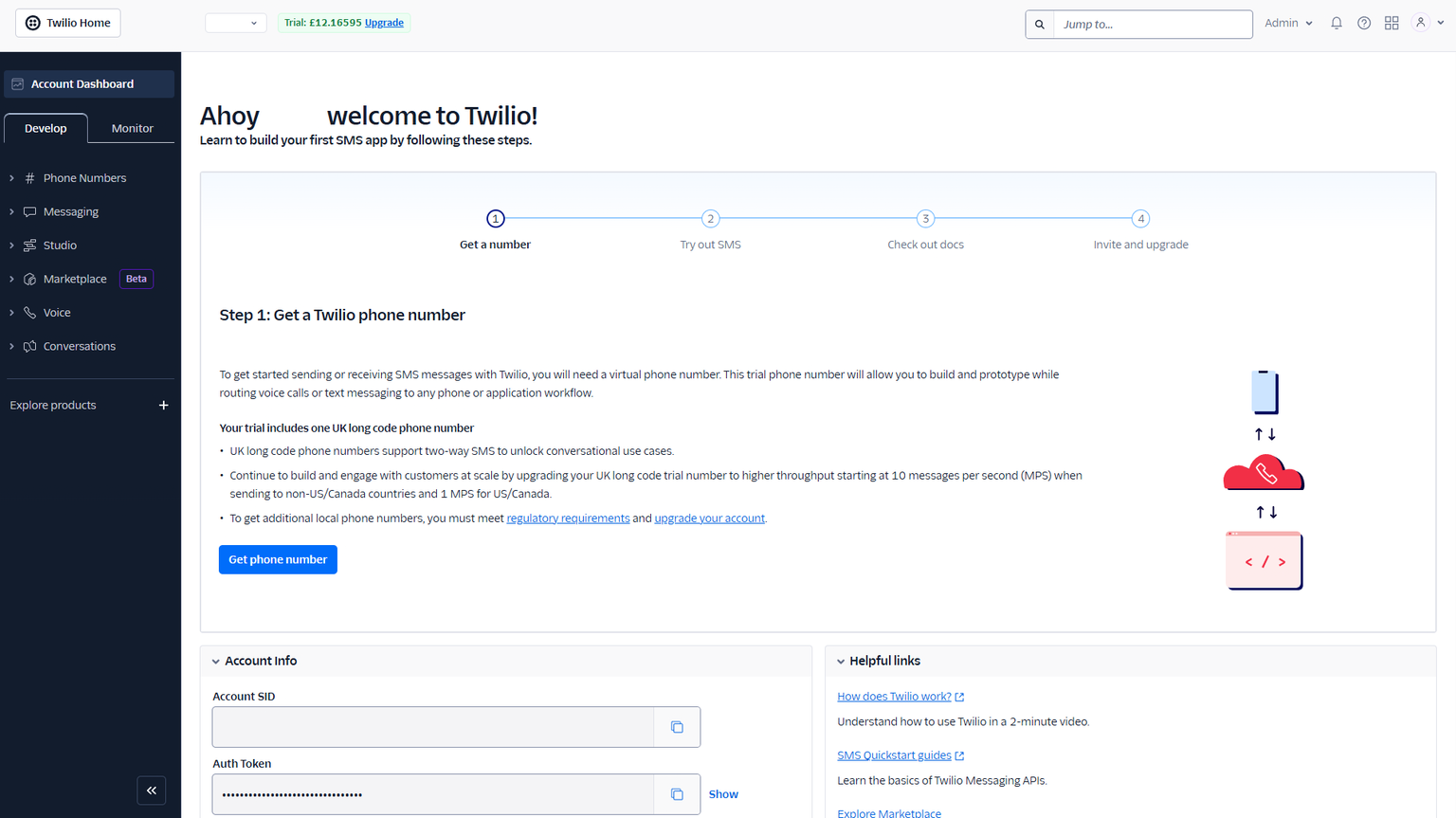
Select:
- Country
-
Capabilities (SMS, Voice, WhatsApp)
Use filters or Advanced Search if you want:
- A specific area code
- A more localized number (e.g. city-based)
-
Purchase the number
You can purchase a number without entering billing details.
This creates a trial number, which can be used for testing only.
To send messages to real recipients, you must:
- Add billing details
- Upgrade the number to active status

- Additional verification during number purchase
During number purchase, Twilio may guide you through compliance steps such as selecting end-user type (Business or Individual) and assigning a regulatory bundle. This is normal and required in many countries.
What you may be asked to do:
Confirm capabilities and agree to terms
Depending on the number type, you may need to

- Review enabled capabilities (SMS, Voice, WhatsApp)
- Agree to emergency calling terms (for voice-enabled numbers)
✔️ Tick the required checkboxes
✔️ Click Next to continue
Select end user (Business or Individual)
Twilio will ask who will use the phone number.

You can choose:
- Business – for companies sending messages or making calls
- Requires basic business information
- Individual – for personal or test use
- Requires identity verification (photo ID)
💡 Recommendation
If you’re using Twilio with Recrevio for marketing, automations, or customer communication, choose Business.
Regulatory bundle assignment (country-dependent)
For some countries and number types, Twilio requires an approved Regulatory Bundle.

- If you already have one, you can select it directly
- If not, you’ll be guided to create one before completing the purchase
This ensures compliance with local messaging and calling regulations.
Once these steps are completed, your phone number becomes active and ready to be used with Twilio services.
Step 3: Understanding regulatory compliance (Bundles)
Depending on country and message type, Twilio may require regulatory compliance. You may already have encountered these steps while purchasing your phone number.
This section explains what bundles are, why they are required, and how to create or reuse them if needed.
Creating a Bundle
-
Go to Twilio Dashboard → Regulatory Compliance → Bundles
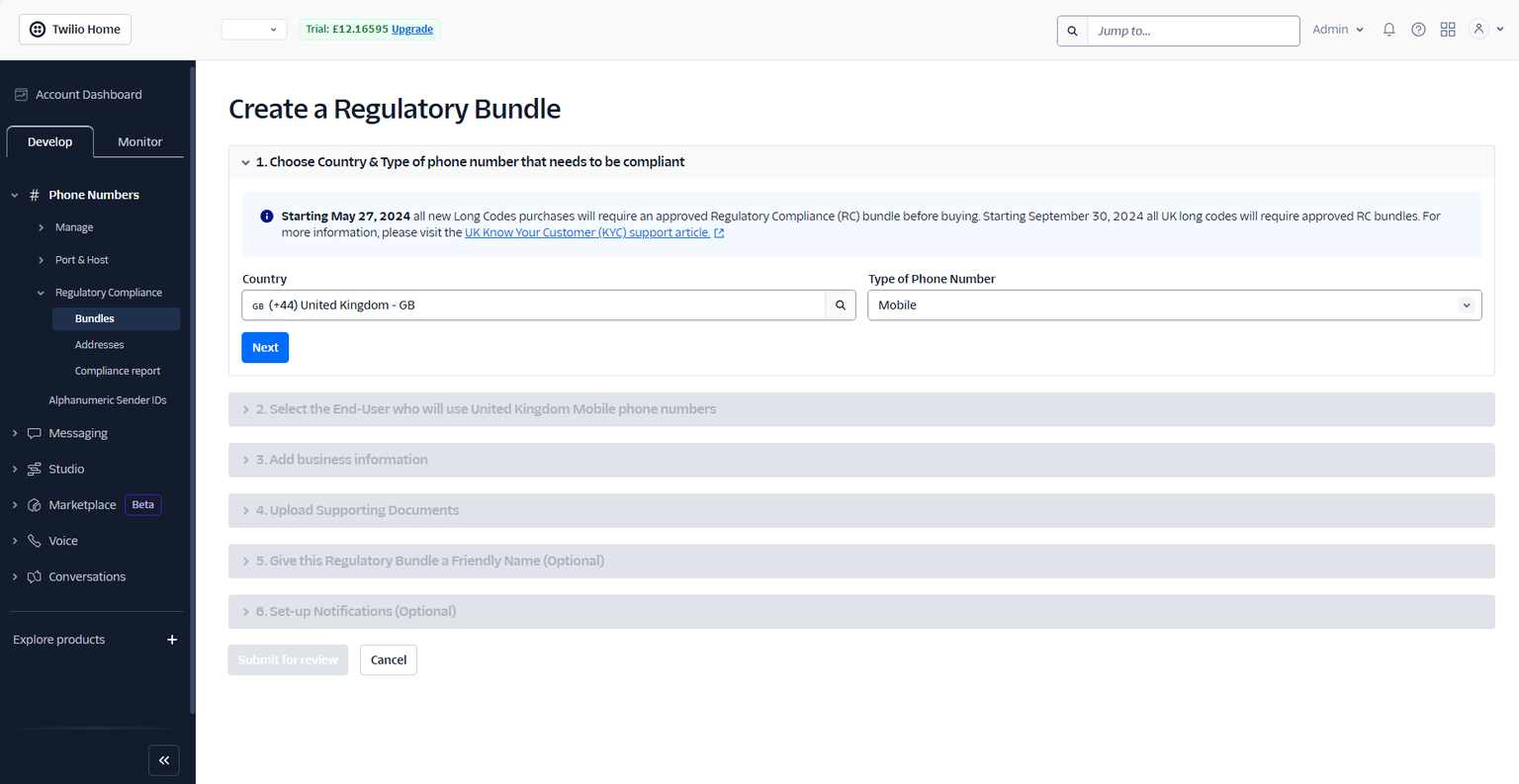
Follow the guided steps:
- Choose Business or Individual
- Provide required information (company details or ID)
- Submit the bundle for approval
💡 Note
If you already have an approved bundle, it will appear automatically and can be reused.
Step 4: Create a Messaging Service (required for SMS & WhatsApp)
A Messaging Service is required to send:
- Bulk SMS campaigns
- WhatsApp campaigns
How to create a Messaging Service
- Go to Twilio Dashboard → Messaging → Services
-
Click Create Messaging Service
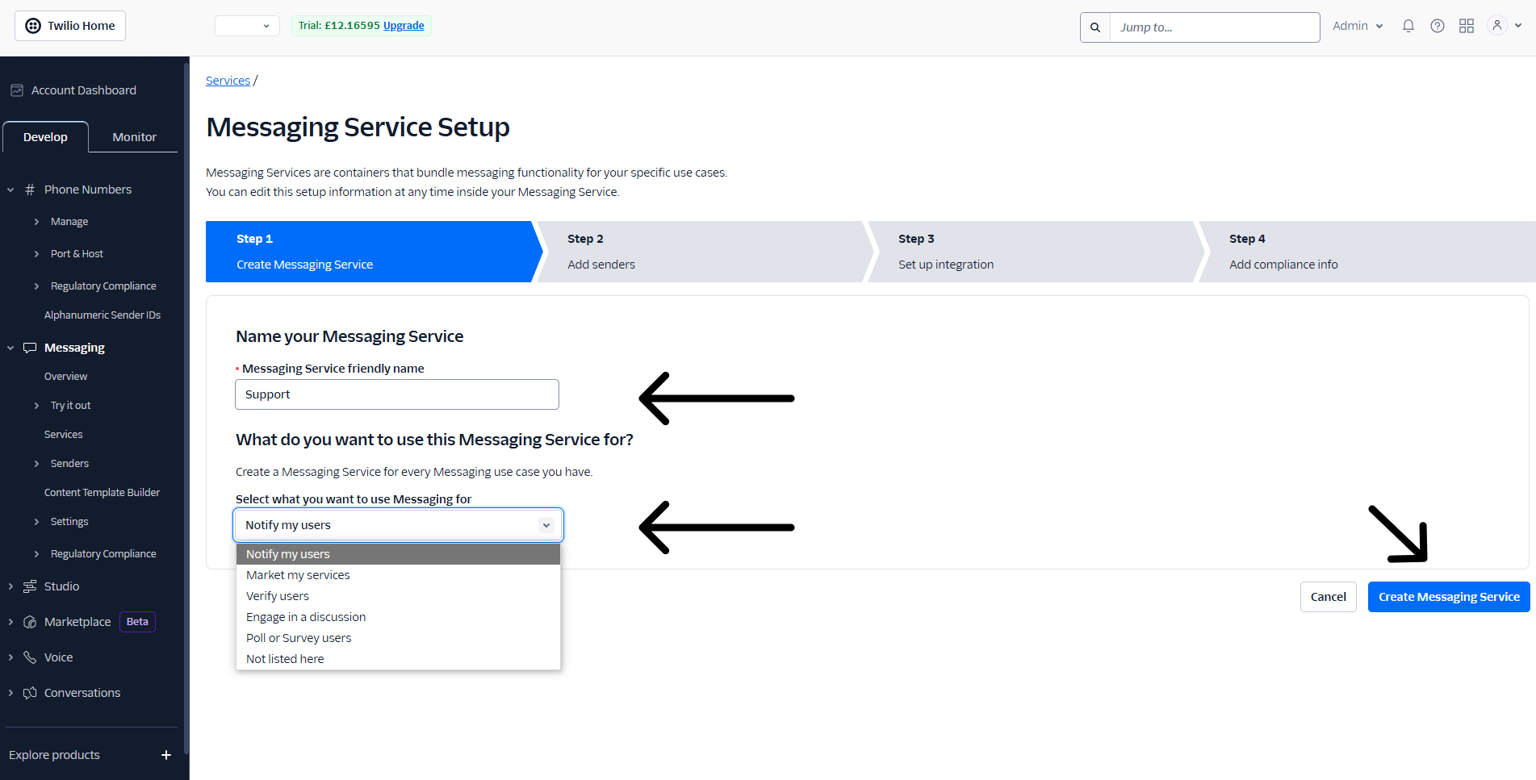
- Follow the setup steps and save the service
💡 Important
Messaging Services are required for campaign sending.
They are not optional if you want to send SMS or WhatsApp messages from Recrevio.
Step 5: Link the Messaging Service to your phone number
Your Twilio phone number must be connected to the Messaging Service.
How to link the service
- Go to Twilio Dashboard → Phone Numbers → Manage → Active numbers
-
Click the phone number you want to use
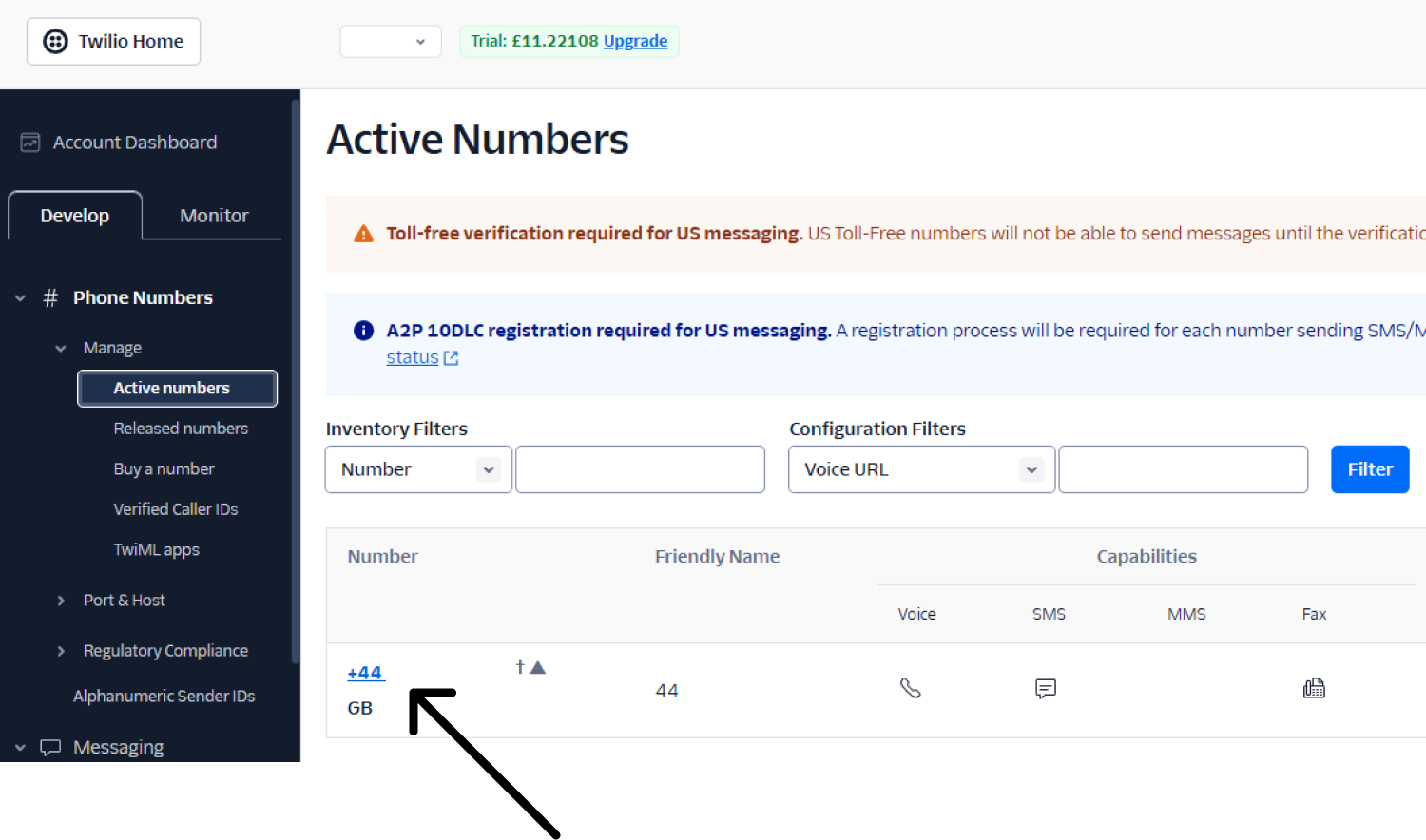
- Scroll to the Messaging section
-
Under Messaging Service, select the service you created
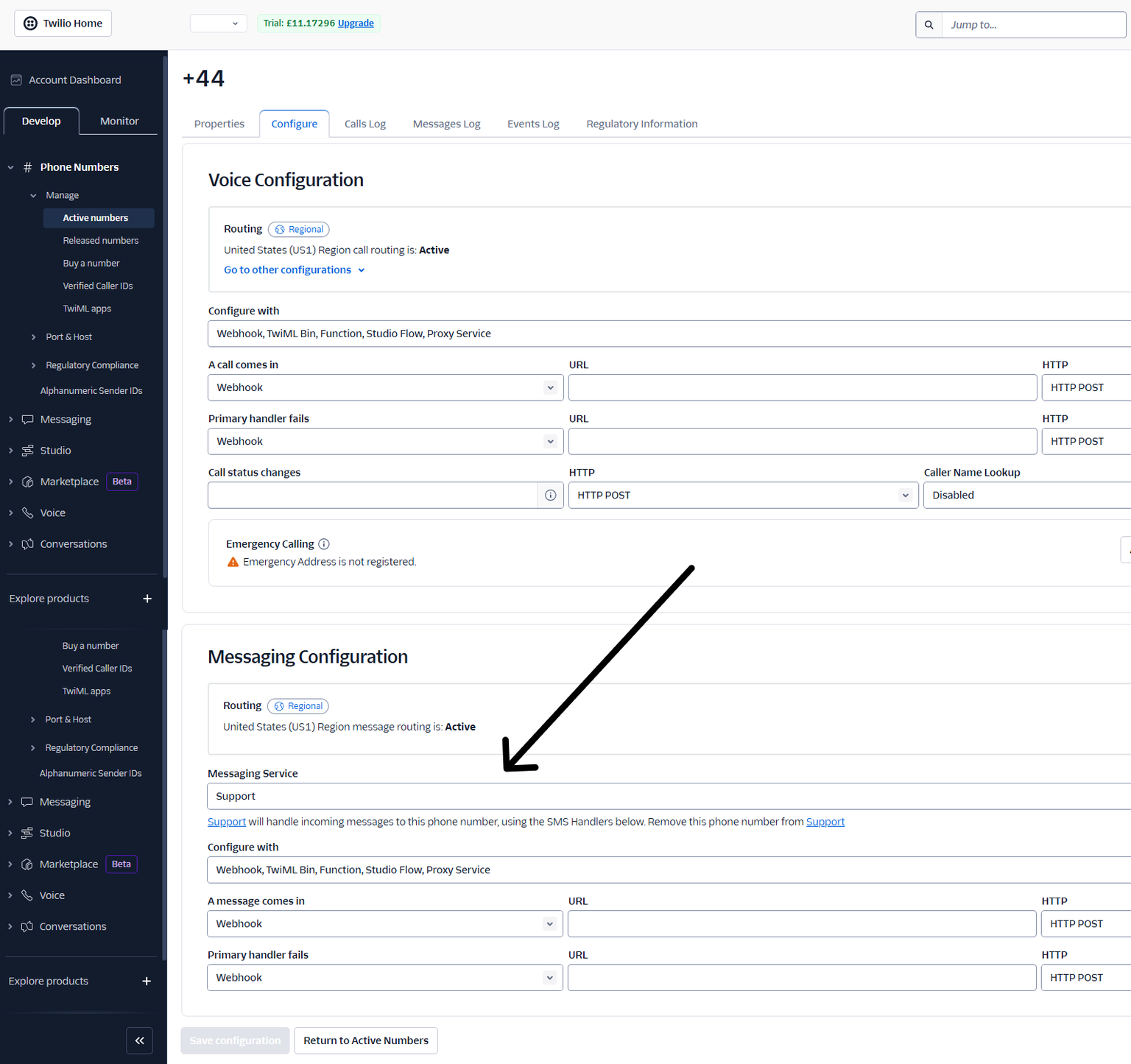
- Click Save
Step 6: Connect Twilio to Recrevio
Once Twilio is fully set up, connect it inside Recrevio.
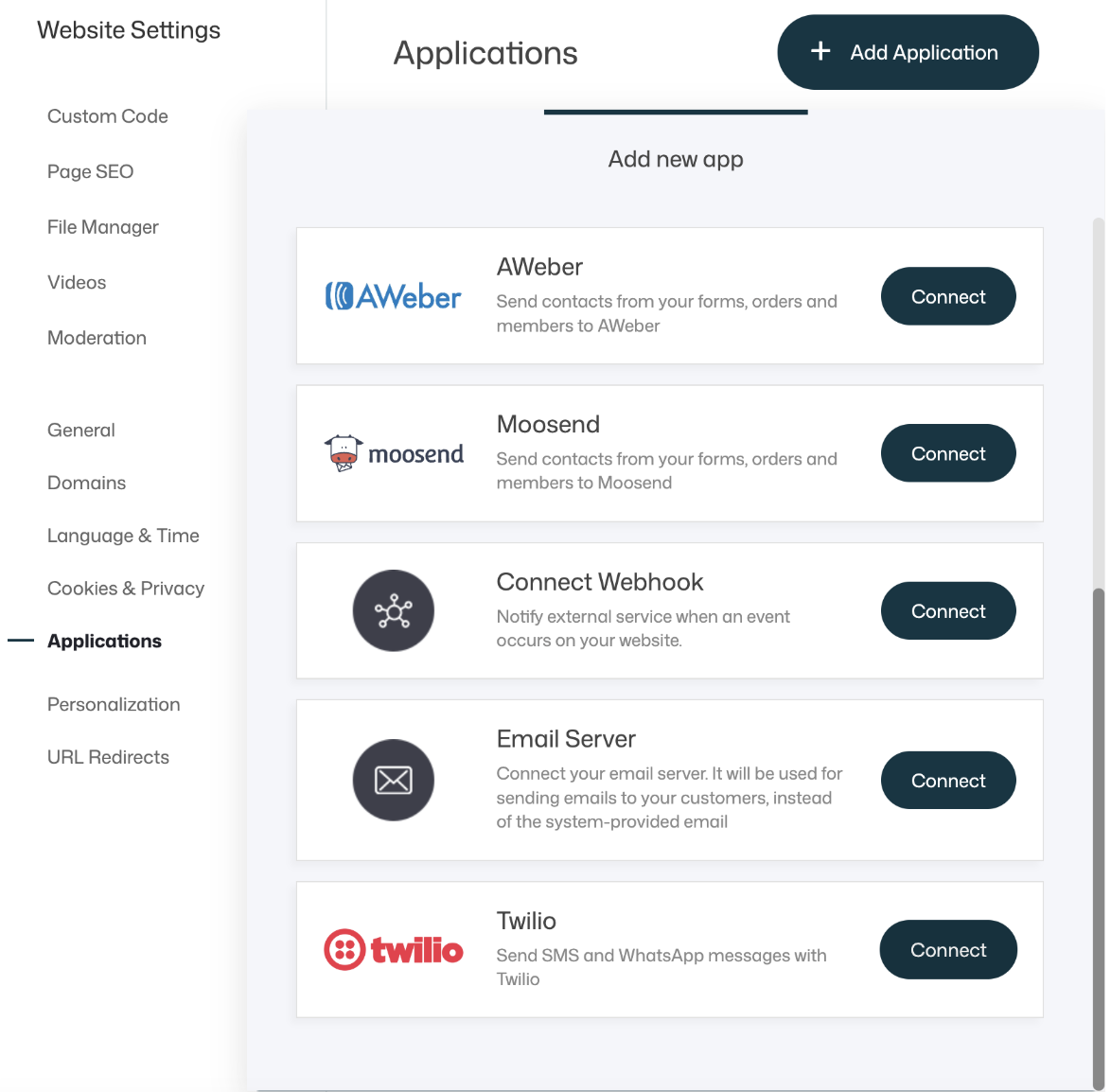
- In Recrevio, navigate to Web Studio > Website Settings > Applications > Add Application
-
Scroll-down and locate Twilio
Click Connect
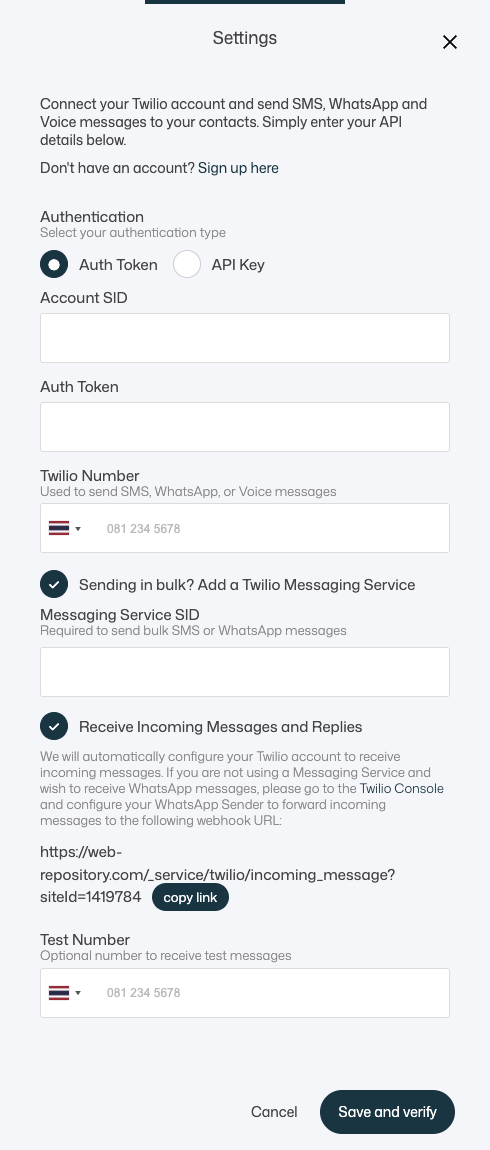
Fill in the Settings
-
Choose authentication method
In the Authentication section, select how you want to connect Twilio:
- Auth Token (most common)
-
API Key (alternative method)
Enter your Twilio credentials
Fill in the required fields:
-
Account SID
Paste your Twilio Account SID from your Twilio Console.
-
Auth Token (if Auth Token is selected)
Paste your Twilio Auth Token.
-
API Key (if API Key is selected)
Enter your Twilio API Key credentials (as prompted by the form).
Select your Twilio Number
Under Twilio Number, choose the number you want to send from.
This number can be used for:
- SMS
- WhatsApp (depending on your Twilio setup)
-
Voice
Add a Twilio Messaging Service for bulk sending
If you plan to send bulk SMS or WhatsApp campaigns, enable:
Sending in bulk? Add a Twilio Messaging Service
Then fill in (This is required to send bulk SMS/WhatsApp campaigns):
-
Messaging Service SID
Receive incoming messages and replies (optional but recommended)
You can enable:
Receive Incoming Messages and Replies
When enabled, Recrevio will automatically configure Twilio to receive incoming messages.
If you are not using a Messaging Service and want to receive WhatsApp messages, the dialog provides a webhook URL and instructions:
- Configure your WhatsApp sender in the Twilio Console
- Forward incoming messages to the provided incoming webhook URL
-
Use the Copy link button to copy the webhook URL from Recrevio
Add a Test Number
Under Test Number, you can enter a phone number to receive test messages.
This is useful for:
- Verifying configuration quickly
-
Testing SMS / WhatsApp / Voice before messaging real recipients
Click Save and verify.
If everything is correct, your Twilio connection will be saved and ready to use for:
- Message campaigns (SMS / WhatsApp / Voice)
- Individual messages
- Messaging actions in automations
-
What happens next?
After connecting Twilio, you can:
- Send SMS, WhatsApp, and Voice campaigns
- Send individual messages to contacts
- Use messages inside automations
- Track delivery and engagement inside Recrevio
👉 Next steps:
- Creating a Message Campaign (SMS, WhatsApp & Voice)
- Sending Individual Messages
Flow diagram explaining the process
Below is a simple flow diagram explaining the process of creating and connecting your Twilio Account:

Summary
To connect Twilio to Recrevio:
- Create a Twilio account
- Purchase a Twilio phone number
- Complete regulatory compliance (Bundle)
- Create a Messaging Service
- Link the service to your phone number
- Connect Twilio inside Recrevio
Once completed, Recrevio can send messages reliably across SMS, WhatsApp, and Voice.