
Automations Overview – Managing & Monitoring Your Automations
Automations in Recrevio help you save time, scale communication, and move contacts through structured flows automatically.
This article focuses on the Automation overview, where you manage all your automations, monitor their status, and access analytics for active flows.
You’ll learn:
- How to navigate the Automations overview
- What actions are available for each automation
- How to access the automation flow and analytics
For step-by-step instructions on creating or editing an automation flow, see:
👉 How to Create and Edit Automations
For performance insights, see:
👉 How to Analyze Automation Performance
Accessing Automations
Go to Marketing > Automations to open the Automations overview.
This page shows all automations in your account and is the starting point for:
- Creating new automations
- Managing existing ones
- Opening analytics for active automations
The Automations Overview Explained
Switch between tabs: All, Active, Drafts
At the top of the page, you can filter automations by status:
- All Automations – Shows everything
- Active – Automations currently running
- Drafts – Automations not yet activated
Automation List
Each automation row shows key information at a glance:

- Status – Active or Draft
- Name – The automation name
- Audience – Number of contacts who entered the automation
- Opened – Open rate (Email steps only)
- Clicked – Click rate across messages
- Goal – Whether a goal is configured or completed
-
Automation Actions (Settings Icon)
Each automation has a settings menu with the following options:
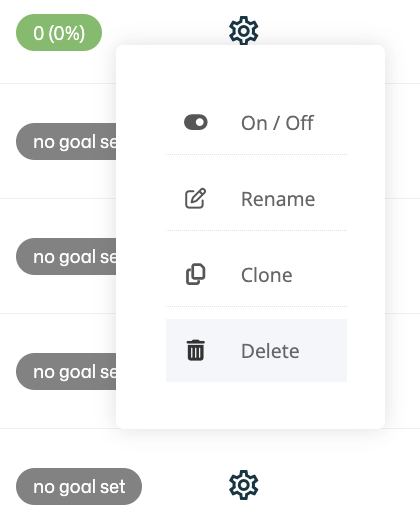
- On / Off – Activate or pause the automation
- Rename – Change the automation name
- Clone – Create a copy of the automation
- Delete – Permanently remove the automation
This makes it easy to quickly assess performance and usage without opening the automation.
The “More” Menu
Using the More dropdown, you can perform bulk actions.
Currently available:
- Delete selected – Permanently removes selected automations
⚠️ Deleted automations cannot be restored.
Creating a New Automation
To create a new automation:
- Click + Create Automation
- Choose an automation type (Blank Automation or Abandoned Cart)
You’ll then be taken to the Automation Overview, where you can build the automation flow.
👉 Full instructions are covered in How to Create and Edit Automations.
Opening an Automation
Clicking on an automation (Active or Draft) opens its Automation Overview, which has two main sections:
- Automation Flow – Build or edit the automation logic
- Analytics & Goals – View performance data for active automations
Draft automations focus on flow building, while active automations unlock analytics & goals.
Automation Overview Tabs
Automation Flow
This is where you:
- Add triggers
- Define conditions
- Add actions like Send Email, Send SMS, or Update Contact
👉 Detailed flow-building instructions are covered in How to Create and Edit Automations.
Analytics & Goals
Relevant for active automations only.
Here you can:
- Track engagement and conversions
- See how users move through the flow
- Monitor goal completion
- Analyze revenue (if sales tracking is enabled)
👉 Full analytics breakdown is covered in How to Analyze Automation Performance.
When to Use the Automation Overview
Use this view to:
- Monitor automation health
- Pause or activate automations
- Quickly check engagement
- Access analytics for optimization
- Manage drafts and experiments
Summary
The Automations overview is your control center for managing, monitoring, and maintaining automations in Recrevio.
From here, you can:
- Create new automations
- Manage active and draft flows
- Access analytics for performance insights
- Control automation lifecycle without editing the flow itself
For next steps: