
Getting Started with Your Blog
Recrevio’s Blog is built directly into Web Studio, making it easy to publish, manage, and maintain blog content without relying on external tools or plugins. Your blog lives inside the same project as your website, funnels, and offers—so everything stays connected and consistent.
A blog in Recrevio can be used to:
- Share insights, tutorials, and updates
- Support SEO and organic traffic growth
- Educate potential customers before purchase
- Strengthen trust and authority over time
This article gives you an overview of where to find your blog, how to access it, and what you can manage from the main blog view.
Where to find the Blog
Go to Web Studio > Click Pages in the Web Studio Controls

From here, there are two ways your Blog may appear:
Option A: The Blog is already included (as part of your template)
If your project was created from a template that includes a blog, you’ll already see Blog in the Pages tab.
Click Blog to open the Blog list view.

Option B: Create a new Blog
If your project doesn’t have a blog yet:
-
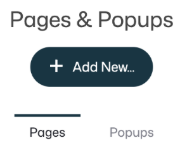
Click Add New…
-
Select Blog
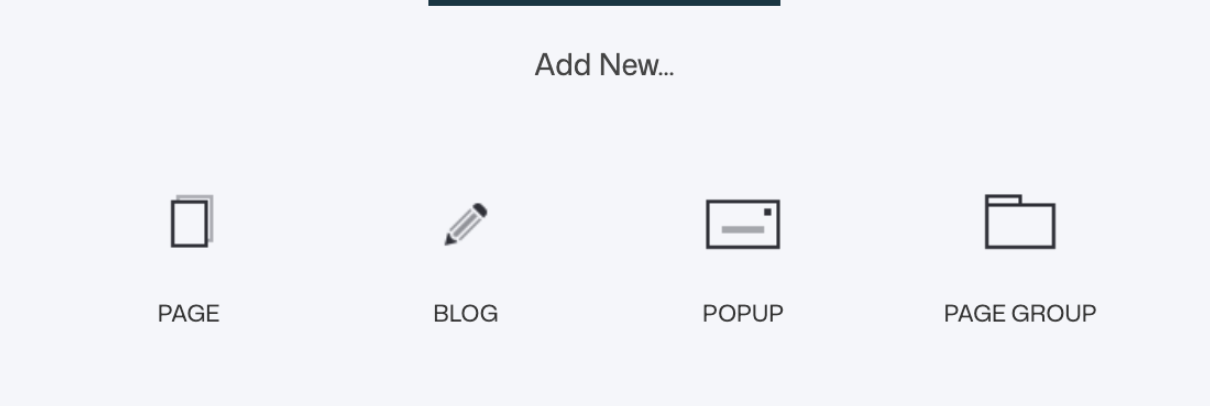
- Your blog will be created and added to your Pages list
The Blog List overview
When you open your Blog, you’ll land on the Blog List page. This is your control center for managing all blog articles.

From here, you can:
Filter articles by status
Use filters to quickly find articles based on where they are in your publishing workflow.
- All
- Published
- Drafts
- Trash
This makes it easy to manage both active content and work-in-progress articles.
Manage blog content
Create, organize, and maintain your blog posts from one central place.
- Add Post to create a new article
- Select and delete multiple posts at once
- Clone an article (useful for repeating formats or series)
- Preview an article before publishing
View article details at a glance
Get a quick overview of important information for each article in the list.
For each article, you can see:
- Title
- Author
- Publish date
- Number of comments
- Number of comments awaiting approval
This helps you keep track of content status and engagement.
Edit Header & Sidebar
Adjust the visual layout and structure of your blog list and article pages.
Use Edit Header & Sidebar to customize how your blog is presented, including layout elements and navigation.
Open Settings
Configure how your blog behaves and functions across your site.
Use Settings to manage blog-level options such as layout, navigation, and general behavior. These settings apply to the entire blog.
💡 Tip
Recrevio includes example posts in many templates, so you can click around and see how a finished blog structure looks before you create your own.
How this article fits into the blog guide
This article focuses on navigation and overview – helping you understand where the blog lives and what you can manage from the main blog view.
In the next articles, we’ll go deeper into:
- Blog Header and Sidebar Settings
- Blog Settings
- Article Basics
- Article Content
- Article Settings (URL, author, date, tags, categories, comments)
Together, these guides will walk you step by step from first setup to publishing polished blog content inside Recrevio.