
Add and Manage Admins
The Admins section lets you control who has access to your project and what they can manage. You can invite new admins, define their permissions, and limit access to specific websites or funnels—all from one place.
This makes it easy to collaborate while keeping full control over sensitive areas like billing, analytics, and content.
Where to Find Admin Settings
To manage admins for your project:
- Click Dashboard in the top-right navigation
- Open the Admins tab
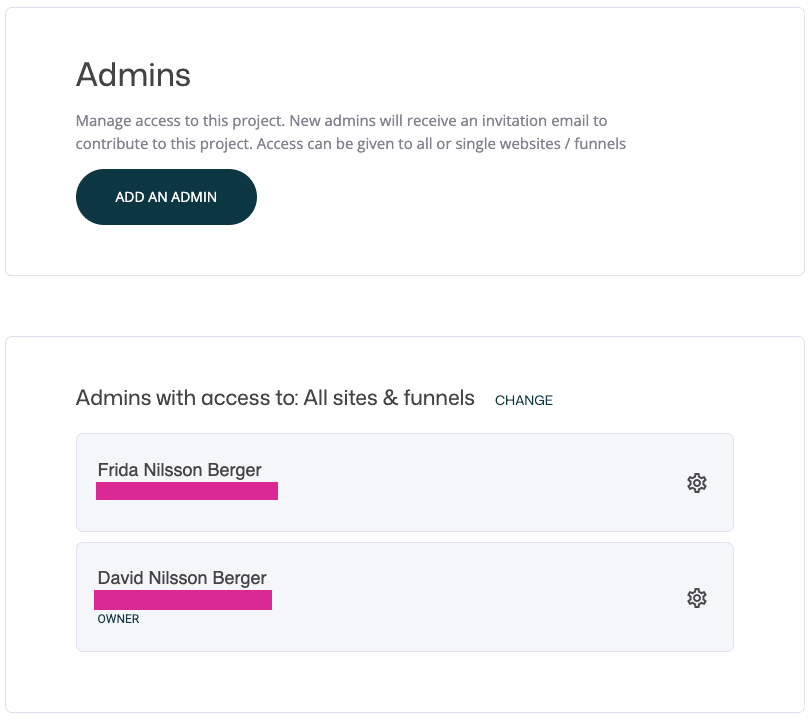
Here you’ll see:
- A list of current admins
- Which websites or funnels they have access to
- Options to add, edit, or remove admin access
Adding a New Admin
To invite a new admin, click Add an Admin.
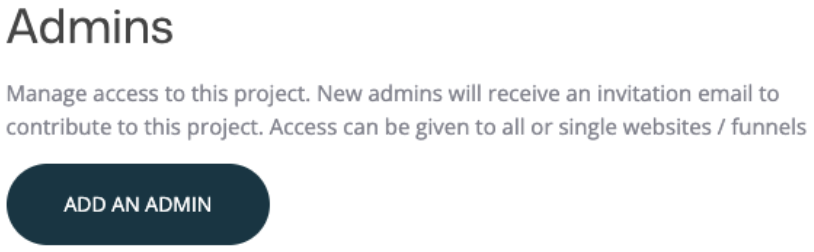
This opens the admin invitation panel where you configure access before sending the invite.
Choose Access Scope (Websites & Funnels)
By default, access is set to All sites & funnels.
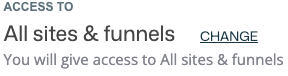
You can change this by clicking Change and selecting:
- A specific website, or
- A standalone funnel
If you have a lot of websites and funnels in your project you can easily use the search field to search websites and funnels by name.
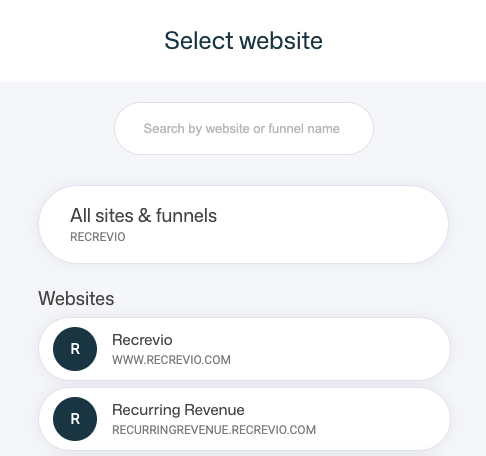
❗️ Important
- You can only select one website or funnel per invitation
- If the same person should have access to multiple websites or funnels, repeat the process and send separate invitations for each using the same email address – this way the can use one user acccount and easily switch between projects without needing to log out and sign in again.
This gives you precise control over who can access what.
Set Admin Permissions
When adding an admin, you can choose exactly what they’re allowed to manage.
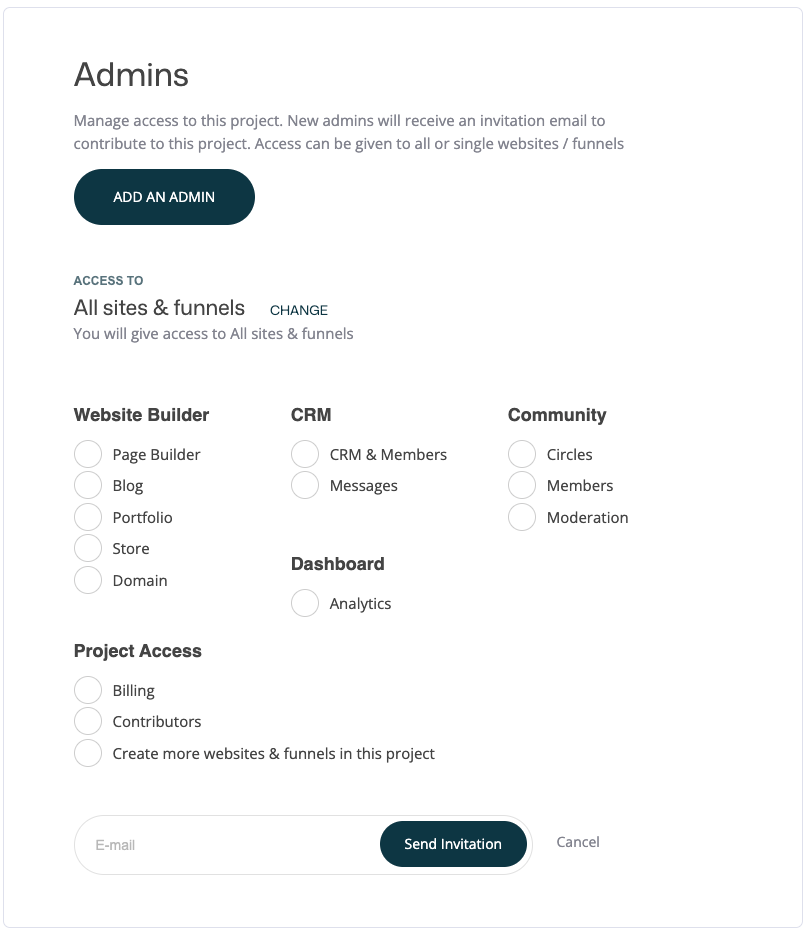
Available Permission Areas
Website Builder
- Page Builder
- Blog
- Portfolio
- Store
- Domain
CRM
- CRM & Members
- Messages
Community
- Circles
- Members
- Moderation
Dashboard
- Analytics
Project Access
- Billing
- Contributors
- Create more websites & funnels in this project
You can mix and match permissions depending on the admin’s role.
Send the Invitation
Once permissions are set:
- Enter the admin’s email address
- Click Send Invitation
The invited person will immediately receive an email with an invitation link.
What Happens After the Invitation
If the person already has a Recrevio account
If the invited admin already has an existing account:
- They should be invited using the same email address they already use
- After accepting the invitation, they can switch between projects directly from the dashboard – no need to log out and back in
This is the recommended setup for collaborators who already work on other projects.
If the person does not have a Recrevio account yet
If the invited admin does not have an account:
- They’ll be guided to create one after clicking the invitation link
- They do not need to create their own website or paid plan
- They simply become a registered user with admin access to your project
Viewing Existing Admins
In the Admins overview, you can:
- See all admins with access to all sites & funnels
- Click Change to view admins for a specific website or funnel within the project
- Identify the project owner
This makes it easy to audit access and keep permissions up to date.
Managing or Removing Admin Access
For each admin, click the settings icon to manage their access.
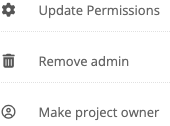
From here, you can:
- Update permissions to adjust what the admin can access
- Remove the admin
- Removes access from a specific website or funnel, or
- Removes them entirely from the project (if they have access to all websites and funnels)
- Make project owner (available only for admins with access to all websites & funnels)
All changes take effect immediately.
Best Practices
- Grant only the permissions an admin actually needs
- Use website- or funnel-specific access for freelancers or temporary collaborators
- Review admin access regularly, especially for billing and analytics
Summary
The Admins section allows you to:
- Invite collaborators securely
- Control access at both project and website/funnel level
- Assign clear roles and permissions
- Collaborate efficiently without compromising control
It’s a flexible system designed to support teams of any size—while keeping ownership and responsibility clear.