
Social Review Proof widget
The Social Review Proof widget lets you display a compact social proof element with profile images, star ratings, a rating score, and supporting text.
It is useful for showing customer satisfaction, review scores, community size, or other trust signals close to important areas such as hero sections, offers, pricing sections, and calls to action.
For example, you could display:

This article explains every setting and control available in the Social Review Proof widget, along with tips for using it effectively.
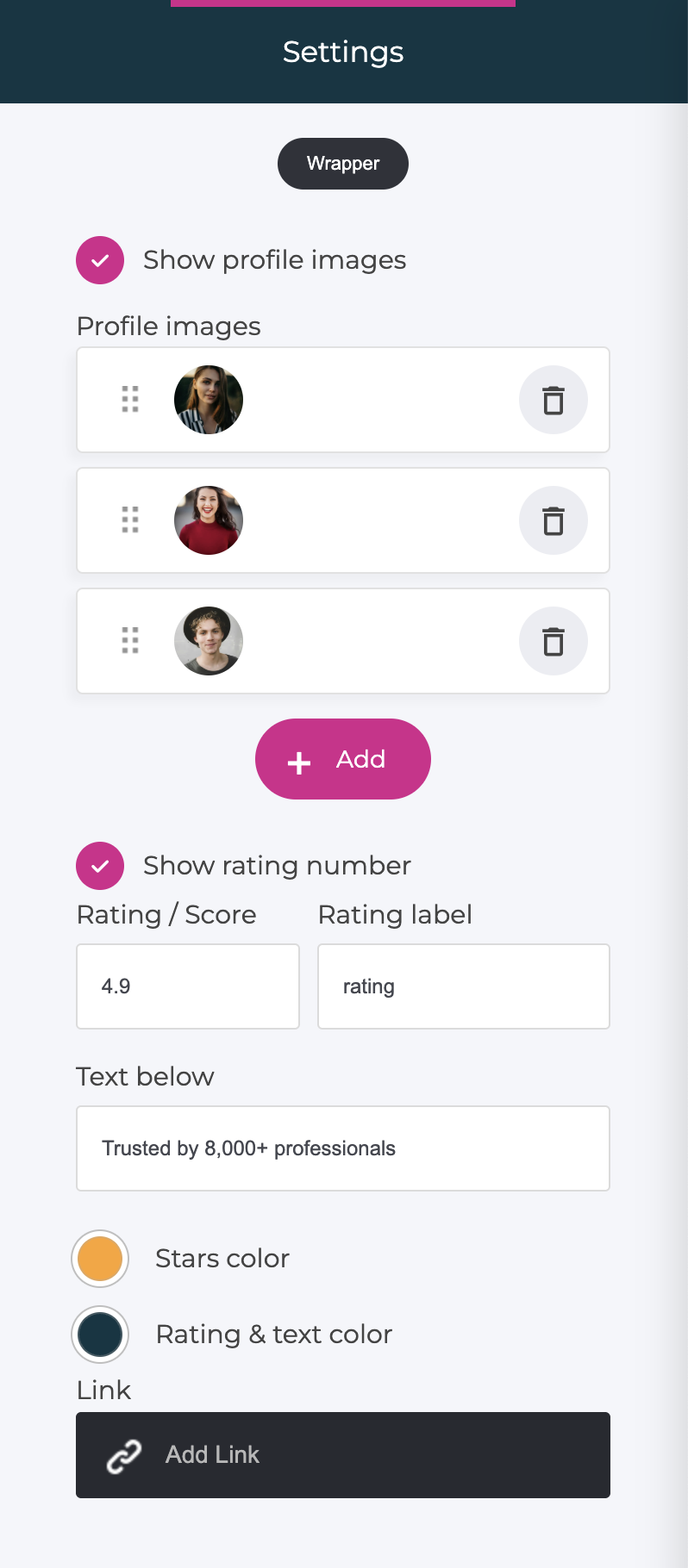
Show profile images
Enable Show profile images to display a group of overlapping profile images next to the rating.
Profile images help make the social proof feel more personal and visual.
When disabled, the widget is displayed without the profile images.
Profile images
The Profile images section lets you manage the images displayed in the widget.
Add an image
Click Add to upload another profile image.
The images are automatically displayed as circular, overlapping profile pictures in the widget.
Reorder images
Use the drag handle next to an image to change its position.
Drag the images up or down to control the order in which they appear.
Remove an image
Click the trash icon to remove an image from the widget.
💡 Tip
Use clear portraits with similar framing and image quality for the most consistent result.
A small number of images is usually enough. The purpose is to reinforce the social proof rather than turn the widget into a full customer gallery.
Show rating number
Enable Show rating number to display the numerical score and rating label next to the stars.
For example:
★★★★★ 4.9 rating
If disabled, the stars can be shown without the numerical rating information.
Rating / Score
Enter the numerical rating you want to display.
For example:
4.9
The value is displayed next to the star rating.
Use a score that accurately reflects the rating or review data you are referencing.
Rating label
The Rating label appears directly after the numerical score.
For example:
rating
Together with a score of 4.9 , the widget displays:
4.9 rating
You can customize the label depending on the context, for example:
- rating
- average rating
- customer rating
- from reviews
Keep the label short so the social proof remains easy to scan.
Text below
Use Text below to add a supporting trust statement underneath the rating.
For example:
Trusted by 8,000+ professionals
Other examples could include:
- Trusted by 500+ members
- Loved by thousands of customers
- Based on 250+ customer reviews
- Join 1,000+ creators already using Recrevio
This text can provide additional context that makes the rating more meaningful.
💡 Best practice
Use specific and credible information whenever possible. Concrete numbers such as 500+ customers or 4.9 from 200+ reviews are generally more useful than vague claims.
Stars color
Controls the color of the star icons.
You can use this setting to match the stars to your brand or create stronger visual contrast.
A yellow or orange tone is commonly associated with ratings, but you can use any color that works with your design.
For consistency, use colors from your website's Global Colors whenever possible.
Rating & text color
Controls the color used for:
- The rating number
- The rating label
- The supporting text below
Choose a color with sufficient contrast against the background to maintain readability.
Link
You can make the Social Review Proof widget clickable by adding a link.
Click Add Link and select where visitors should be taken when they click the widget.
This can be useful for linking to:
- A testimonials section
- A reviews page
- Customer stories
- An external review platform
- A relevant product or offer
💡 Tip
If the social proof references reviews that visitors can read elsewhere, linking directly to those reviews can help reinforce credibility.
Common use cases
The Social Review Proof widget works particularly well for:
- Hero sections
- Sales pages
- Landing pages
- Pricing sections
- Product pages
- Membership or course offers
- Calls to action
- Signup sections
It can be especially effective when placed close to a button or purchase decision, where additional trust can help reduce uncertainty.
Best practices
- Use real and accurate ratings and numbers
- Keep supporting text short and easy to scan
- Use clear, consistent profile images
- Avoid displaying too many profile images
- Make sure stars and text have sufficient contrast
- Place the widget close to areas where trust matters
- Link to supporting reviews or testimonials when relevant
⚠️ Avoid using invented ratings, review counts, or customer numbers. Social proof works best when visitors can trust that the information shown is genuine.
Summary
- The Social Review Proof widget combines profile images, stars, ratings, and trust messaging
- Profile images can be added, reordered, or removed
- The numerical rating can be shown or hidden
- Customize the rating score, label, and supporting text
- Adjust star and text colors to match your design
- Add a link to reviews, testimonials, or another relevant destination
Used well, the Social Review Proof widget provides a compact way to add credibility and reassurance at important points throughout your website.