
Timeline widget
The Timeline widget lets you present events, milestones, stages, or steps in chronological or sequential order.
It is useful for showing things such as project phases, company history, launch plans, course journeys, onboarding processes, or any other sequence where visitors benefit from understanding what happens and in what order.
Each timeline item can include:
- Title
- Date
- Description
- Optional icon
You can display the timeline in several layouts and customize its typography and colors to match the rest of your website.
This article explains how to add and manage timeline items, choose a layout, and customize the appearance of the widget.
Timeline Items
The main Timeline Items section contains all items currently included in the timeline.
From here, you can:
- Add new items
- Edit existing items
- Reorder items
- Delete items
The order shown here determines the order in which the milestones appear in the timeline.
Add a timeline item
Click Add to create a new timeline item.
Each item can contain a title, date, description, and optional icon.
Edit a timeline item
Click the settings icon next to an item to edit its content.
Title
Enter the title of the milestone, event, or step.
For example:
First Milestone
Keep titles relatively short so visitors can quickly scan the timeline.
Date
Enter the date or time period associated with the item.
For example:
- January 2024
- Q2 2026
- Week 1
- Day 30
- Phase 2
The Date field does not have to contain a traditional calendar date. You can also use it to show stages, periods, or sequence labels depending on what the timeline represents.
Description
Use the Description field to provide more information about the item.
This can explain:
- What happened
- What the milestone represents
- What the visitor should do at this stage
- The outcome of a particular phase
- Additional context around the date or event
💡 Tip
Keep descriptions focused. A timeline is easiest to understand when visitors can quickly scan the titles and dates and then read additional detail only where needed.
Show icon
Enable Show icon to display an icon with the timeline item.
Icons can help visitors distinguish different milestones visually and make longer timelines easier to scan.
When enabled, click the icon area to select the icon you want to use.
Disable Show icon if you prefer a cleaner, text-only timeline.
Reorder timeline items
Use the drag handle next to an item to change its position.
Drag items up or down to control the sequence in which they appear.
This is useful when:
- Adding a new milestone between existing items
- Changing the order of a process
- Updating a project timeline
- Rearranging steps in a customer journey
Delete a timeline item
Click the trash icon to remove an item from the timeline.
Styling
The Styling settings control the layout and visual appearance of the Timeline widget.
Layout
Choose how the timeline items are displayed.
Available layouts:
- Horizontal
- Horizontal – Details below
- Vertical
Horizontal
Displays the timeline horizontally across the page.

This layout works particularly well for:
- Short processes
- Major milestones
- Simple step-by-step journeys
- Timelines with relatively few items
A horizontal layout makes the progression from one milestone to the next easy to understand at a glance.
Horizontal – Details below
Displays the timeline horizontally while placing the additional item details underneath the timeline.
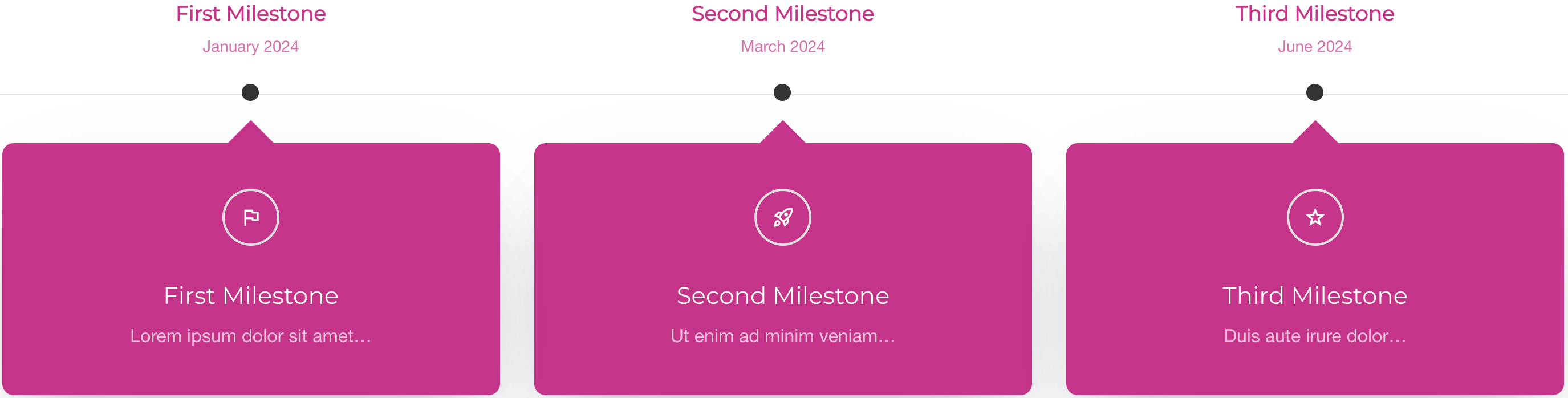
This can be useful when you want to maintain a clear horizontal progression while giving descriptions more room.
It works particularly well when:
- Each milestone contains more supporting text
- The timeline itself should remain visually simple
- You want the details separated from the main progression
Vertical
Displays timeline items vertically down the page.
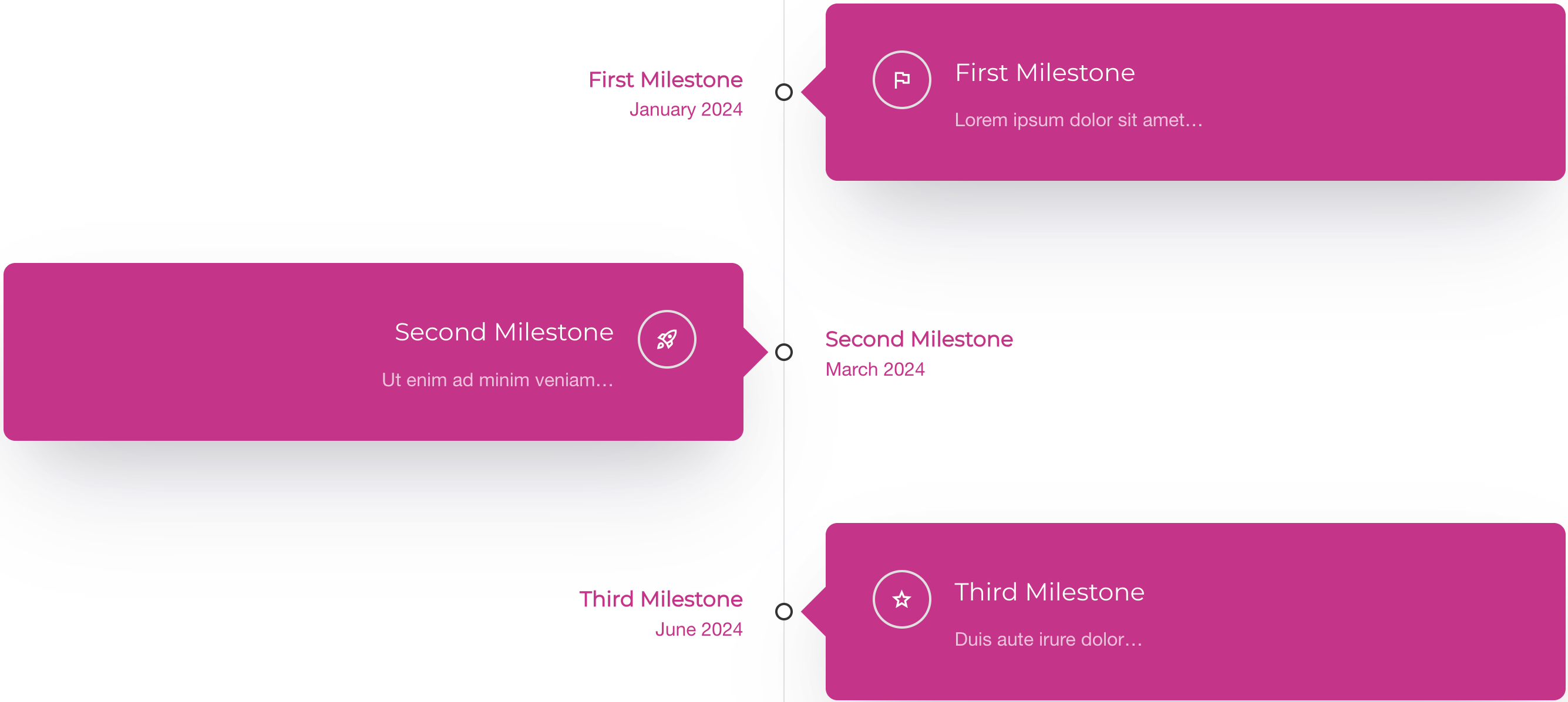
This layout works especially well for:
- Longer timelines
- Detailed descriptions
- Company histories
- Roadmaps
- Processes with many stages
- Mobile-friendly chronological content
💡 Tip
Use a horizontal layout for shorter, easy-to-scan sequences. For timelines with many milestones or more detailed descriptions, Vertical will usually provide more space and make the content easier to read.
Text Font Family
Controls the font family used throughout the Timeline widget.
For consistency, it is usually best to use the same font family as the rest of your website.
Headline Font Size
Controls the size of the timeline item titles.
Larger values make each milestone more prominent, while smaller values create a more compact timeline.
Choose a size that maintains a clear hierarchy between:
- Timeline title
- Date
- Description
Remember to check the result on both desktop and mobile.
Title Color
Controls the color of the timeline item titles and visual timeline accents.
Use a color that fits your website's design and provides sufficient contrast against the surrounding background.
For consistency, use colors from your website's Global Colors whenever possible.
Box Styling
The Box Styling settings control the appearance of the content areas used for the timeline items.
Background color
Controls the background color of the timeline item boxes.
You can use a contrasting background to make each milestone stand out or choose a subtle color for a more minimal appearance.
Text Color
Controls the color of the supporting text displayed inside the timeline items.
Make sure the selected color provides sufficient contrast against the Background color.
Common use cases
The Timeline widget works particularly well for:
- Company history
- Project milestones
- Product roadmaps
- Launch plans
- Course journeys
- Program structures
- Onboarding processes
- Step-by-step processes
- Event schedules
- Customer journeys
- Personal or professional milestones
Best practices
- Keep each milestone focused on one main event or step
- Use short, clear titles
- Keep date formats consistent throughout the timeline
- Use descriptions for supporting details rather than repeating the title
- Arrange items in a logical chronological or sequential order
- Use icons only when they help communicate meaning
- Choose Vertical for longer or more detailed timelines
- Choose a horizontal layout when the number of milestones is limited
- Maintain sufficient contrast between text and background colors
- Check the timeline on both desktop and mobile
💡 Tip
A timeline should make progression immediately understandable. If visitors need to read every description to understand the sequence, consider simplifying the titles or reducing the amount of information in each item.
Summary
- The Timeline widget displays milestones, events, stages, or steps in sequence
- Each item can include a title, date, description, and icon
- Add, edit, reorder, or delete timeline items as needed
- Choose between Horizontal, Horizontal – Details below, and Vertical layouts
- Customize the font, headline size, colors, and content boxes
- Use horizontal layouts for shorter sequences and vertical layouts for longer or more detailed timelines
- Keep timeline content concise and easy to scan
Used well, the Timeline widget provides a clear visual way to explain progression, history, or the steps involved in a process.