
Building in Recrevio – How The Builder Works
Recrevio uses the same flexible drag-and-drop builder across Web Studio and Circles.
You can start with a ready-made section, build completely from scratch, or combine both approaches. Content is organized into blocks, rows, columns, and widgets, giving you control over everything from simple text sections to advanced responsive layouts.
Changes appear directly in the builder as you make them, so you can design visually without switching back and forth between an editor and a preview.
⚡ The easiest way to get started
Start with your Global Styling, add ready-made blocks that are already adapted to those styles, then replace the text and images with your own.
You can always customize the layout further afterwards.
How pages are structured
Most content in the builder follows this hierarchy:
Block → Row → Column → Widget
A page can contain as many blocks as you need.
Each block contains at least one row and one column, and columns contain the actual content widgets.
Blocks
Blocks are the main sections of the page.
A block could for example contain:
- A hero section
- Features
- Testimonials
- Pricing
- An FAQ
- A call to action
- Contact information
Blocks also control section-level styling such as backgrounds, spacing, overlays and visibility.
Rows
Rows organize content horizontally inside a block.
A block can contain multiple rows, allowing you to build more complex sections without creating a separate block for every piece of content.
Columns
Rows contain columns.
You can use up to five columns to organize content side by side.
Columns control things such as content alignment and spacing between the edge of the column and the widgets inside it.
Widgets
Widgets are the actual content elements.
Examples include:
- Text and headings
- Images
- Buttons
- Forms
- Videos
- Pricing
- Testimonials
- Galleries
- FAQs
- Charts
- Timelines
Recrevio includes more than 50 widgets for different types of content.
👉 For a deeper explanation, see Understanding Blocks, Rows, Columns & Widgets.
Start with Global Styling
Before spending time styling individual sections, set up your site's Global Styling.
This lets you define your:
- Typography
- Fonts
- Color palette
- Button styles
- Headline Pill styles
- Website layout
Ready-made blocks use these global styles wherever possible, which means they can adapt automatically to your brand.
This is one of the fastest ways to turn a template into your own design.
💡 Tip
Try to make design changes globally before overriding individual widgets. You'll get a more consistent site and future changes become much faster.
Add ready-made blocks
You don't need to build every section manually.
You can insert pre-designed blocks and then simply:
- Add the block
- Replace the text
- Replace the images
- Adjust anything that needs changing
Because the blocks use your Global Styling, much of the typography and color styling is already handled for you.
For many pages, this is the fastest way to build.
Build from scratch
You can also create an empty block and build your own layout.
A common workflow is:
- Add a block
- Create the rows and columns you need
- Drag widgets into the columns
- Adjust spacing and alignment
- Style the block or individual elements
You can mix custom sections with ready-made blocks on the same page.
Drag and drop widgets
Widgets can be dragged into columns and repositioned visually.
When you select a widget, you'll find controls for actions such as:
- Editing the widget
- Alignment
- Animation
- Copying
- Removing
Each widget also has its own widget-specific settings.
For example, an Image widget contains image settings while a Button widget contains button-specific options.
Changes are reflected directly in the page while you edit.
Copy and reuse content
You don't need to rebuild something that already works.
Blocks and widgets can be copied to the clipboard and pasted elsewhere in the builder.
You can also save copied blocks and widgets for longer-term reuse.
This is useful for recurring elements such as:
- Call-to-action sections
- Testimonials
- Signup sections
- Standard introductions
- Frequently used buttons or visual elements
Columns can also be duplicated within their current row and block.
💡 Tip
Once you've built a section you're happy with, reuse it instead of rebuilding similar layouts from scratch.
Headers and footers
Website pages can use a global header at the top and footer at the bottom.
These can be shown or hidden on individual pages.
You can create separate header designs and also create independent sticky header versions that appear as visitors scroll.
Headers can contain multiple rows and use dedicated header widgets for navigation and other common header elements.
Because headers and footers are global, updating them can update them across the pages where they are used.
Desktop and mobile design
The builder is responsive, but you also have additional control over how layouts behave on smaller screens.
Many layout settings can be adjusted independently for mobile, including spacing and padding.
This lets the same content remain connected while allowing the presentation to adapt to different screen sizes.
💡 Tip
Build the main structure on desktop first, then switch to mobile and fine-tune spacing and layout rather than trying to create separate pages.
Free Move
For layouts that need more creative positioning, widgets can be detached from the normal column grid using Free Move.
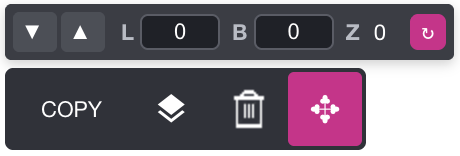
This allows you to position elements freely and control how they overlap, including their stacking order.
The original grid structure is still retained for mobile, helping the content fall back into a predictable responsive layout on smaller devices.
Free Move is especially useful for:
- Layered hero sections
- Overlapping images
- Decorative elements
- More editorial layouts
👉 See Free Move – Position Widgets Freely for the full guide.
Save, undo and redo changes
As soon as you start making changes, editing controls appear at the top of the builder.

From there you can:
- Discard changes
- Save
- Undo
- Redo
This makes it easy to experiment and reverse a change if the result isn't what you expected.
A good building workflow
For most pages, this workflow works well:
- Configure Global Styling
- Start with ready-made blocks where possible
- Replace text and images
- Add or remove rows and columns as needed
- Add additional widgets
- Adjust spacing and alignment
- Check the mobile version
- Use Free Move only where the design benefits from it
- Preview the page
- Save your changes
💡 Tip
Don't add complexity just because the builder allows it. A simple layout using good typography, spacing and strong content will often outperform a complicated one.
Best Practices
- Start with Global Styling before manually styling individual elements
- Use blocks to divide the page into clear sections
- Use rows and columns for layout rather than adding unnecessary blocks
- Reuse existing content instead of rebuilding it
- Check mobile after making significant layout changes
- Keep important content inside the normal grid unless Free Move adds real value
- Use consistent spacing throughout the page
- Preview before publishing significant changes
Where to go next
Once you understand the basic builder structure, these guides go deeper:
- Understanding Blocks, Rows, Columns & Widgets
- Working with Blocks
- Working with Rows
- Working with Columns
- Free Move – Position Widgets Freely
- Building for Desktop and Mobile
- Creating Mobile Menus
- Headers, Sticky Headers & Footers