
Text Styling in Global Styling
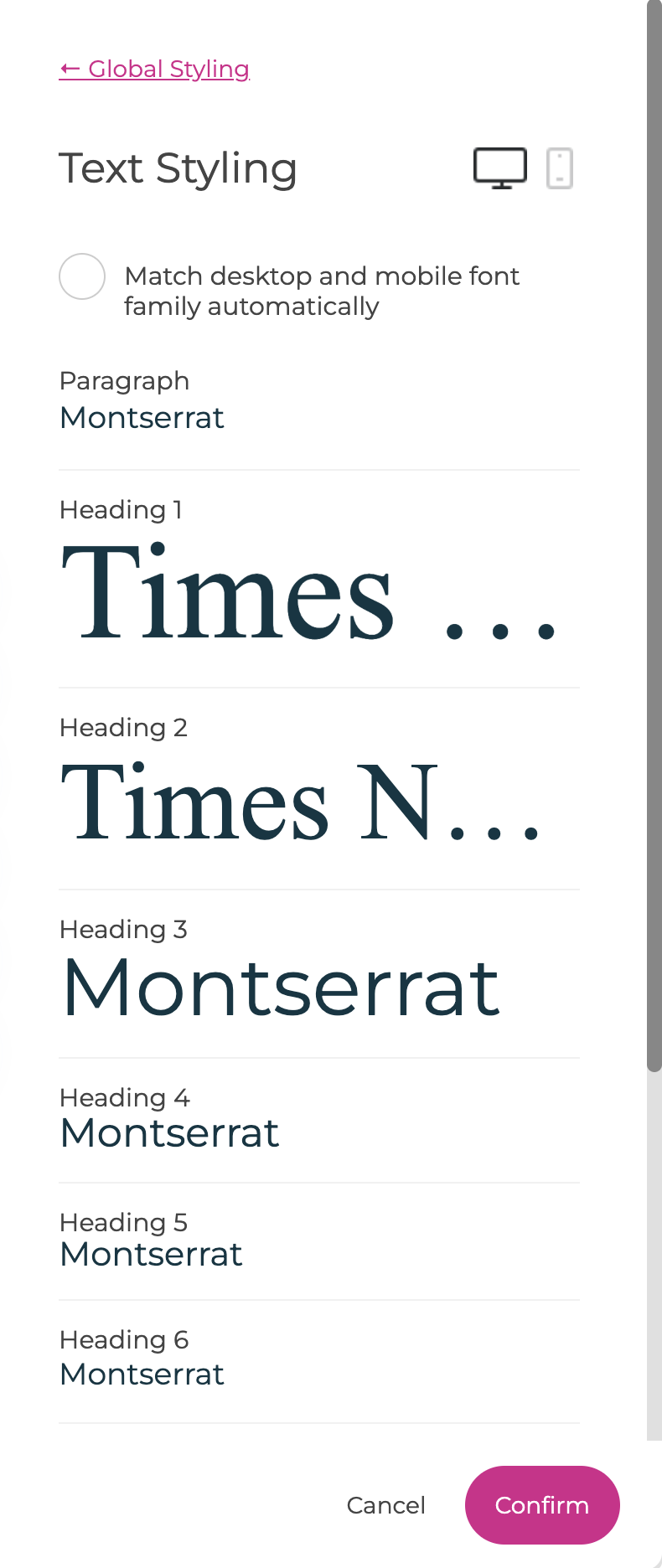
In Web Studio > Global Styling > Text Styling, you set the default typography for your entire site. These settings apply to paragraphs, headings (H1–H6), quotes, and links, ensuring your text looks consistent and adapts properly to desktop, tablet, and mobile.
⚡ Why it matters
- Keeps typography consistent across your whole site.
- Lets you define responsive typography for desktop and mobile, while optionally keeping font families synchronized automatically.
- Saves time – you never need to manually resize or restyle text inside blocks.
- Avoids broken designs (custom inline styles don’t scale on mobile).
What You Can Style
When you open Text Styling, you’ll see a list of elements you can configure:
- Paragraph (body text)
- Headings H1–H6 (page title down to small subheading)
- Quote (styled for pull quotes/testimonials)
- Text Links (default state)
- Text Links on Mouse Over (hover state)
Clicking on any element opens controls for:
- Font Family (choose from your added fonts)
- Font Size (in px)
- Letter Spacing (space between characters)
- Line Height (space between lines)
- Text Color (inherit main text color by default, can override per element)

Match Desktop and Mobile Font Families
By default, you’ll often want to use the same font family on desktop and mobile, even if the font sizes, line heights, and spacing are different.
Enable Match desktop and mobile font family automatically to keep the font family synchronized between the desktop and mobile versions of each text style.
This means you only need to choose the font family once for each style instead of setting it separately on both devices.
For example, instead of selecting the same heading font for:
- H1 on desktop + H1 on mobile
- H2 on desktop + H2 on mobile
- H3 on desktop + H3 on mobile
- and so on...
…you can set the font once for each heading level, and Recrevio automatically uses the same font family on the other device version.
This can save a lot of repetitive setup when your typography uses the same fonts across desktop and mobile.
💡 Tip
For most websites, we recommend keeping this option enabled. Responsive typography usually needs different sizes and spacing, but rarely needs completely different font families between desktop and mobile.
Using different fonts on desktop and mobile
If you do want a different font family on mobile, simply turn off Match desktop and mobile font family automatically.
You can then switch between the Desktop and Mobile icons and configure the font family independently for:
- Paragraph
- Heading 1
- Heading 2
- Heading 3
- Heading 4
- Heading 5
- Heading 6
- Quotes
- Other available text styles
Only the font family is matched automatically. Other responsive settings such as font size, line height, and letter spacing can still be adjusted separately for desktop and mobile.
Desktop vs Mobile
At the top of the Text Styling panel, toggle between Desktop and Mobile.
- Desktop settings control how typography appears on larger screens.
- Mobile settings let you optimize sizes, spacing, and other typography settings for smaller devices.
Font sizes should usually be adjusted separately for desktop and mobile. A large heading that works beautifully on desktop can easily take up too much space on a phone.
If Match desktop and mobile font family automatically is enabled, the font family stays synchronized between the two device versions while the rest of the typography can still be adjusted independently.
If you disable it, you can also choose different font families for desktop and mobile.
⚠️ Important
Avoid manually resizing headings or paragraphs inside individual widgets just to make them fit on mobile. A local font-size override can apply across devices and prevent the element from following your Global Styling settings.
Instead, define your responsive typography here in Global Styling > Text Styling.
Recommended Base Sizes
Your text hierarchy should feel natural: start with the paragraph size as your foundation and scale your headings up step by step. This creates balance and makes it effortless for visitors to scan your content.
Think of it this way: the paragraph is your baseline voice, and each heading is a louder or more emphasized version of it.
Desktop (large screens)
- Paragraph: 18px (comfortable, readable baseline)
- H6: 20–22px (slightly larger, for subtle sublabels)
- H5: 24–26px (good for small section titles)
- H4: 28–32px (clearer section headings)
- H3: 36–42px (strong sub-section heading)
- H2: 48–56px (major section divider)
- H1: 64–72px (your hero headline — big and bold)
Line height: ~1.5 for paragraphs, 1.25–1.35 for headings.

Mobile (small screens)
Mobile screens are tighter, so use gentler steps between sizes. This keeps headings powerful without taking over the whole viewport.
- Paragraph: 16–17px (still comfortable to read)
- H6: 18–19px
- H5: 20–22px
- H4: 22–26px
- H3: 26–30px
- H2: 30–36px
- H1: 36–44px (max — large enough to stand out, but not overwhelming)
Line height: ~1.6–1.7 for paragraphs, 1.3–1.4 for headings.

💡 Pro Tip
Imagine moving “up the ladder” from paragraph text. Each step should feel noticeably bigger, but not jarring. On desktop, you can afford bold leaps (10–12px jumps for big headings). On mobile, keep steps smaller (4–6px) so text fits neatly and doesn’t crowd the screen.
Styling Quotes
Quotes have their own text style under Quote. This is useful for:
- Testimonials
- Pull quotes in blog articles
- Highlighted text sections
Keep quotes slightly larger or styled differently (e.g., italic or lighter weight) to visually separate them from body text.
Styling Links
There are two sections for links:
- Text Links → Default color, underline on/off
- Text Links on Mouse Over → Hover color, underline on/off
Best practices:
- Use a different color from body text so links are easy to spot.
- Choose a color that remains clearly visible on both dark and light backgrounds.
- Keep underline enabled for accessibility (especially for long text passages).
- For hover, change color and/or underline to give clear feedback.

Confirming Changes
When you’ve set up your typography:
- Click Confirm (bottom-right) to save your changes.
- Your changes apply globally across the site.
- Open the Web Studio and add text blocks using H1–H6, Paragraph, or Quote to see them in action.

Troubleshooting
- My headings are too big on mobile: Adjust sizes in Text Styling → Mobile (don’t fix manually in blocks).
- My links don’t match my brand color: Update Text Links and Hover colors here.
- Some text isn’t updating: It may have custom inline styles applied. Reset the element to its default (e.g., switch it back to H2) to inherit global settings. If that doesn't work you can Remove Font Style by clicking the far right icon in the text edit panel:

Best Practices
- Set text styling first before building your site.
- Avoid inline overrides in the Web Studio (e.g., selecting a heading and manually making it 45px). That breaks responsiveness.
- Check on mobile often—typography that looks great on desktop may be too large on phones.
- Stick to a scale (golden ratio or modular scale) so text feels balanced.
- Use no more than 2 font families (e.g., one for headings, one for body text).
- Keep Match desktop and mobile font family automatically enabled unless you intentionally want different fonts on different devices.
Once configured, your text styles ensure every heading, paragraph, and link across your Recrevio site is readable, consistent, and mobile-ready.