
Code widget
The Code widget allows you to add custom HTML, CSS, and JavaScript directly into your pages.
It gives you maximum flexibility to extend functionality, embed external tools, and customize behavior beyond what standard widgets support — without needing full access to site-wide code.
The Code widget is especially useful when you want to integrate third-party solutions, add small interactive features, or fine-tune the user experience in a controlled, page-specific way.
How to add and edit code in the code widget
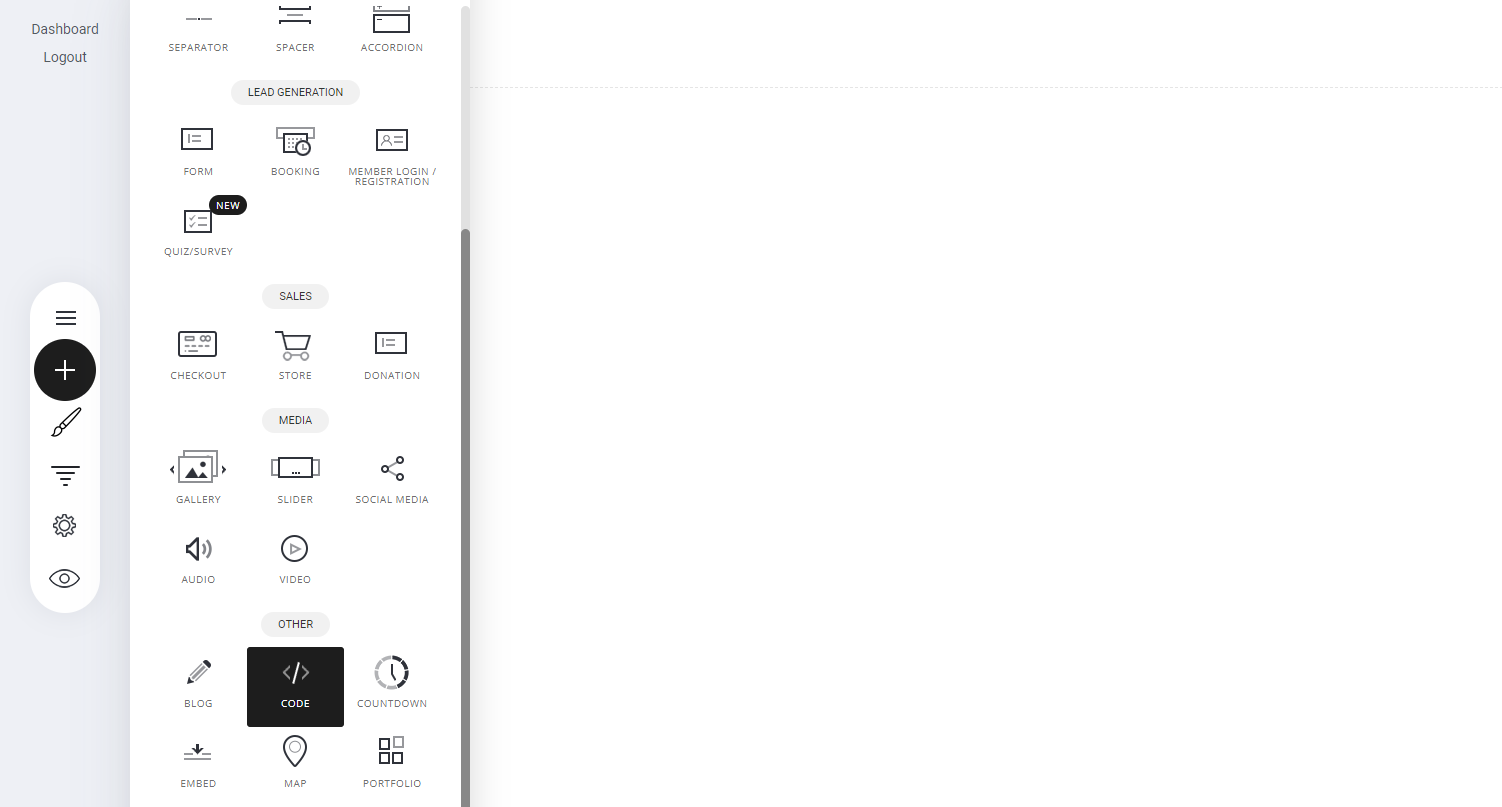
To add the Code widget simply drag and drop the code widget to the place you want to put it.
Edit Code
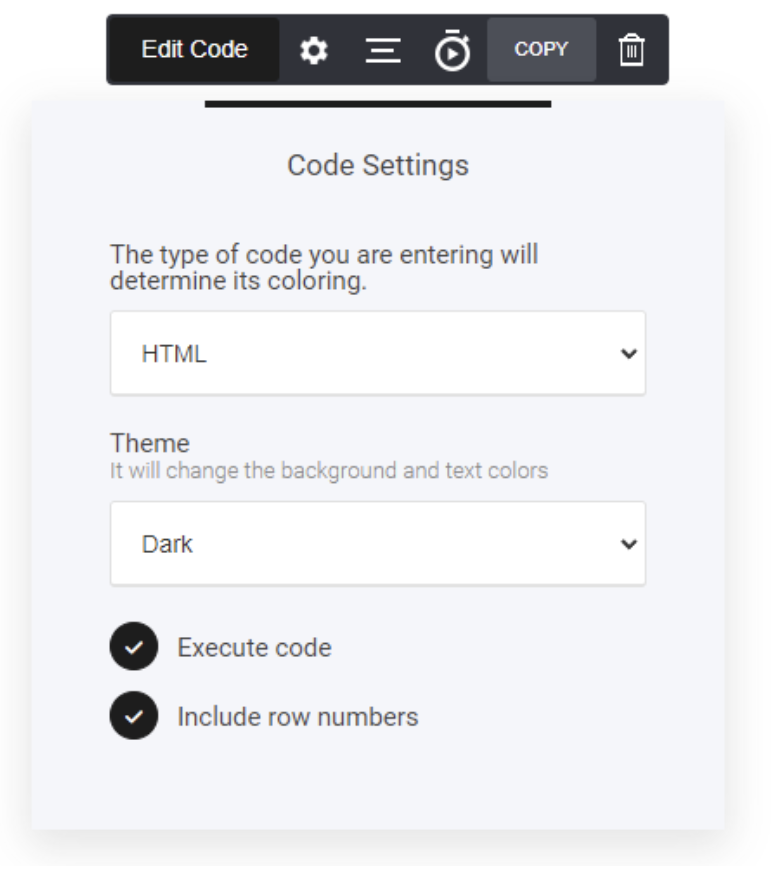
Select your preferred code settings from the settings cog:
-
Code language format
Select the type of code you are entering (for example HTML, CSS, or JavaScript).
This controls syntax highlighting and makes the code easier to read and edit.
-
Theme
Choose the editor theme (Light or Dark).
Affects background and text colors in the code editor only, not how the code renders on the page.
-
Execute code
When enabled, the code will run and be applied on the page.
Disable this if you want to temporarily prevent the code from executing without deleting it.
-
Include row numbers
Displays line numbers next to the code.
Useful for readability, debugging, and when referencing specific lines of code.
These settings help you control how code is written, displayed, and executed, making the Code widget easier and safer to work with—especially when testing or iterating on custom solutions.
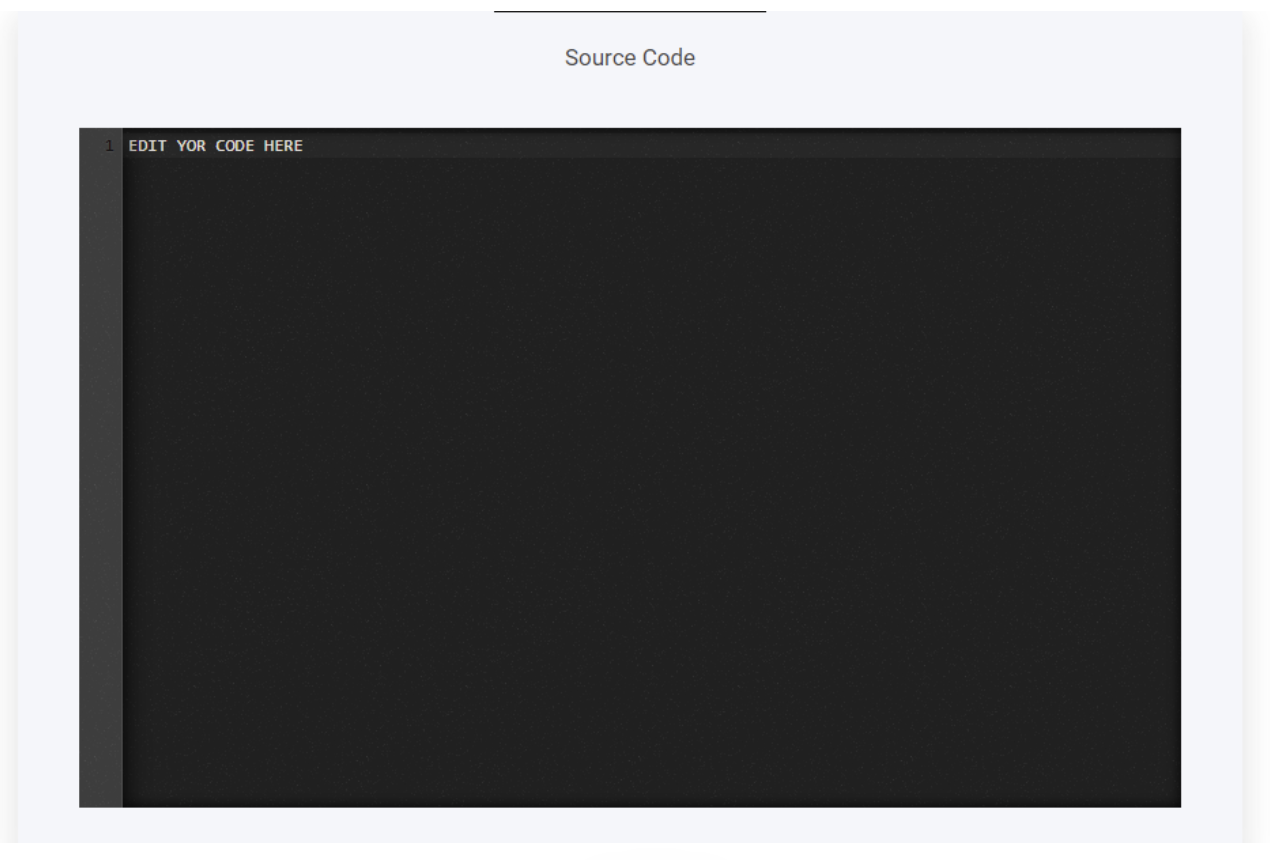
Now simply add your code directly into the source code box as shown below
When to use the Code widget
Use the Code widget when you want to:
- Embed external tools or services
- Add custom styling or layout behavior to a specific section
- Insert scripts or embeds that only apply to one page
- Create small interactive elements
- Extend or customize features beyond built-in widgets
You can place the Code widget anywhere on a page — inside containers, between other widgets, or in specific sections — giving you full control over where and how the code is applied.
Common use cases
Below are common and recommended ways to use the Code widget, grouped by category.
Embedding external content
The Code widget is ideal for embedding services that are not natively supported by other widgets.
Video & media embeds
You can embed video players from platforms that are not supported by the Video widget, such as:
- Custom or self-hosted video players
- Niche or enterprise video platforms
- Privacy-focused video services
- Interactive or gated video tools
Simply paste the embed code provided by the video platform into the Code widget.
This makes the Code widget a great fallback when a platform does not offer a direct integration.
Forms & booking tools
Embed third-party tools such as:
- External form builders
- Booking and scheduling tools
- Survey platforms
- Waitlists or registration forms
This is useful when you need advanced logic, custom workflows, or integrations that go beyond the built-in Forms widget.
Maps & location tools
Use the Code widget to embed:
- Custom Google Maps
- OpenStreetMap widgets
- Event or venue maps
- Location selectors
This allows more control over styling, zoom levels, markers, and interactions.
Marketing & analytics integrations
Tracking & analytics
You can use the Code widget to insert page-specific tracking scripts such as:
- Analytics tools
- Conversion tracking pixels
- Heatmaps
- A/B testing scripts
Placing scripts inside a Code widget lets you track specific pages or sections, instead of loading scripts globally across the entire site.
Chat & support tools
Add live chat or support widgets such as:
- Chatbots
- Helpdesk widgets
- Knowledge base popups
This allows you to offer real-time assistance without redirecting users away from the page.
Layout & design enhancements
Custom styling
Use CSS inside the Code widget to:
- Adjust spacing or alignment
- Override specific styles locally
- Create visual effects
- Add simple animations or transitions
This is especially useful for small design tweaks when you don’t want to affect global styles.
Custom sections & layout blocks
You can create custom layout elements such as:
- Highlight or callout boxes
- Comparison tables
- Custom dividers or separators
- Branded content sections
These can complement existing widgets and give you more visual freedom.
Interactivity & functionality
Small interactive features
With lightweight JavaScript, you can create:
- Toggle sections
- Show/hide content
- Conditional messages
- Simple calculators
- Interactive notices or alerts
These features can improve usability and engagement without building a full custom application.
Logic & personalization
More advanced users can use custom code to:
- Display content based on conditions
- Personalize messages
- React to user actions
- Modify elements dynamically
This is useful for experiments, personalization, and advanced UX patterns.
Using AI to create custom code
You don’t need to be a developer to use the Code widget effectively.
AI tools like ChatGPT or similar assistants can help you:
- Generate embed code
- Write simple HTML or CSS
- Create JavaScript snippets
- Debug small issues
- Explain what a piece of code does
Tips when using AI
- Be specific about what you want to achieve
- Mention that the code will be used inside a website
- Ask for simple, lightweight solutions
- Test the code on a draft page before publishing
AI is a great way to experiment, learn, and build small custom features safely.
Code widget vs Page-level & Global custom code
Recrevio offers multiple ways to add custom code. Choosing the right one helps avoid performance issues and unintended side effects.
Use the Code widget when…
- The code is page-specific
- The code belongs to a specific section or block
- You are embedding content or adding visual elements
- You want low risk and easy removal
Best for: embeds, layouts, small interactions, experiments.
Use page-level custom code when…
- The code affects the entire page
- You need scripts or styles to load early
- The logic applies across multiple sections on one page
Best for: page-wide scripts, advanced layouts, page-level tracking.
Use site-wide (global) custom code when…
- The code must run on every page
- It powers core functionality
- It is required across the entire website
Best for: analytics, cookie tools, global styles, essential integrations.
💡Best practice
Always start as locally as possible:
- Code widget
- Page-level custom code
- Site-wide custom code (only if necessary)
This keeps your site easier to maintain and safer to update.
⚠️ Caution
Site-wide code should be used sparingly — errors can affect the entire site.
Best practices
– Keep custom code minimal and focused
– Test changes on a draft or hidden page first
– Avoid adding multiple heavy scripts on the same page
– Document what each code block does
– Remove unused code to prevent conflicts
⚠️ Important disclaimer
Custom code is powerful, but should be used with care.
- Recrevio does not provide support or troubleshooting for custom code
- We cannot guarantee compatibility with third-party scripts
- Errors caused by custom code are not covered by standard support
- Poorly written code can affect performance, layout, or functionality
We strongly recommend testing thoroughly and only using custom code when necessary.
If you’re unsure, start small — or consult a developer before implementing more advanced solutions.