
Map widget
The Map widget allows you to display an interactive map directly on your page by entering a physical location or address. It’s a simple and effective way to help visitors understand where you are, where something takes place, or how to find you.
Maps are especially useful for businesses with a physical presence, events, meetings, or services tied to a specific location.
How the Map Widget Works
When you add the Map widget to a page, you can configure the following settings:

Location
Enter the address or place you want to display on the map.
Examples:
- A business address
- An event venue
- An office or studio location
- A meeting point or pickup location
The map will automatically center itself on the entered location.
Map Type
Choose how the map is visually presented:
-
Roadmap
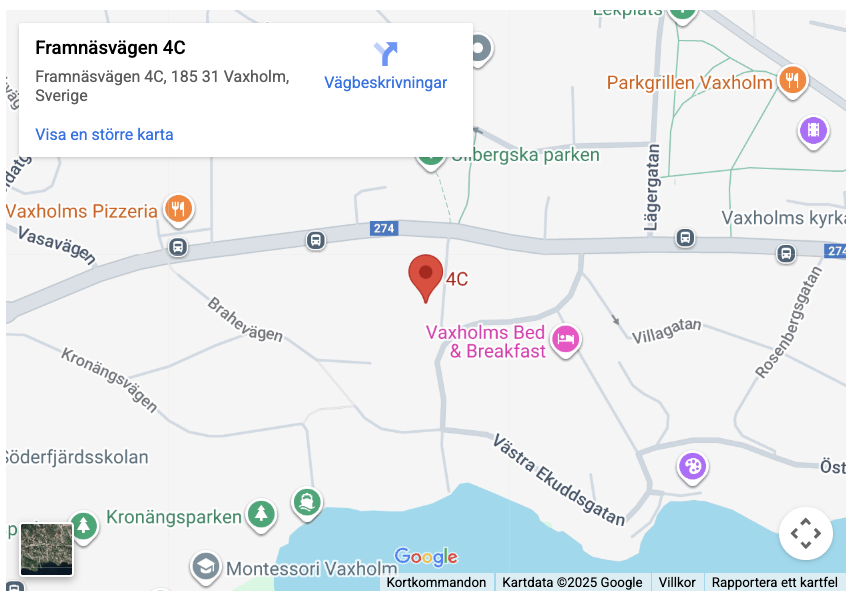
A classic map view showing streets, roads, and place names.
- Best for:
- Directions
- Finding addresses
- Urban or suburban locations
-
Satellite
A satellite image view showing real-world terrain and buildings.
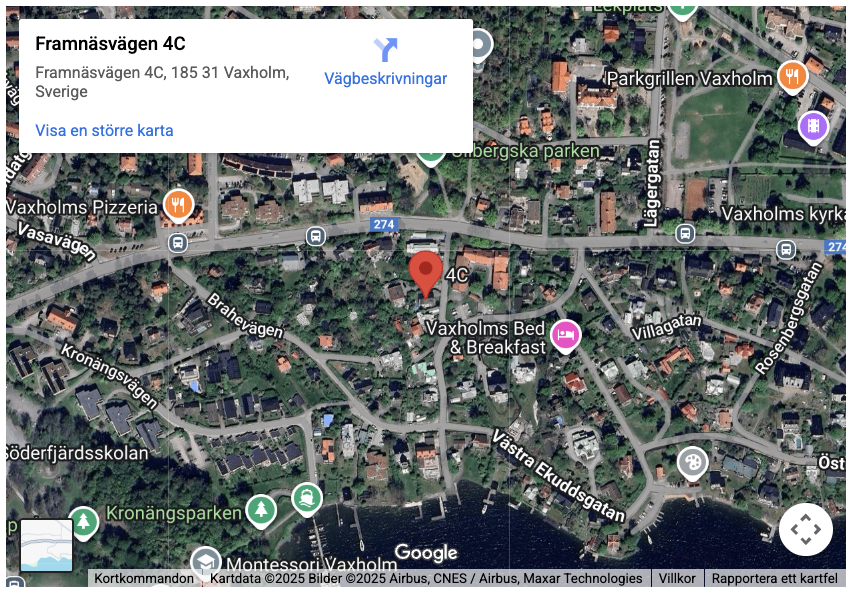
Best for:
- Rural or remote locations
- Visual landmarks
- Outdoor venues or nature-based businesses
Zoom Level
The slider at the bottom controls the zoom level of the map.
- Zoom in to show a precise location (for example a building entrance).
- Zoom out to give visitors broader geographic context.
💡 Tip
Use a closer zoom for storefronts and offices, and a wider zoom for events or destinations where users may be coming from different directions.
When Is It a Good Idea to Use a Map?
The Map widget is a great addition when location matters for the visitor.
Common use cases
-
Local businesses
Show where your store, office, clinic, or studio is located.
-
Events & workshops
Help attendees find the venue quickly and confidently.
-
Meetings & appointments
Display the meeting location alongside booking or contact information.
-
Service areas
Give geographic context for in-person services or coverage areas.
-
Trust & credibility
Showing a real location can increase trust, especially for local or service-based businesses.
The Map widget is a small but powerful tool that adds clarity, trust, and usability when physical location plays a role in your customer experience.
💡 Best Practices
- Place the map close to contact details or booking information.
- Combine the map with written directions or parking instructions if needed.
- Avoid placing maps too high on landing pages unless location is the main focus.
- For global or fully digital businesses, a map is usually optional and not required.
❗️When Not to Use a Map
You may want to skip the Map widget if:
- Your business is 100% digital
- Location is not relevant to the offer
- You want to minimize distractions on a conversion-focused page
In those cases, a simple text description or contact section may be enough.