
How to use links
Links help you connect content, navigation, and actions across your website — from simple text links to popups, funnels, files, and click-to-call buttons. This article explains where you can add links, and how to use the link selector popup with all available link types and options.
Where you can add links
You can add links from multiple widgets and elements across the builder, including:
- Header Menu widget
- Text widget
- Button widget
- Icon widget
- Icon Section widget
- Accordion widget
- Image widget
- Slider widget
- Form widget
- Booking widget
- Quiz/Survey widget
- Social Media widget
- Menu widget
How linking typically works
- Text-based widgets: select the text, then click the Link icon.
- Clickable widgets: open the widget Settings, then choose Add Link / Open on click (wording may vary slightly by widget).
- Navigation widgets (Menu): link each menu item to the correct destination via its settings.
How to create a link (step-by-step)
- Select the widget you want to link from (for example a Button, Heading, or Icon).
- Click Add Link (or the link icon if you’re linking selected text).
-
The Select a Link popup opens.
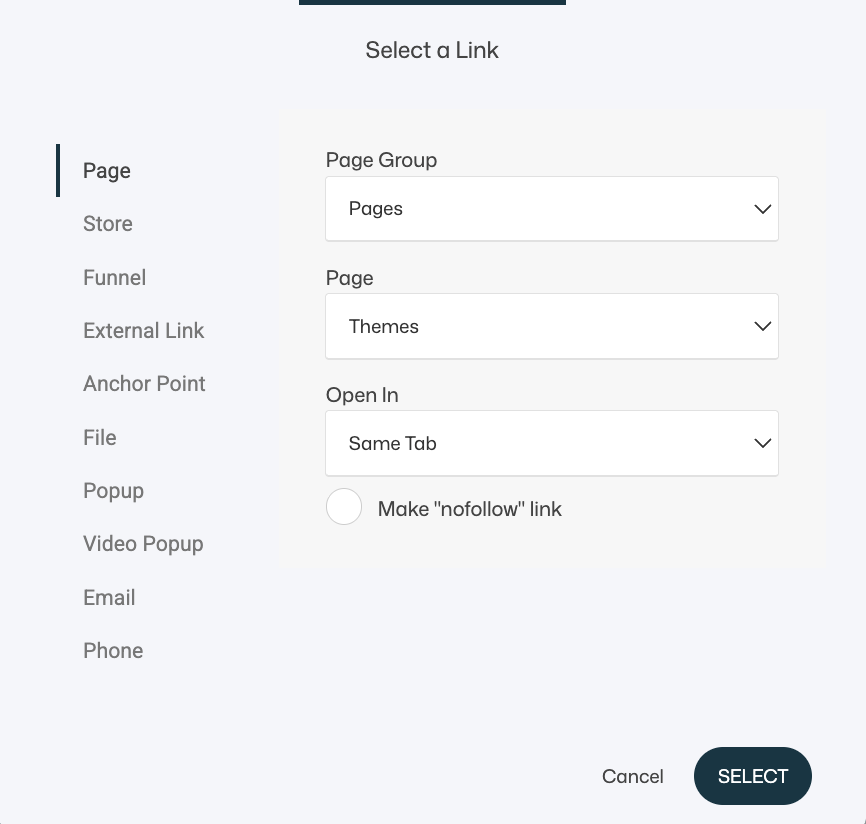
- Choose the link type in the left menu.
- Configure the options on the right side (destination + behavior).
- Click Select to apply the link.
The “Select a Link” popup
In the link selector, you choose what kind of destination you’re linking to. The available options typically include:
- Page
- Store
- Funnel
- External Link
- Anchor Point
- File
- Popup
- Video Popup
- Phone
Below is what each option means, when to use it, and any important tips.
Supported link types
Page
Link to any internal page on your website, simply select the Page group and then the Page you want to link to.
Typical use cases:
- Navigation links
- “About”, “Contact”, “Pricing” links
- Linking between content pages
Store
Link directly to store-related destinations, simply select the Category and then the Product you want to link to.
Typical use cases:
- “Shop now” buttons
- Product highlights
- Category navigation
Funnel
Link to a specific funnel step.
Typical use cases:
- Sales pages → checkout steps
- Opt-in step → thank-you step
- Multi-step campaigns
Important (Funnel anchors):
You can also link to anchor points inside a funnel step, which makes it possible to jump to a specific section on the funnel page.
- Add anchor points in the Block settings for the blocks inside the funnel step.
- Then link to that section via Funnel links (not via regular Page/Anchor links).
External Link
Link to any external URL (another website, tool, document, etc.).
Examples:
- Booking tools
- External resources
- Partner sites
- External community links
Very important (linking to your own site):
If you use External Link to link to pages on your own website (for example Circles or Circle pages), do not paste the full domain. Use a relative path instead.
Example:
- Use
/circlesor/circles/community-name - Not
https://yourdomain.com/circles
Why relative paths are best:
- Ensures correct navigation if the system structure changes
- Ensures correct navigation when switching or updating a custom domain
- Improves compatibility across environments (preview, staging, live)
- Keeps links cleaner and easier to maintain
Anchor Point
Link to a specific section using an anchor (jump link). Add anchor points in the Block settings for the block you want to link to.
Typical use cases:
- “Jump to FAQ”
- “See pricing”
- “Back to top”
- Long-page navigation
💡 Important (Funnels)
For funnel pages, anchor links are handled via Funnel links, not regular page anchors.
File
Link to uploaded files such as:
- PDFs
- Documents
- Downloads (lead magnets, resources, menus, etc.)
Typical use cases:
- “Download PDF”
- “Get the checklist”
- “View the guide”
Popup
Open a popup instead of navigating away from the page.
Typical use cases:
- Quick signup popups
- Lead magnet opt-ins
- Contact popups
- Announcement popups
Video Popup
Open a video in a popup/modal view.
Typical use cases:
- Demo videos
- Explainer videos
- Testimonials
- “Watch the preview” CTAs
Create a mailto: link that opens the visitor’s email client.
Typical use cases:
- Contact links like “Email us”
- Support links
- Sales inquiries
Tip:
- Use a clear label like “Email support” so users know it opens their email app.
Phone
Create a click-to-call link (especially useful on mobile).
Typical use cases:
- Call a clinic/store
- Booking by phone
- Support hotlines
Tip:
- Include the country code when relevant to avoid dialing issues.
Link options
Depending on link type, you can usually control:
Open in
- Same tab (best for internal navigation)
- New tab (often best for external tools or resources)
Best practice:
- Keep users in the same tab for internal links.
- Use new tab when sending users to external platforms or tools.
Make “nofollow” link
Useful for SEO when linking to:
- Sponsored content
- Affiliate links
- Certain external references you don’t want to “endorse” for ranking purposes
Best practices
- Use internal Page/Funnel/Anchor links whenever possible to keep users engaged and navigation consistent.
- Prefer relative paths (
/something) for linking to your own site when using External Link. - Keep link labels clear (for example “Download PDF” is better than “Click here”).
- For long pages, anchors improve UX and reduce scrolling friction.
- Test links after publishing — especially popups, file links, and funnel-step links.