
How to Create and Manage Service Products
Services are perfect for selling expertise, time, and personalized outcomes – without shipping, inventory, member access, or file delivery. They allow you to offer high-touch, value-driven solutions where fulfillment happens through calls, sessions, meetings, or custom work rather than automated content.
With Service Products in Recrevio, customers purchase access to a service that is delivered manually or through scheduled interactions. This makes services ideal for businesses built around knowledge, guidance, support, or hands-on execution.
Service Products are ideal for selling:
- 1:1 coaching or mentoring sessions
- Consulting and strategy calls
- Appointments or booked sessions
- Freelance or custom work
- Done-for-you services
- Professional services delivered once or on a recurring basis
Service Products focus on clear expectations, pricing, and delivery flow, making it easy for customers to understand what they’re buying and what happens after purchase.
This article walks through every section of the Service Product editor, from top to bottom, explaining each setting and offering best-practice recommendations so you can confidently create, price, and deliver services that are clear, professional, and easy to sell.
Creating a Service Product
To create a Physical Product:
- Go to Products → All Products
- Click Add Product
- Select Service as the product type
This opens the product editor, which is divided into three main areas:
- Main product details (left column)
- Product settings & media (right column)
- Advanced product options (sections below)
1. Main Product Area (Top Left)
This is where you define the core information about your product.
Product Title
Enter the name of your product as it will appear:
- In your store
- On checkout pages
- In order confirmations
- In emails and receipts
💡 Tip – Product Names for Service Products
Use clear, outcome-focused names that immediately communicate what the service delivers, not how you internally describe it. Focus on the result, transformation, or problem solved.
For example:
Use “60-Minute Business Strategy Session” instead of “Consulting Call v2”
Use “Website Audit & Action Plan” instead of “Site Review Service”
If your service includes multiple steps, sessions, or deliverables, keep the product title simple and clear, and explain the full scope, process, and expectations in the product description—rather than overloading the product name with details.
Description
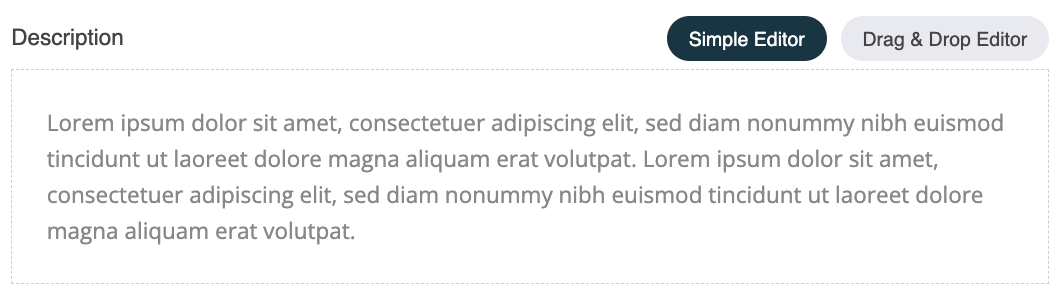
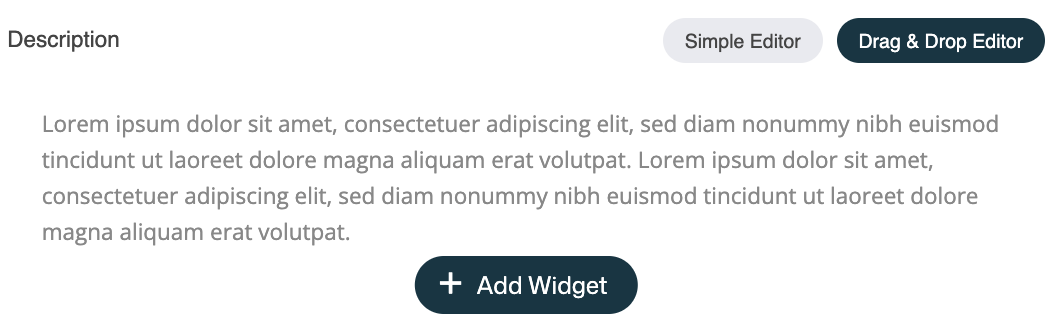
The description will be displayed in the built-in store. You can describe your product using either:
-
Simple Editor – clean text-based description
-
Drag & Drop Editor – opens the web studio controls so you can add any widget – this enables richer layouts with sections, images, and formatting. Simply click the Add Widget button to open the widget panel to the left and drag and drop any widget to the discription field.
Use the description to explain:
- What the product is
- Who it’s for
- What’s included
- Key benefits or features
💡 Tip – Use the AI Writing Assistant for Product Descriptions
You can use the built-in AI Writing Assistant to quickly create or improve your product description.

Generate a description from the product title, expand or shorten existing text, or refine the wording to make it clearer and more compelling.
This is especially helpful if:
- You want a quick starting point
- You need help structuring your copy
- You want to improve clarity or tone
👉 See separate article: Using the AI Writing Assistant
Price

Set the base price of the product.
Available options:
- Standard Price – Sets the regular price for the product.
- On Sale – Display the original price as strikethrough in checkouts, highlighting a discounted sale price.
- Subscription Product – Enables recurring payments by charging customers on a repeating schedule.
Subscription Product
If enabled, the product becomes a recurring or installment-based product.

You can chose:
- Billing cycles
-
Ongoing Payments
Charges continue indefinitely until canceled, e.g. charging every month for monthly plans and every 12 months for annual plans.
-
Installments
Chose a fixed number of payments (2–52 installments)
-
-
Charge every
Chose the payment frequency to every 1–12 weeks or 1–12 months
💡 Tip – Subscriptions & Installments for Service Products
Service Products often involve time, expertise, or an ongoing process, which makes them well suited for subscriptions or installment-based payments—depending on how the service is delivered.
Use subscriptions when:
- The service is delivered on an ongoing basis
- You offer recurring support, coaching, or maintenance
- The value is continuous rather than one-time
Examples:
- Monthly coaching or mentorship
- Ongoing consulting or advisory services
- Retainer-based support or maintenance services
Use installments when:
- The service has a higher price point
- Delivery happens over a defined period or in phases
- You want to lower the upfront cost for the customer
Examples:
- Multi-session coaching programs
- Group programs or transformations over several weeks or months
- Done-for-you projects with a clear start and end
💡 Best practice
Choose subscriptions for ongoing services with recurring value, and installments for time-limited programs or higher-ticket services delivered in stages. This aligns pricing with delivery and makes your offer easier to commit to.
SKU (Stock Keeping Unit)
An optional internal identifier for:
- Inventory management
- Accounting
- Fulfillment systems
💡 Tip – SKU for Service Products
SKUs are optional for service products and often not required, since there is no physical inventory or fulfillment involved.
Use a SKU only if you:
- Integrate with accounting or reporting systems
- Want internal product identifiers for organization
- Sell the same service product across multiple channels
Otherwise, you can safely leave the SKU field empty for most service products.
Product Type
This is pre-set to the product type chosen when creating the product. The product type determines which fields are shown. Once the product has been created this canät be changed.
Available options:
- Physical product
- Digital product
- Service
- Membership
2. Right Column – Media & Visibility Settings
This column controls how your product looks and behaves externally.
Product Images
Add one or more images to visually represent your product.
Images are used in:
- Store listings
- Product pages
- Checkouts
- Emails and receipts
Product Categorization
Assign the product to one or more categories or subcategories. You can also create and assign new categories during the product creation process by clicking the + icon in the Select Product Categories popup:

Categories help:
- Organize your store
- Improve navigation
- Enable filtering
💡 Note
Products are assigned to categories individually (not in bulk).
Hidden Product
When enabled:
- The product is hidden from the store
- Still usable in direct links, funnels, as upsells/downsells or automations using the checkout widget
💡 Use case
Private offers, upsells, or invite-only products.
Product Page URL
Defines the URL slug for the product page.
Example:
/product/product-name
💡 Tip: Keep URLs short, readable, and keyword-friendly.
SEO Settings
Control:
- Page title
- Meta description
💡 Tip – Use the AI Writing Assistant for SEO Title & Description
You can use the built-in AI Writing Assistant to quickly create or refine your SEO Title and SEO Description.
Click Generate via AI to automatically generate an optimized SEO title and SEO description based on your product page (in this case basically the Product name and Product description).
You can also use the AI controls to:
- Improve existing text
- Expand or shorten your SEO copy
- Fine-tune wording for clarity, tone, and search visibility
This is especially helpful if:
- You want SEO-friendly text without starting from scratch
- You need help fitting within recommended character limits
- You want clearer, more compelling search snippets
👉 See separate article: Using the AI Writing Assistant
3. Advanced Product Options (Below Main Area)
These sections add deeper functionality to your product.
Track Inventory
Enable this to:
- Track available quantity
- Show remaining stock
- Get notified when inventory runs low
💡 Tip
Leave inventory tracking disabled for most Service Products unless you intentionally want to limit access or availability.
Variations
Variations let you create multiple versions of the same product, such as different sizes, colors, materials, or bundles – without creating separate products.
Common variation examples include:
- Size (e.g. Small, Medium, Large)
- Color
- Material
- Length, format, or edition
- Bundle or package options
You can create custom variation names and values that fit your product exactly.
What You Can Set per Variation
Each variation (or variation combination) can have its own settings, including:

- Price – Set a unique price per variation
- Sale price & On Sale toggle – Control discounts per variation
- SKU – Assign a unique SKU for inventory and fulfillment
- Inventory quantity – Track stock per variation
- Weight – Used for shipping calculations
- Dimensions – Width, height, and length per variation
Variation Images
You can upload separate images for each variation, allowing customers to clearly see what they are selecting (for example, different colors or sizes).

Images can be:
- Added per variation
- Reordered
- Updated at any time
Managing Variations
- Add or remove variation values at any time
- Edit pricing, stock, and details inline
- Automatically generate all variation combinations
- Keep everything organized in a single product
💡 Tip
Use variations instead of creating multiple similar products. This keeps your catalog cleaner, improves the customer experience, and simplifies inventory and pricing management.
Custom Thank You Page
Optionally redirect customers to a custom page after purchase.

Use this for:
- Post-purchase instructions
- Upsells
- Onboarding steps
- Delivery expectations
Additional Questions
Ask customers for extra information before adding to cart.
Examples:
- Gift message
- Custom notes
💡 Tip
Keep questions minimal to avoid friction during checkout.
Tag Customers
Automatically apply tags to customers after purchase.

Tags can be used in:
- Automations
- Email segmentation
- CRM filtering
💡 Example
Tag customers with digital-product-buyer .
Saving Your Product
When all settings are complete:
- Click Save Changes
- The product becomes available based on its visibility settings
Best Practices for Service Products
Use clear, outcome-focused service names
Focus on the result or transformation the customer will receive (e.g. “90-Day Business Coaching Program” instead of “Coaching Package Level 2”).
Write a clear and reassuring service description
Clearly explain:
- What the service includes
- How the service is delivered (calls, sessions, support, timeline)
- Who the service is for
- What outcome or problem the service helps solve
Set expectations upfront
Clarify scope, duration, and format to avoid misunderstandings. Clear expectations increase trust and reduce support questions.
Use visuals to build trust
Add images that support the service experience, such as:
- Personal or brand imagery
- Process diagrams or timelines
- Visual representations of the journey or outcome
Choose the right pricing model
- Use one-time pricing for single sessions or clearly defined services
- Use installments for higher-ticket programs with a fixed duration
- Use subscriptions for ongoing services like coaching, consulting, or retainers
Avoid unnecessary inventory tracking
Service products typically don’t require inventory limits. Enable inventory tracking only if you intentionally want to limit the number of available spots.
Use a custom Thank You page
Guide customers on next steps after purchase, such as:
- Booking instructions
- Onboarding forms
- Preparation steps
- Access details
Test the full purchase and delivery flow
Before going live:
- Complete a test purchase
- Verify confirmation emails
- Check the Thank You page and any follow-up steps
💡 Tip
A smooth, professional experience is especially important for service products. Clear communication before and after purchase builds confidence and sets the tone for a successful client relationship.