
Zapier Integration With Recrevio
Zapier is a no-code automation platform that lets you connect apps using simple trigger-and-action workflows called Zaps.
Zapier is designed for speed and simplicity. It’s ideal when you want to automate workflows quickly, connect popular tools, and avoid complex setup or technical configuration.
With Zapier, you can connect Recrevio to thousands of other apps — without writing a single line of code.
👉 New to external automation?
Read the overview first: Connecting Recrevio With External Tools
How Zapier Works with Recrevio
Zapier enables two-way automation, meaning data can flow both into and out of Recrevio.
You can use Zapier to build workflows where:
-
Triggers in Recrevio → Actions in other apps
(e.g. new order → create invoice in accounting software)
-
Triggers in other apps → Actions in Recrevio
(e.g. new CRM lead → create or update contact in Recrevio)
-
Triggers in Recrevio → Actions in Recrevio (advanced use cases)
(e.g. orchestrating internal workflows using multiple steps)
Each Zap consists of:
- One trigger
- One or more actions
Once active, Zaps run automatically in the background.
How to Connect Recrevio to Zapier
To get started with Zapier:
- Click the Zapier invitation link provided by Recrevio: Zapier App
-
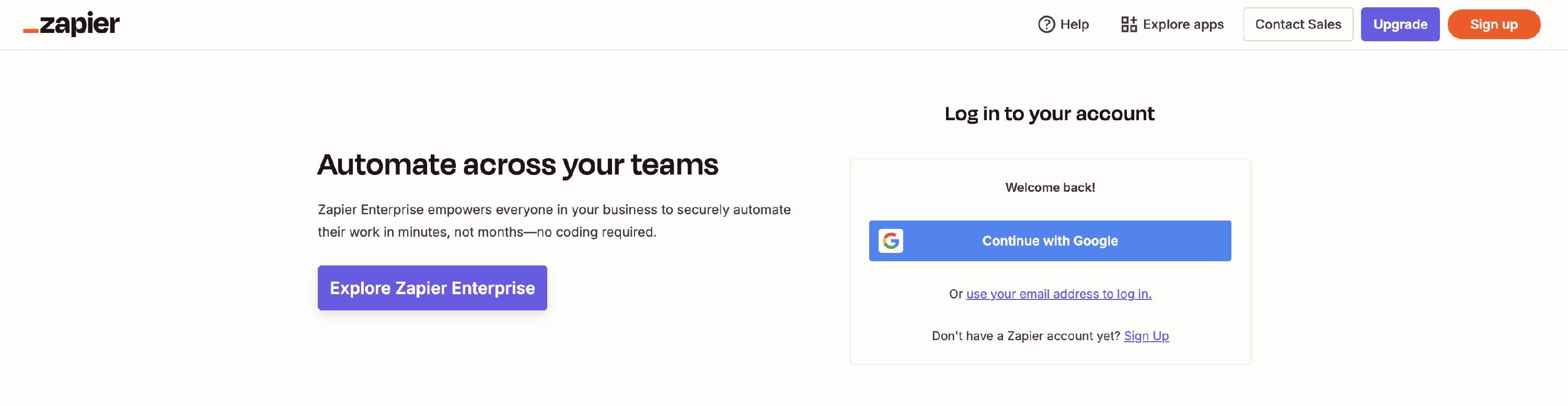
Log in to Zapier or create a new account
-
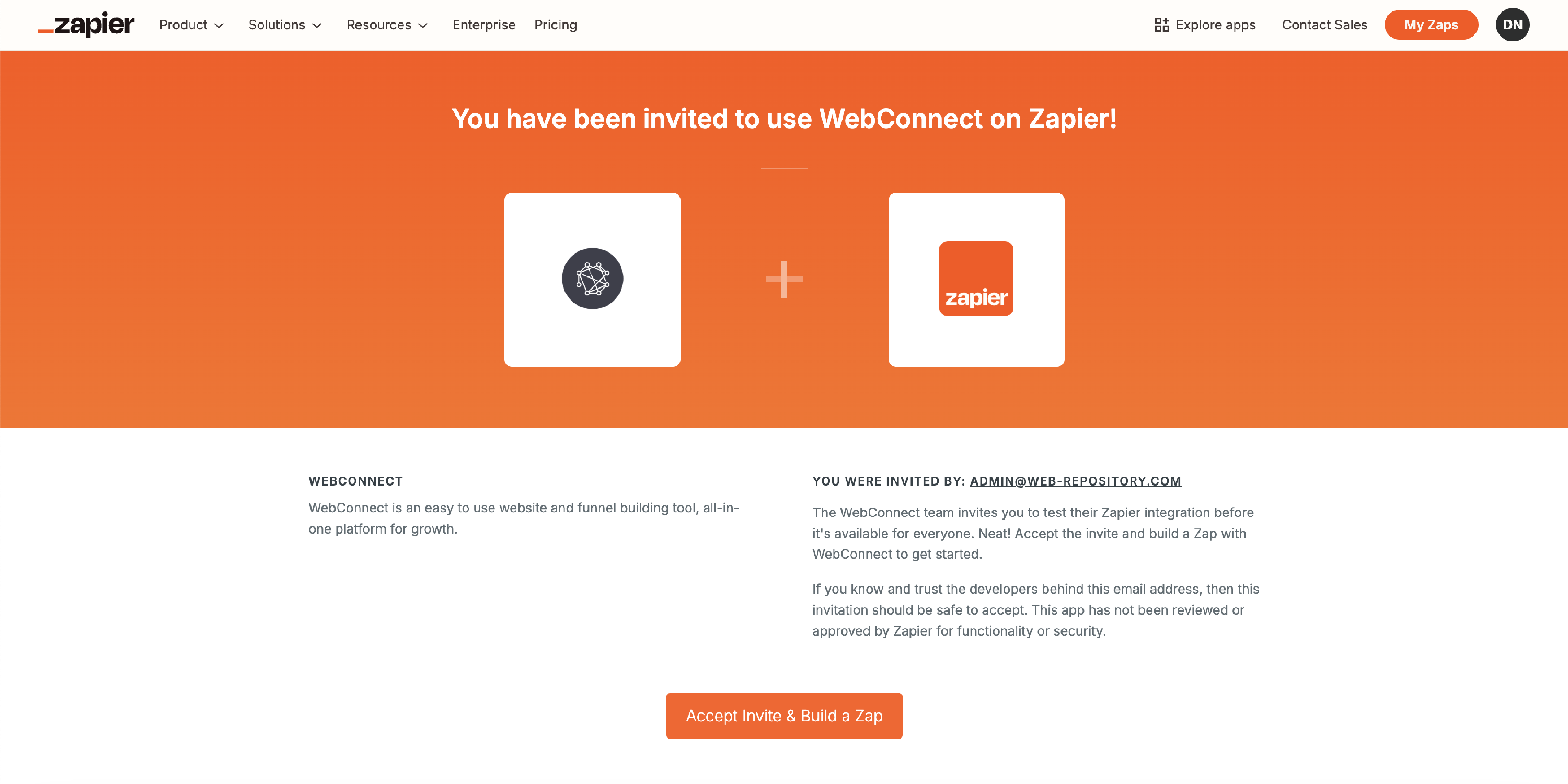
Accept the invitation by clicking Accept Invite & Build a Zap
- Start building your first Zap
Once accepted, the Recrevio (WebConnect) app becomes available inside Zapier and can be used as both a trigger and an action.
Zapier Triggers (Events from Recrevio)
Triggers fire when something happens inside Recrevio and can be used to start workflows in Zapier or trigger actions in other connected apps.
All triggers are instant, meaning they run in real time as events occur.
Available Triggers
Contact Updated
Triggers when a new contact is created or an existing contact is updated in Recrevio.
New Form Submission
Triggers when a form is submitted on your website or funnel.
New Order
Triggers when a new order is placed in your store or funnel.
Updated Order
Triggers when an existing order is updated, such as status changes, payment updates, or fulfillment events.
New Product
Triggers when a new product is created in your store.
Updated Product
Triggers when an existing product is updated.
These triggers make it easy to react to activity in Recrevio and pass data instantly to other systems such as CRMs, spreadsheets, accounting tools, or internal workflows.
Zapier Actions (Actions in Recrevio)
Actions allow other apps connected to Zapier to create, update, retrieve, or delete data inside Recrevio.
This makes it possible to trigger changes in Recrevio based on events happening in external systems.
Create & Update Actions
Create Contact
Creates a new contact or updates an existing contact based on email address.
Create Product
Creates a new product in your Recrevio store.
Update Product
Updates an existing product. Only the fields you provide are changed; all other data remains untouched.
These actions are commonly used to sync data into Recrevio from external tools.
Search Actions
Find Contact
Finds a contact by email address. Optionally creates the contact if none is found.
Find Product
Finds a product by product ID. Optionally creates the product if none is found.
Search actions are useful when you want to:
- Check if a record already exists
- Avoid creating duplicates
- Build conditional logic in your Zaps
Typical Zapier Use Cases
Zapier is commonly used to:
- Sync leads to a CRM
- Push orders to accounting or invoicing tools
- Trigger internal notifications (Slack, email, task managers)
- Keep products, contacts, or members in sync
- Automate simple admin or operational workflows
- Connect Recrevio to tools without native integrations
Zapier is best suited for quick, low-to-moderate complexity integrations where ease of use and speed matter most.
Choosing Between Zapier and Make
Zapier and Make both integrate deeply with Recrevio, but they are designed for slightly different types of workflows.
While they overlap in many areas, the available triggers and actions are not identical.
Make generally offers a more extensive set of actions, deeper data control, and more flexibility, while Zapier focuses on speed, simplicity, and ease of use.
👉 Tip
Before choosing a platform, review which triggers and actions are available and select the automation platform that best matches what you want to automate.
Choose Zapier if you want:
- Fast setup with minimal configuration
- Simple, linear workflows
- Low technical complexity
- Quick connections between common apps
- Easy “if-this-then-that” automations
Zapier is ideal when you want to get automations running quickly with as little friction as possible.
Choose Make if you want:
- A larger and more detailed set of triggers and actions
- Visual workflow design with full control
- Advanced logic, branching, and conditions
- Data transformation and mapping
- Scalable, multi-step, or high-volume automations
Make is best suited for advanced workflows, internal systems, and complex business logic.
👉 Learn more: Make Integration with Recrevio
Using Both Platforms
Many businesses use both Zapier and Make for different purposes:
- Zapier for quick, simple automations
- Make for advanced scenarios and complex workflows
You can choose the right tool per use case – and even run them side by side within the same Recrevio project.
Summary
Zapier makes it easy to connect Recrevio to thousands of other tools using simple, no-code automations.
With Zapier, you can:
- Trigger workflows from activity in Recrevio
- Perform actions inside Recrevio from other systems
- Build two-way integrations quickly
- Automate everyday operational tasks
For fast, flexible integrations with minimal setup, Zapier is a powerful extension of your Recrevio project 🚀