
ShipBob Integration in Recrevio
Connect ShipBob to your store to automate fulfillment through ShipBob's fulfillment network.
Once connected, orders from your store can be sent into your ShipBob workflow for picking, packing, and shipping, helping you manage physical product fulfillment without manually recreating each order.
This article explains how to create the required ShipBob Personal Access Token (PAT), connect ShipBob to Recrevio, and what to expect once the integration is active.
Before you start
To connect ShipBob, you need:
- An active ShipBob account
- Access to the Integrations / API Tokens area in ShipBob
- Permission to generate a Personal Access Token
- Access to Sales Settings in Recrevio
The integration uses a Personal Access Token (PAT) generated in ShipBob. ShipBob describes PAT authentication as suitable for single-user integrations. PATs provide account access and do not expire, so they should be stored securely.
💡 Tip
Treat your ShipBob token like a password. Do not share it publicly or save it somewhere other people can access.
Create your ShipBob API token
Start by signing in to your ShipBob dashboard.
Open API Tokens
In the left-hand navigation, go to:
Integrations > API Tokens
Depending on the ShipBob interface shown in your account, this may appear as Manage API Tokens.
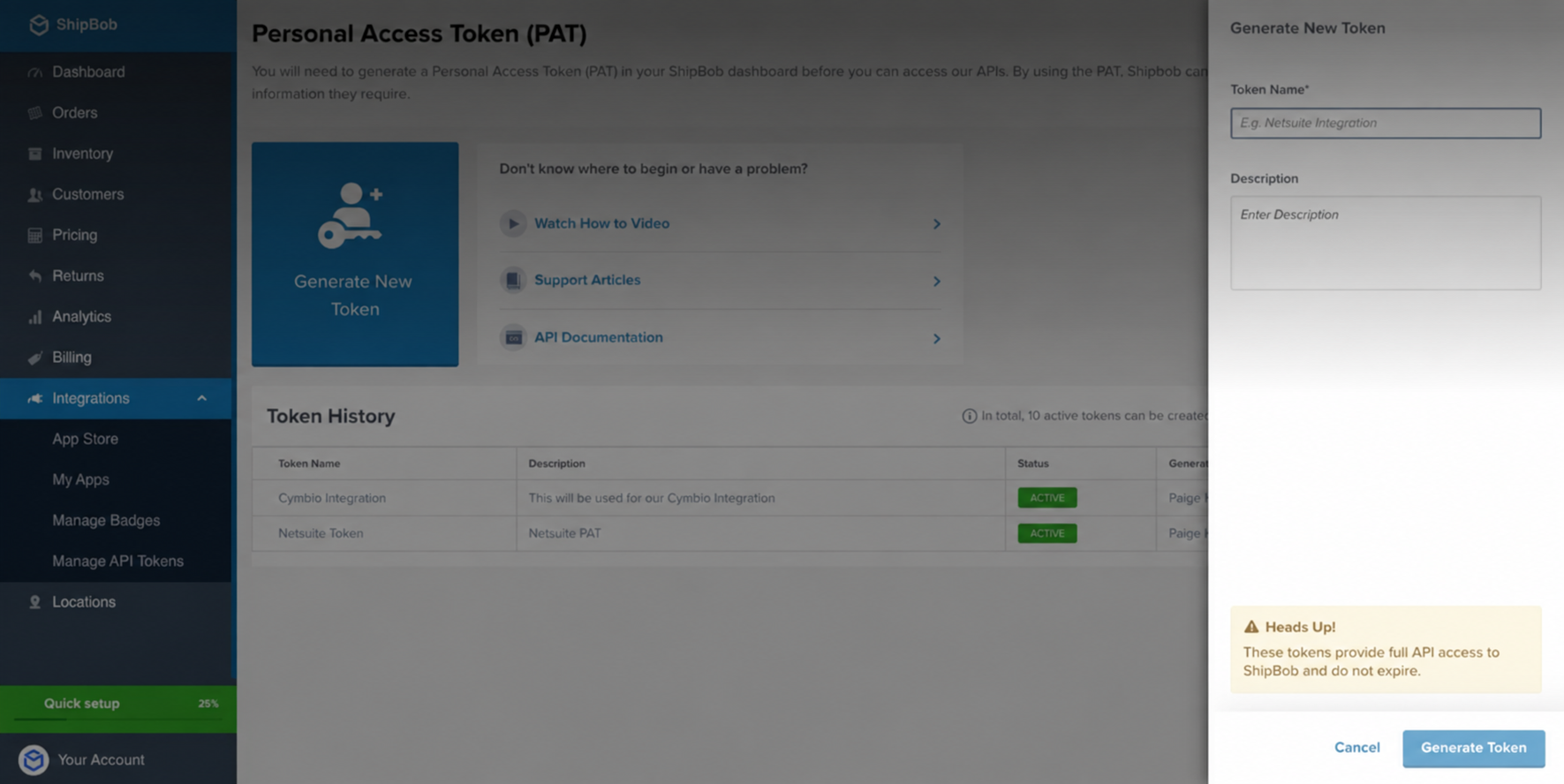
Select Generate New Token. ShipBob's current developer documentation uses the path Integrations > API Tokens > Generate New Token.
Name the token
Enter a recognizable Token Name.
For example:
Recrevio
You can also add a description such as:
Recrevio store integration
Using a clear name makes it easier to identify the token later if you have several integrations connected to ShipBob.
Click Generate Token.
Copy the token immediately
Once the token has been generated, ShipBob displays it in the confirmation window.
Click Copy and save the complete token temporarily while you finish connecting Recrevio.
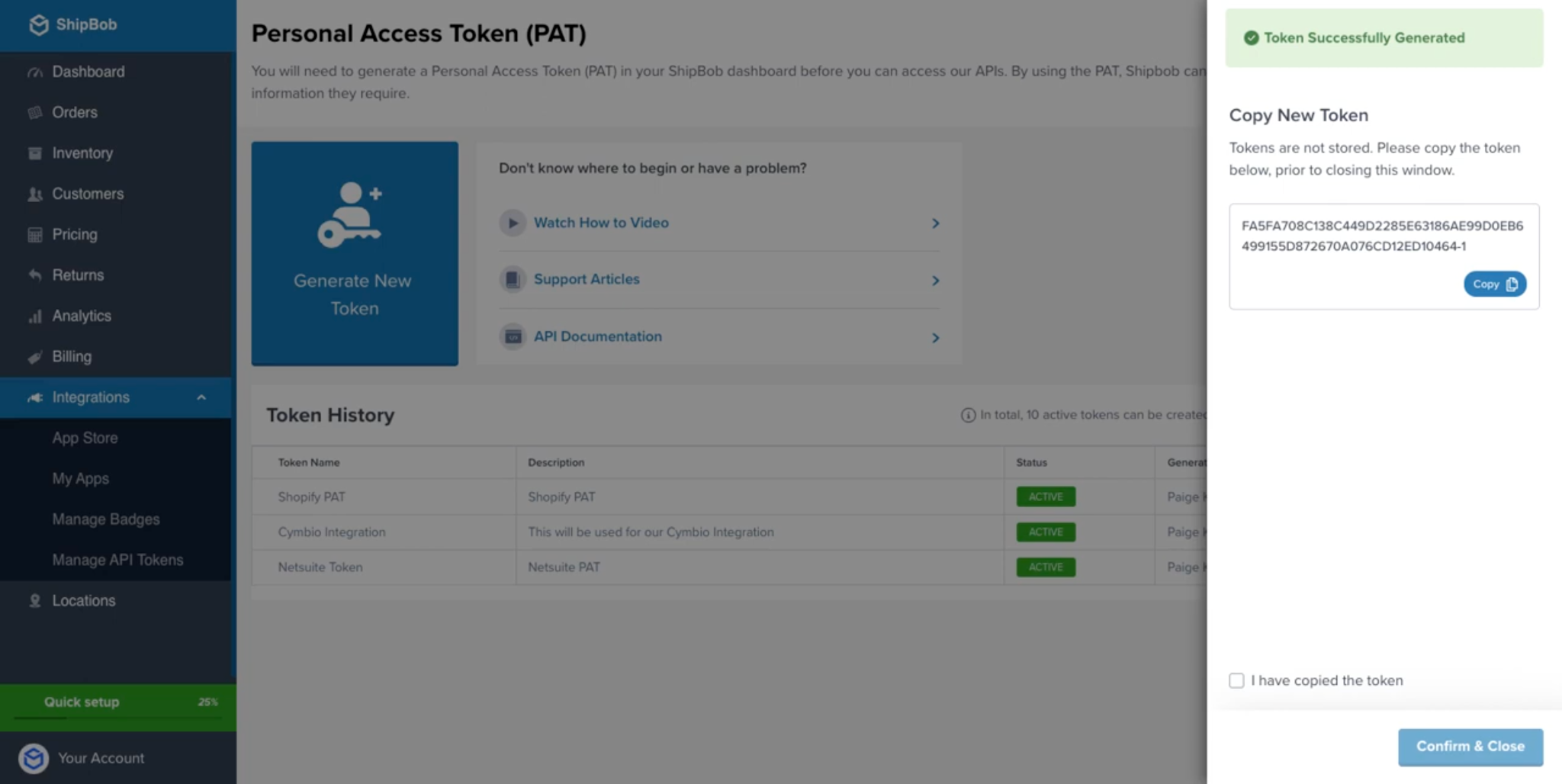
ShipBob only displays the newly generated token once, so you need to copy it before closing the window.
After copying it, confirm that you have saved the token and close the window.
💡 Tip
If you close the window without copying the token, generate a new token instead of trying to recover the old one.
Connect ShipBob to Recrevio
Return to your Recrevio dashboard.
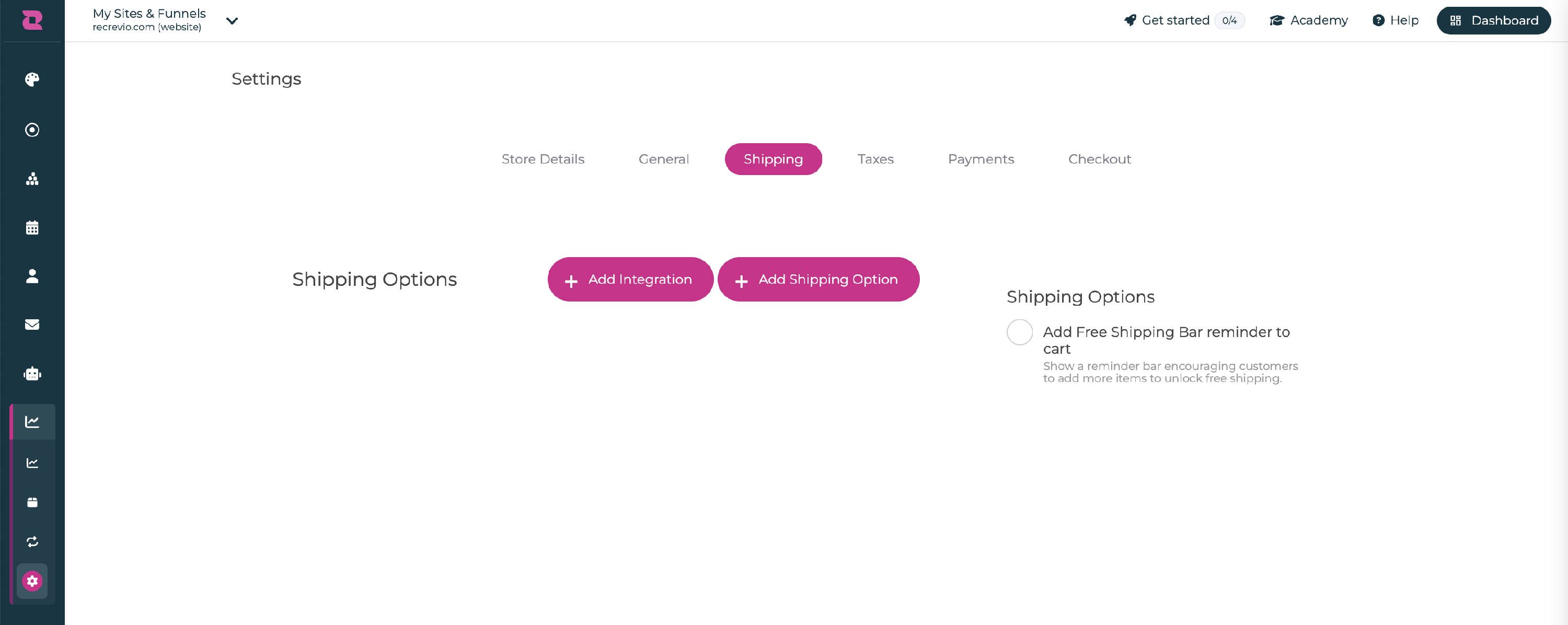
Open the shipping integrations
Go to:
Sales & Analytics > Sales Settings > Shipping > Add integration
Select ShipBob
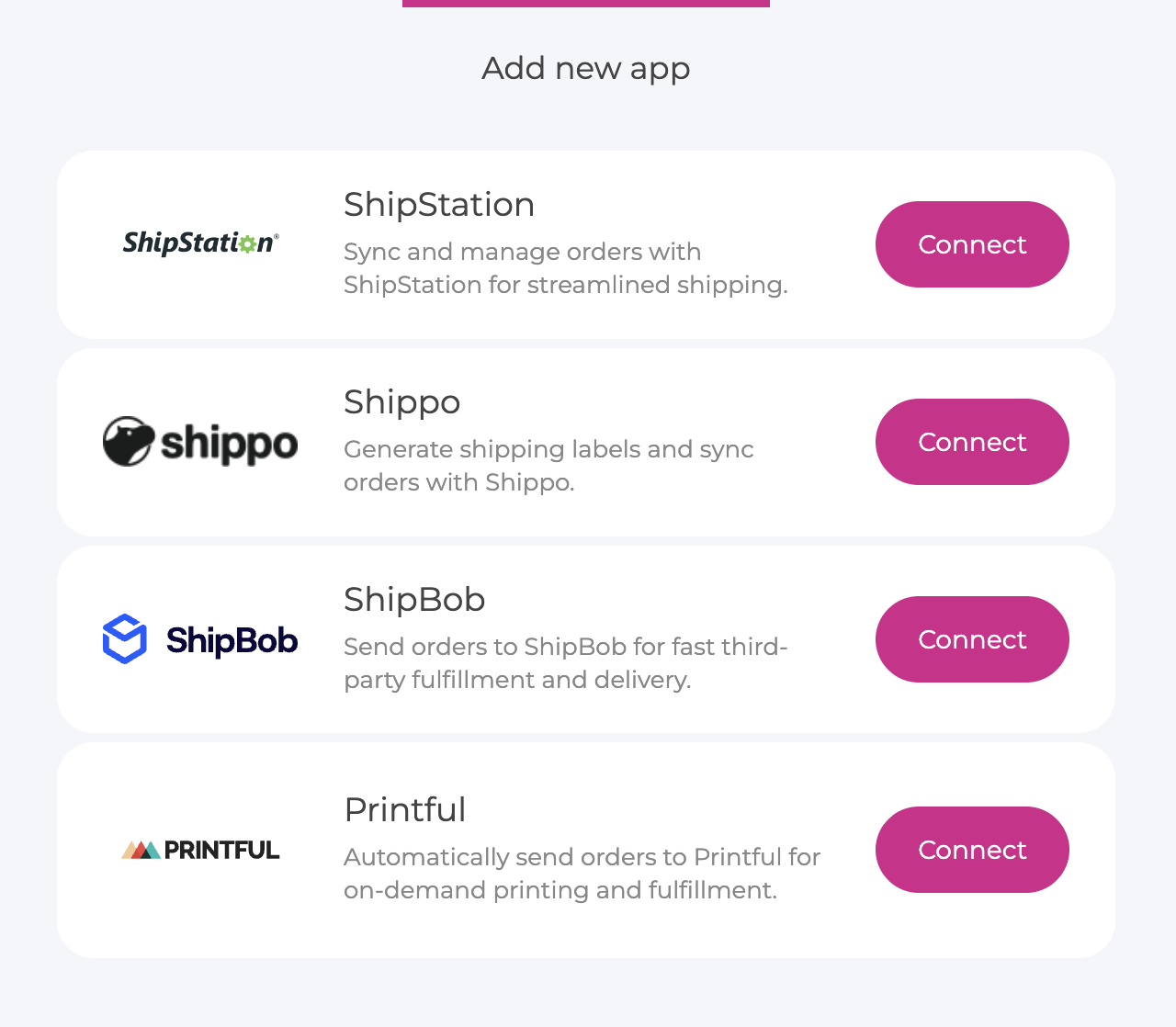
Choose ShipBob from the available shipping integrations.
Add your ShipBob API token
Paste the complete Personal Access Token you copied from ShipBob into the API key/token field.
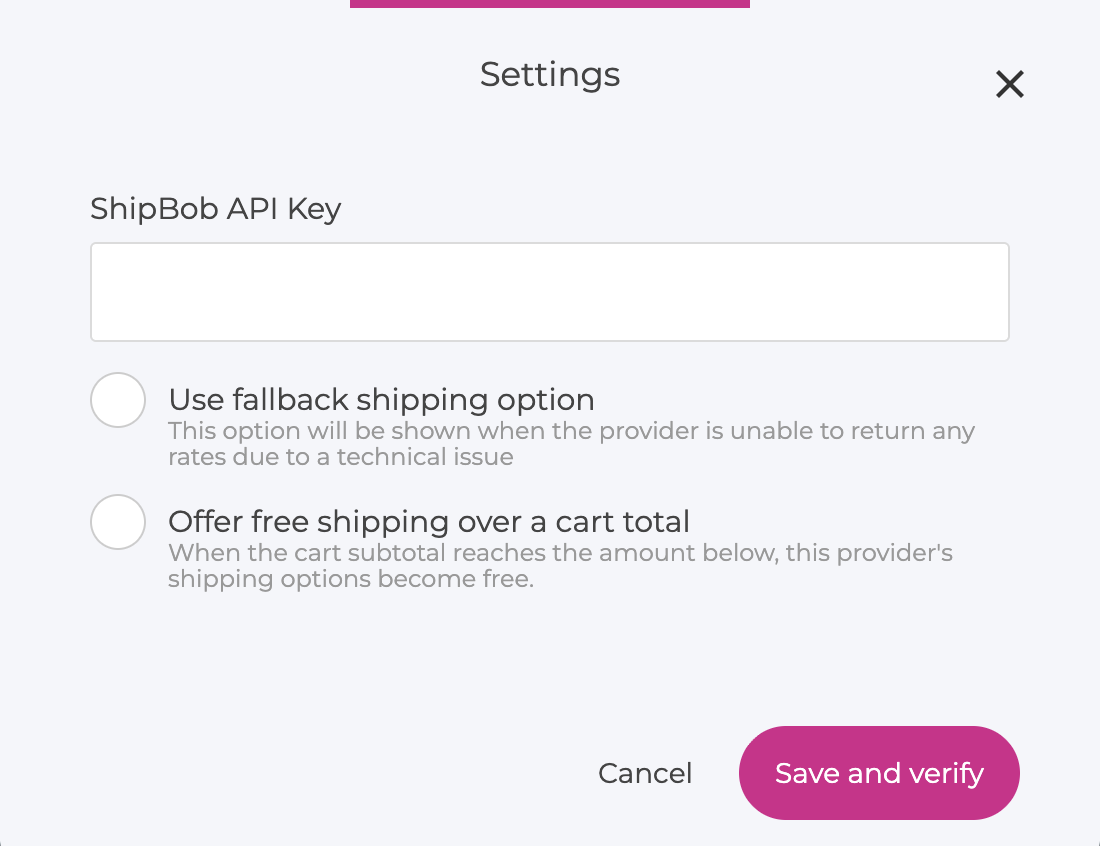
Once the token has been accepted, ShipBob is connected to your Recrevio store.
💡 Tip
Paste the token exactly as ShipBob provides it. Do not add extra spaces or additional text before or after the token.
What happens when an order is placed
With ShipBob connected, orders can flow from your Recrevio store into your ShipBob fulfillment workflow.
ShipBob can then handle the operational fulfillment process, including:
- Receiving the order
- Allocating inventory
- Picking the products
- Packing the shipment
- Shipping the order
- Tracking fulfillment through ShipBob
This removes the need to manually recreate each store order inside your fulfillment system.
Inventory and fulfillment in ShipBob
ShipBob is different from a traditional shipping-rate integration such as Shippo or ShipStation.
ShipBob is primarily a third-party fulfillment provider (3PL). Your inventory can be stored in ShipBob fulfillment centers and ShipBob handles the physical fulfillment of orders from there.
This makes the integration particularly suitable for businesses that:
- Sell physical products
- Hold inventory with ShipBob
- Want to outsource picking and packing
- Want fulfillment handled outside their own warehouse
- Need a fulfillment setup that can scale with order volume
ShipBob describes its service as a fulfillment and storage platform with a distributed network of fulfillment centers.
Managing your ShipBob token
You can manage generated tokens from the API Tokens area in ShipBob.
ShipBob PATs do not expire automatically, but ShipBob recommends periodically rotating them as a security best practice. You can generate multiple tokens and revoke tokens when they are no longer needed.
If you intentionally replace or revoke the token used by Recrevio, remember to update the ShipBob integration in Recrevio with the new token.
💡 Tip
Use a separate token named Recrevio rather than reusing the same token across several unrelated integrations. This makes it easier to identify and replace the correct connection later.
If ShipBob stops working
If orders previously synced correctly but the integration stops working, check the connection first.
Make sure that:
- Your ShipBob account is active
- The token in Recrevio has not been revoked
- The complete token was entered correctly
- Your ShipBob inventory and products are correctly configured
- The products being ordered can be matched with the corresponding products in ShipBob
- The shipping information required to fulfill the order is available
If necessary, create a new Personal Access Token in ShipBob and replace the existing token in Recrevio.
Because ShipBob only displays a newly generated token once, you cannot return later to copy the original token again.
ShipBob vs other shipping integrations
ShipBob is primarily designed for outsourced fulfillment. You send your existing inventory to ShipBob, which can store the products and handle picking, packing, and shipping when orders arrive.
This differs from ShipStation and Shippo, where you generally continue to store and fulfill the products yourself, and Printful, where products are produced on demand after the customer places an order.
If you're unsure which integration fits your business, see ShipStation vs Shippo vs ShipBob vs Printful – which should I use?
Summary
- ShipBob connects your Recrevio store to ShipBob's fulfillment workflow
- In ShipBob, go to Integrations > API Tokens
- Select Generate New Token
- Give the token a recognizable name such as Recrevio
- Copy the Personal Access Token before closing the window
- In Recrevio, go to Sales & Analytics > Sales Settings > Shipping > Add integration > Select ShipBob
- Paste the ShipBob token to connect the accounts
- Orders can then flow into ShipBob for fulfillment
- Keep your token private and replace it in Recrevio if you generate a new one
Used correctly, the ShipBob integration lets you connect your online store directly with an outsourced fulfillment operation and reduce the manual work between receiving an order and shipping it to the customer.