
Printful Integration in Recrevio
Connect Printful to your store to sell print-on-demand products without having to produce, stock, pack, or ship them yourself.
When a customer orders a mapped Printful product from your Recrevio store, the order can be sent to Printful for production and fulfillment. Printful produces the item, packs it, and ships it to the customer.
This article explains how to create the required Printful private API token, connect Printful to Recrevio, and map your Recrevio products to the corresponding products in Printful.
Before you start
To connect Printful, you need:
- An active Printful account
- A Printful store with the products you want to fulfill
- Access to Printful's developer settings
- Permission to create a private API token
- Products created in your Recrevio store
- Access to Sales Settings in Recrevio
The setup consists of two main parts:
- Connect Printful to Recrevio using a private API token
- Map your Recrevio products to the corresponding Printful products
💡 Tip
Create your products in Printful before starting the mapping process. This makes it much easier to identify and connect the correct products once the integration is active.
Open the Printful API settings
Start by signing in to your Printful dashboard.
Go to:
More > Store Settings > API

Select your Printful store
If you have more than one store in Printful, select the store you want to connect from the Choose store dropdown.
Then click Go to Printful Developers.

💡 Tip
Make sure you select the correct Printful store before creating the token, especially if you manage several brands or stores from the same Printful account.
Create a private Printful token
In Printful Developers, open the Tokens section.
Select Private Token, then click Create a token.

Configure the token
Complete the token settings shown by Printful.
These can include:
- Token name
- Contact email
- Expiration date
- Access level
- Scopes / permissions
Use a recognizable name such as:
Recrevio
This makes it easier to identify what the token is used for later.

When the settings are complete, click Create new token.
Copy your Printful API key
Once the token has been created, Printful displays your private access key.
Copy the complete key.

You will paste this key into Recrevio in the next step.
💡 Tip
Treat your private API token like a password. Do not publish it or share it with anyone who should not have access to your Printful connection.
Connect Printful to Recrevio
Return to your Recrevio dashboard.
Go to: Sales & Analytics > Sales Settings > Shipping > Add integration > Select Printful.
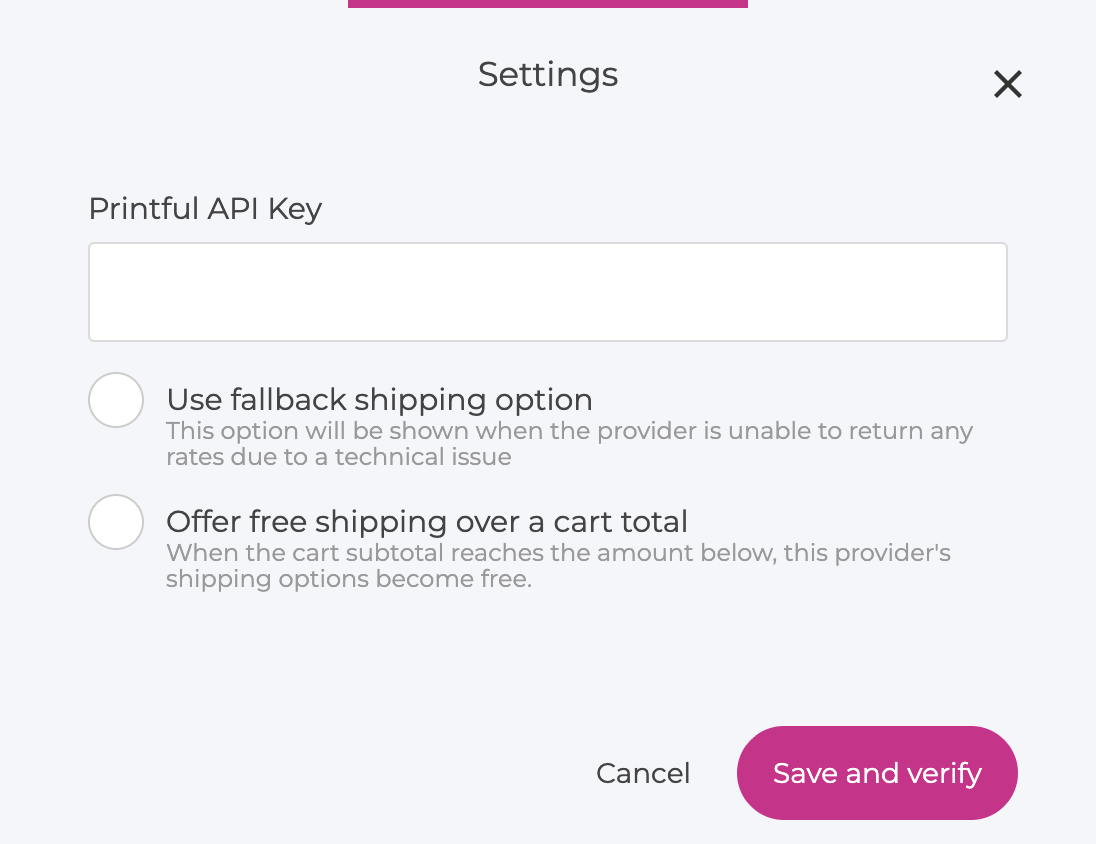
Paste the private API key you copied from Printful into the integration settings.
Once the key has been accepted, Printful is connected to your Recrevio store.
Map your products
Connecting the accounts is only the first step.
Recrevio also needs to know which product in your store corresponds to which product in Printful.
After connecting Printful, select Map Products.
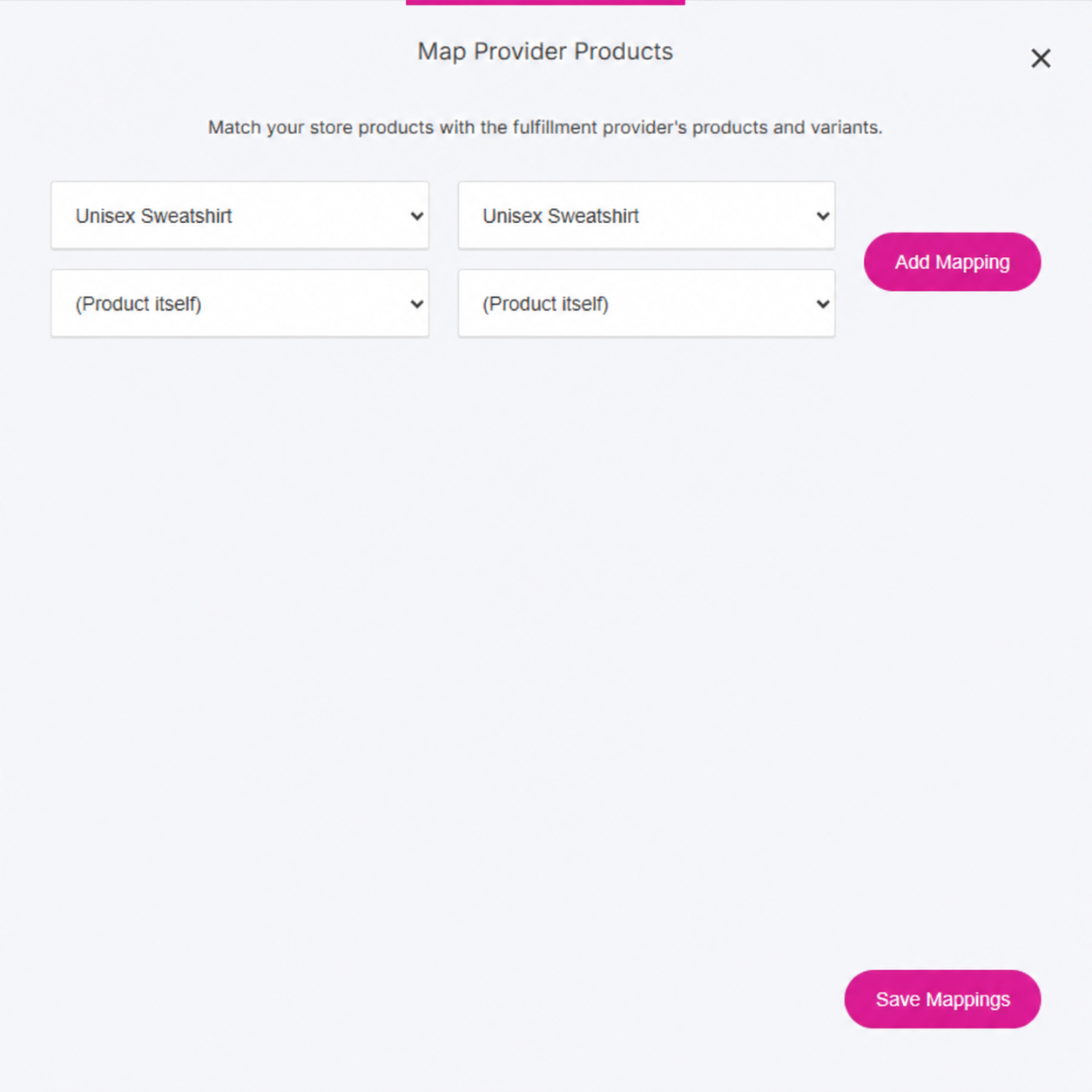
The mapping view displays:
- Your Recrevio store products on the left
- The corresponding Printful products you can map them to on the right
Find the Recrevio product you want Printful to fulfill and select the correct corresponding Printful product.
Repeat this for each product you want to connect.
Save your mappings
Once you have checked that the correct products are connected, click Save mappings.
The product will then appear as mapped.
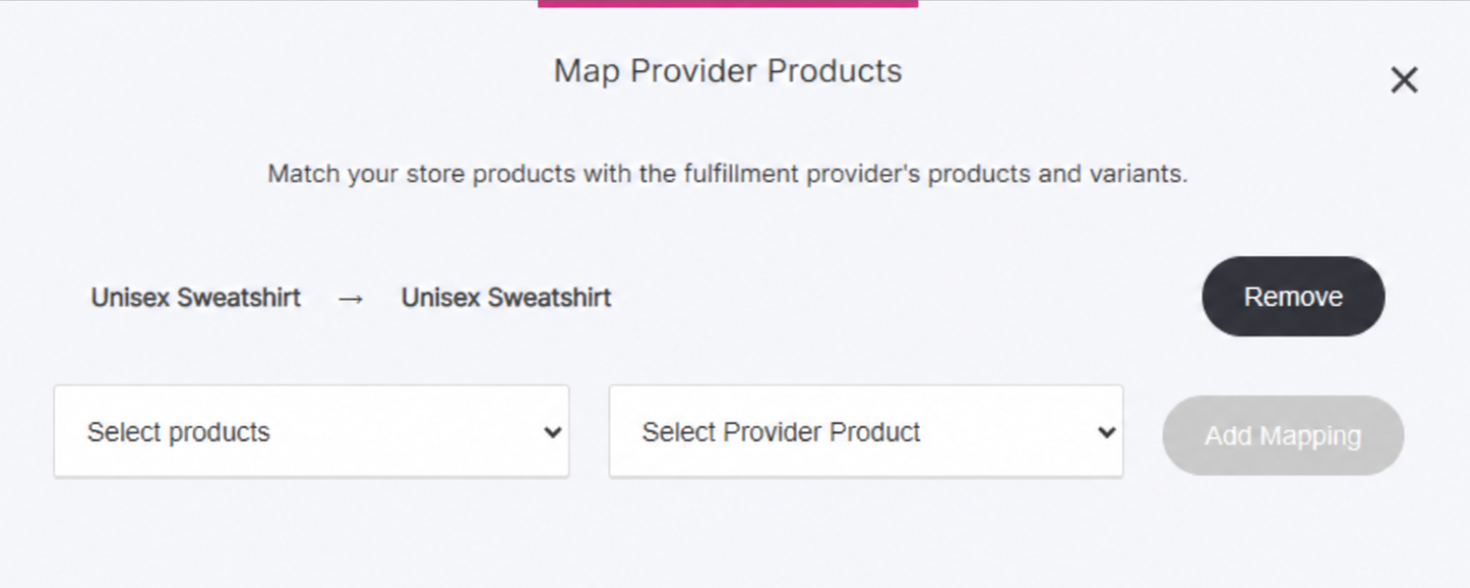
You can return to the mapping settings later to connect additional products.
💡 Tip
Double-check each mapping before saving. If the wrong Printful product is mapped to a Recrevio product, Printful could receive an order for the wrong item.
What happens when a customer orders
Once a Recrevio product has been correctly mapped to its Printful counterpart, the integration can automate the fulfillment process.
A typical order flow looks like this:
- A customer orders the product from your Recrevio store
- Recrevio identifies the mapped Printful product
- The order is sent to Printful
- Printful produces the item
- Printful packs the order
- Printful ships it to the customer
- Order and fulfillment information can remain synchronized with your store
This means you do not need to manually recreate every order in Printful.
What makes Printful different
Printful is a print-on-demand fulfillment service.
Unlike a traditional fulfillment provider where you first manufacture products and send inventory to a warehouse, Printful can produce the product after the customer places the order.
This means you can sell supported physical products without keeping finished inventory yourself.
Printful can be useful for products such as:
- Clothing
- Branded merchandise
- Prints
- Accessories
- Other customizable print-on-demand products available through Printful
💡 Tip
If you already own finished inventory and want someone else to store and ship it, ShipBob may be more appropriate. If you want products produced only after they are purchased, Printful is designed for that workflow.
Adding new products later
Connecting Printful does not mean every product in your Recrevio store automatically becomes a Printful product.
When you add another product that should be fulfilled by Printful:
- Make sure the corresponding product exists in Printful
- Open your Printful integration in Recrevio
- Select Map Products
- Find the new Recrevio product
- Map it to the correct Printful product
- Save the mapping
Only products that should be fulfilled by Printful need to be mapped.
If a Printful order does not sync
If a product order is not reaching Printful as expected, check the setup before recreating the order manually.
Make sure that:
- Your Printful integration is still connected
- The API token is valid
- The correct Printful store was used when creating the connection
- The Recrevio product is mapped
- It is mapped to the correct Printful product
- The relevant Printful product is available
- The customer has provided the shipping information required for fulfillment
If you replace or revoke your Printful token, update the integration in Recrevio with the new token.
💡 Tip
When troubleshooting, check the product mapping first. A connected Printful account alone is not enough — the ordered product must also be mapped correctly.
Printful vs other shipping integrations
Printful solves a different problem from many traditional shipping integrations.
Printful
Produces supported products on demand and then packs and ships them.
ShipBob
Stores inventory you already own and handles picking, packing, and shipping.
ShipStation and Shippo
Help manage carriers, shipping rates, labels, and shipments while you generally continue to store and fulfill the products yourself.
If you're unsure which integration fits your business, see ShipStation vs Shippo vs ShipBob vs Printful – which should I use?
Summary
- Printful lets you sell print-on-demand products without holding finished inventory
- In Printful, go to More > Store Settings > API
- Select your Printful store
- Open Printful Developers
- Go to Tokens > Private Token > Create a token
- Configure the token name, contact details, expiration, access, and permissions
- Copy the generated private API key
- In Recrevio, go to Sales & Analytics > Sales Settings > Shipping > Add integration
- Select Printful and paste your API key
- Use Map Products to connect Recrevio products to the correct Printful products
- Save the mappings before accepting orders
- Mapped orders can then be sent to Printful for production, packing, and shipping
- Return to product mapping whenever you add more products that Printful should fulfill
Used correctly, the Printful integration lets you sell physical print-on-demand products while Printful handles the production and fulfillment behind the scenes.