
Color Palette in Global Styling
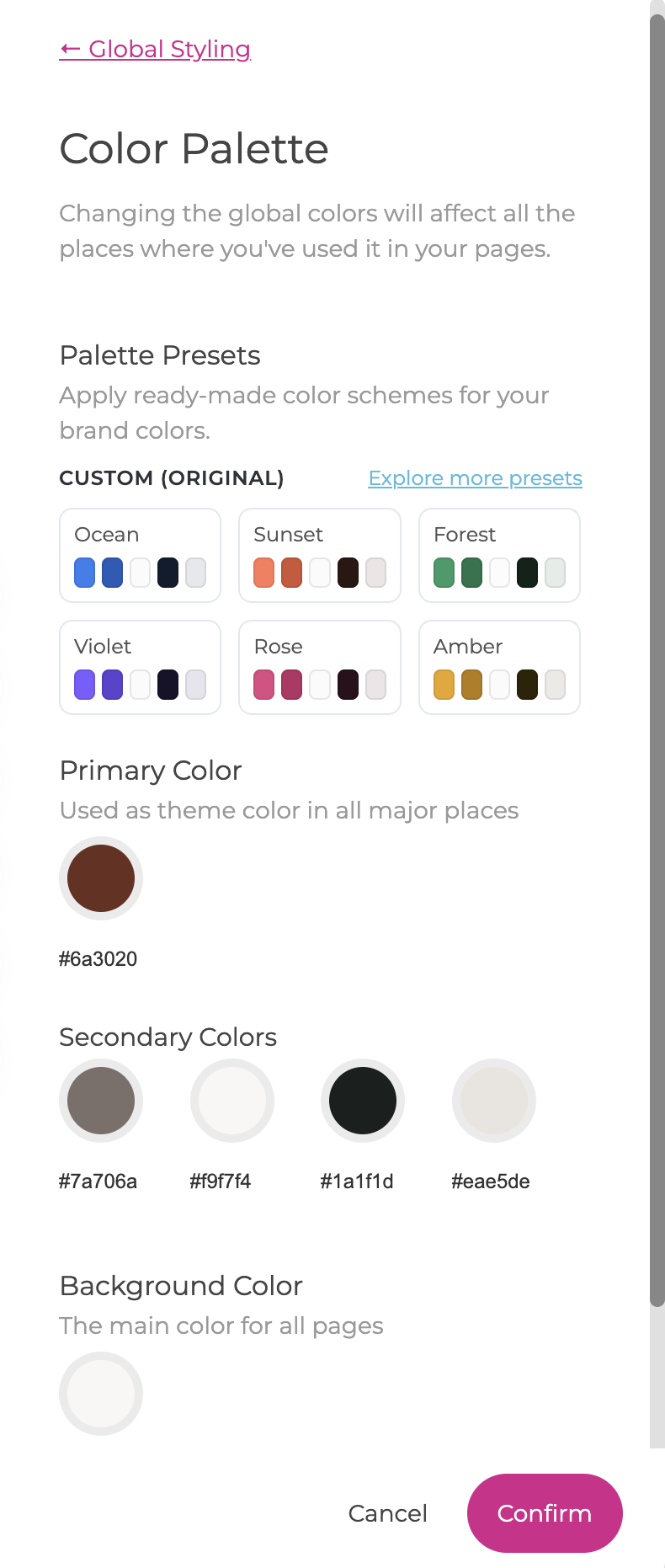
In Web Studio > Global Styling > Color Palette, you define the main colors used throughout your website.
Your global colors are reused across pages, widgets, buttons, backgrounds, text, and other design elements. Changing a global color therefore updates all elements that use that color, making it much easier to keep your site consistent.
You can either build your palette manually or start with one of the ready-made Color Palette presets and customize it from there.
⚡ Why it matters
- Keeps colors consistent across your entire site
- Makes global brand updates much faster
- Helps maintain good contrast between text, backgrounds, and accents
- Lets you quickly restyle templates using coordinated color palettes
- Gives you a strong starting point even if you don't already have a complete brand palette
Color Palette presets
At the top of the Color Palette settings, you'll find a selection of ready-made palettes.
Each preset contains a coordinated set of colors designed to work well together across your website.
Examples include palettes such as:
- Ocean
- Sunset
- Forest
- Violet
- Rose
- Amber
Select a palette to apply its colors to your Global Styling.
Explore more presets
Click Explore more presets to open a larger selection of color palettes.
If none of the available options feel right, click Generate more to create additional palette suggestions.
You can keep generating more options until you find a palette that gives you the look and overall color direction you want.
💡 Tip
You don't need to find a preset that matches your brand perfectly. It can also be used as a starting point — choose one with the right overall light/dark balance and then replace individual colors with your own brand colors.
How the preset palettes are structured
The presets are designed around five coordinated color roles.
The important part is not only which colors are used, but also their relative brightness and contrast.
Primary color
The main brand or accent color.
Typically used for:
- Calls to action
- Highlights
- Important accents
- Interactive elements
Secondary color
A darker variation that complements the primary color.
Typically useful for:
- Hover states
- Stronger accents
- Darker variations of the primary color
Light color
A very light color with a subtle hint of the primary palette.
Typically useful for:
- Light backgrounds
- Soft sections
- Subtle visual separation
Dark color
A very dark color with a subtle hint of the primary palette.
Typically useful for:
- Dark text
- Dark backgrounds
- Strong contrast
Soft neutral color
A lighter, more neutral variation that still relates to the palette.
Typically useful for:
- Backgrounds
- Cards
- Secondary sections
- Softer areas of the design
The presets are structured this way so that templates can continue to maintain good visual hierarchy and contrast when an entire palette is changed.
Applying your own brand colors
You can replace any preset color with your own custom colors.
When doing this, try to preserve the lightness and contrast role of the color you are replacing.
For example:
- Replace a dark palette color with a dark brand color
- Replace a very light palette color with a light brand color
- Replace the main accent with your primary brand color
This helps existing templates continue to look balanced without requiring lots of manual adjustments.
💡 Tip
Think contrast first, exact color second.
If a template uses a very dark color behind light text, replacing it with another dark brand color will usually work much better than replacing it with a bright or pale color.
The main Global Color settings
Below the presets, you can adjust the individual colors used throughout your website.
Primary Color
Your main website color.
This is commonly used for:
- Buttons
- Calls to action
- Highlights
- Links
- Important accents
For most brands, this should be one of your most recognizable brand colors.
Secondary Colors
Supporting colors that can be used throughout the website for:
- Accents
- Alternative sections
- Highlights
- Different visual states
- Additional brand colors
Use them to add variety without introducing unrelated colors outside your palette.
Background Color
Controls the main default background color used across pages.
A light neutral background is common for light websites, while darker designs can use a dark global background.
Main Text Color
Controls the default color used for text throughout the website.
Always make sure it has sufficient contrast against your main background color.
How Global Colors work
When an element uses a Global Color, it stays connected to that color in Global Styling.
If you later change the Global Color, all connected elements update automatically.
This can affect elements such as:
- Buttons
- Headings and text
- Backgrounds
- Borders
- Icons
- Widgets
- Sections and blocks
You can still choose a custom color for an individual element, but doing so breaks that connection for that particular setting.
💡 Tip
Use Global Colors whenever possible. Local color overrides are useful for exceptions, but too many custom colors make future redesigns much harder.
Using presets with templates
Color Palette presets are especially useful when starting from a website or funnel template.
Because the templates are designed using coordinated global colors, changing the palette can quickly transform the overall appearance while preserving the original design structure.
For the best results:
- Keep light colors light
- Keep dark colors dark
- Use your strongest brand color for the main accent
- Maintain clear contrast between backgrounds and text
This often lets you adapt a template to your brand in minutes instead of manually recoloring every element.
Choosing a good palette
A useful website palette does not need many colors.
A strong starting point is usually:
- One main brand/accent color
- One darker supporting color
- One or two light background colors
- One dark text/background color
- A small number of additional secondary accents
Too many unrelated colors can make a website feel inconsistent.
Check contrast
Your text needs to remain easy to read.
As a general accessibility guideline, normal text should aim for at least 4.5:1 contrast against its background.
Pay particular attention to:
- Text on colored backgrounds
- Buttons
- Links
- Light gray text
- Text placed over images
Custom palette or preset?
Use a preset when:
- You're starting a new site
- You don't yet have a complete brand palette
- You want to quickly explore different visual directions
- You're adapting an existing template
- You want a coordinated starting point
Build your palette manually when:
- You already have established brand guidelines
- You know the exact HEX values you need
- Your brand uses a carefully defined color system
You can also combine both approaches: start from the closest preset and replace its colors with your own.
Confirming your palette
When you're happy with the colors:
- Click Confirm to save your Global Styling changes.
- Your updated Global Colors will now be reflected wherever those colors are used.
- Review the palette across your pages.
- Check that all text remains clear and readable.
- Make sure your primary calls to action still stand out.
- Avoid changing colors individually inside specific widgets, columns or background. If something needs adjusting, return to Global Styling > Color Palette and make the change there instead. This keeps your design system consistent and easier to maintain.
Troubleshooting
My button didn't change when I changed the Primary Color
The button may be using a custom color or a Button preset with its own styling rather than the Global Primary Color.
Some elements still use the old color
Those elements may have local color overrides. Edit the element and switch it back to the appropriate Global Color.
The preset looked good initially, but some sections are difficult to read
Check whether a light color has replaced a dark color, or vice versa. Preserving the relative light/dark roles of the original palette usually fixes this.
My brand colors don't look good when I enter them exactly
Try mapping them according to contrast rather than simply replacing colors in order. Use your darkest brand tone for dark palette roles and your lightest tones for light backgrounds.
I don't like any of the presets
Open Explore more presets and click Generate more to create additional options. You can continue until you find a useful starting point.
Best Practices
- Use Global Colors instead of manually entering colors repeatedly
- Keep your palette relatively small
- Use your Primary Color for important actions and accents
- Maintain strong contrast between text and backgrounds
- Match light brand colors to light palette slots and dark colors to dark slots
- Use presets as a starting point rather than feeling locked into them
- Avoid adding slightly different versions of the same color throughout individual widgets
- Test your palette across several pages before finalizing it
- Check both light and dark sections of your website
💡 Tip
A good palette is not just a collection of attractive colors. The colors need to work together in different roles — especially when one color is used as a background and another as text on top of it.
Summary
- Color Palette controls the main colors used throughout your site
- You can choose a ready-made preset or create your own palette
- Use Explore more presets and Generate more to discover additional combinations
- Presets are built around coordinated light, dark, primary, and supporting colors
- Preserve the light/dark role of colors when replacing preset colors with your own brand colors
- Global Colors update connected elements throughout the site automatically
- Use custom local colors only when you intentionally need an exception
- Always check contrast and readability before confirming your palette
A well-structured Global Color Palette lets you change the visual identity of your website quickly while keeping pages, templates, and widgets consistent.