
All Products Overview
The Products area is where you manage everything you sell inside Recrevio. From here, you can create, organize, import, and manage all your products—both digital and physical – as well as services and memberships.
This section acts as the central product hub for your business.
Overview: Products vs Categories
At the top of the view, you’ll find two main tabs:
- Products – Shows all products you’ve created
- Categories – Used to organize products into logical groups
You can switch between these at any time depending on whether you’re managing products or structuring your catalog.
Products View
When you open Products > All Products, you’ll see a list of all existing products.
If no products have been created yet, the view will show an empty state.

What You Can Do Here
- View all products in one place
- Filter products by category
- Search for specific products
- Add new products
- More actions
- Import products
- Bulk delete selected products
Once products exist, this list becomes your primary workspace for product management.
Top Actions & Controls
Filter products by Category
You can easily filter the product list by category.
Add Product
Click Add Product to create a new product.
You’ll be prompted to choose what type of product you want to create.
Search
Use the search icon to quickly find products by name.
More Menu
The More menu includes bulk actions such as:
-
Import – Upload products in bulk
Opens a product import dialogue that let's you import a list of products in a .csv file. A sample import file can be downloaded for reference

- Delete selected – Remove multiple products at once

Types of Products You Can Create
When adding a new product, you can choose from the following types

Physical Product
Used for tangible goods that require shipping.
Examples:
- Merchandise
- Books
- Physical kits or materials
👉 See separate article: How to Create and Manage Physical Products
Digital Product
Used for downloadable or online-only content. Customers will receive a download link to the file that will expire 24 hours after the product was purchased.
Examples:
- PDFs
- E-books
- Templates
- Digital downloads
👉 See separate article: How to Create and Manage Digital Products
Service
Used for one-time or recurring services. Basically anythin that doesn't require shipping, a downloadable link or member access.
Examples:
- Coaching sessions
- Consulting
- Appointments
- Custom work
👉 See separate article: How to Create and Manage Service Products
Membership
Used for controlling access to content behind login, typically used for gating content in circles – online courses, programs, memberships, communities, and more.
Examples:
- Membership portals
- Programs
- Ongoing access to Circles, courses, or resources
👉 See separate article: How to Create and Manage Membership Products
After Products Are Created
Once products have been created, they will
- Appear in the All Products list
- Be filterable by category in the built-in store
- Be available for use in:
- Built-in store
- Checkouts anywhere
- Pages
- Funnels
- Popups
- Circles
- Blog articles
- Portfolio items
- Automations
This makes the Products section the foundation for monetization across your entire platform.
Product Categories
Categories help you organize and structure your product catalog.

Categories View
Under the Categories tab, you can:
- Create new categories
- Create new subcategories
Create a Category
To create a new category:
-
Click Create a Category
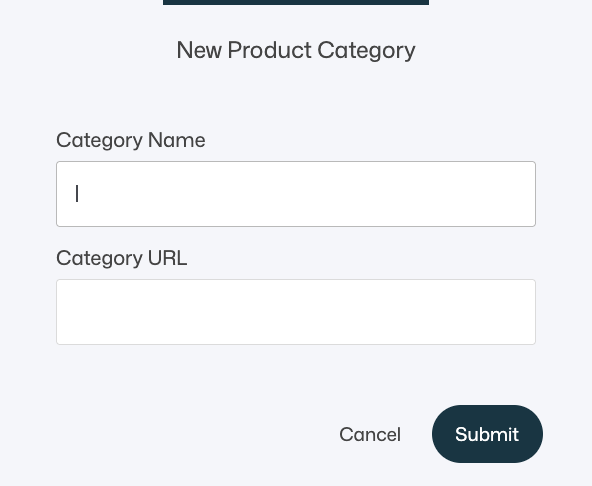
Enter:
- Category Name
- Category URL (used for clean links and navigation)
- Click Submit
Once you have created a category, you are able to create sub-categories by clicking the + icon for that category and following the same process as when you added the category, simply filling out the sub-category name and URL:

Reordering Categories
You can easily reorder in which order the product categories appear by simply grabbing the handle to the left of the category or sub-category name to drag and drop it to the desired position.
Assigning categories and sub-categories
You assign products to categories and sub-categories while creating or editing the individual products. Products can't be assigned in bulk.
💡 Tip
Categories are optional but highly recommended for larger product catalogs.
Summary
The Products → All Products area allows you to:
- Create and manage all product types in one place
- Organize products using categories
- Search, filter, import, and bulk-manage products
- Power checkouts, memberships, services, and digital sales
💡 Tip
Think of this section as your product control center – everything you sell starts here.